ENGLISH
25
After initializing, the device will be ready to use.
Notices
x Usually, it is not necessary to change your video system (PAL/NTSC), but if the TV only supports
NTSC or PAL, you should use the P/N button to select a color system to match your TV system.
x Press one of the
/ / / buttons to move the cursor, and use the / ENTER button to
confirm selection (enters media library, enters file folder, or starts playing files).
x Press the
/ STOP button button to stop playing and go back to FILE LIBRARY.
x Press the MENU button to show the DEVICE LIST or FILE LIBRARY.
x Press the
/ POWER button to enter/exit standby mode.
x We advise you to disconnect the device from power if the device will not to be used for a long
time.
File Library
If there are no Memory Cards connected to the CMED2PRO (only internal HDD present), the File
Library will appear on the TV screen when the Media Player is turned on.
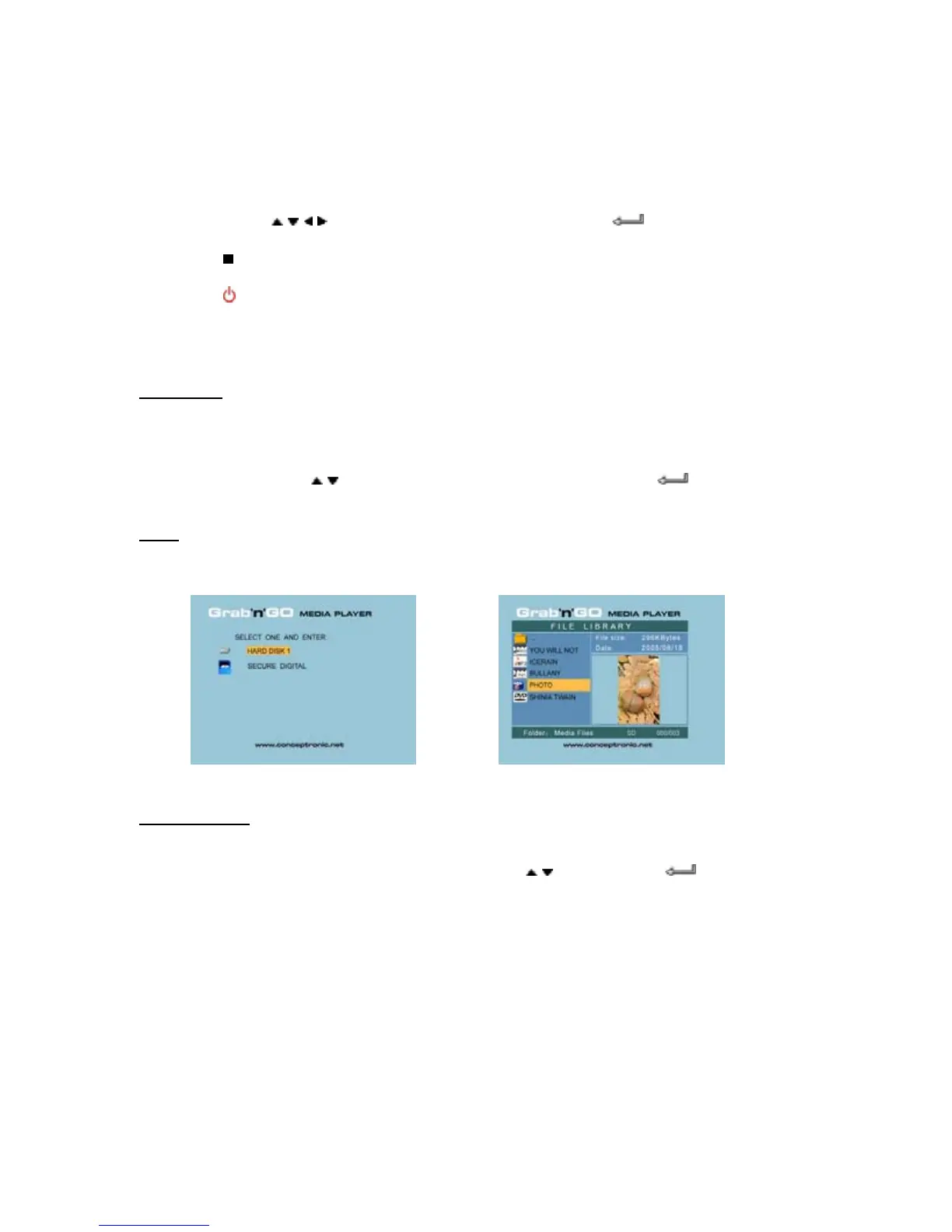
If there are Memory Cards connected, the PARTITION LIST will appear on the TV screen instead of
the File Library. Use the
/ buttons to move the cursor, and pressing the / ENTER button will
to go to the File Library.
Note:
It is possible that it will take a while until you can browse through the menu. Before the
menu is displayed your connected device(s) will be indexed. On screen you will see: WAIT...
This means that all suitable files will be indexed and displayed in your menu.
DEVICE LIST FILE LIBRARY
Change Device:
If there are more Memory Cards connected to the CMED2PRO, you can press the MENU button to go
back to the DEVICE LIST and select a device by pressing
/ button and the / ENTER button.


 To Next Page