EasyManua.ls Logo

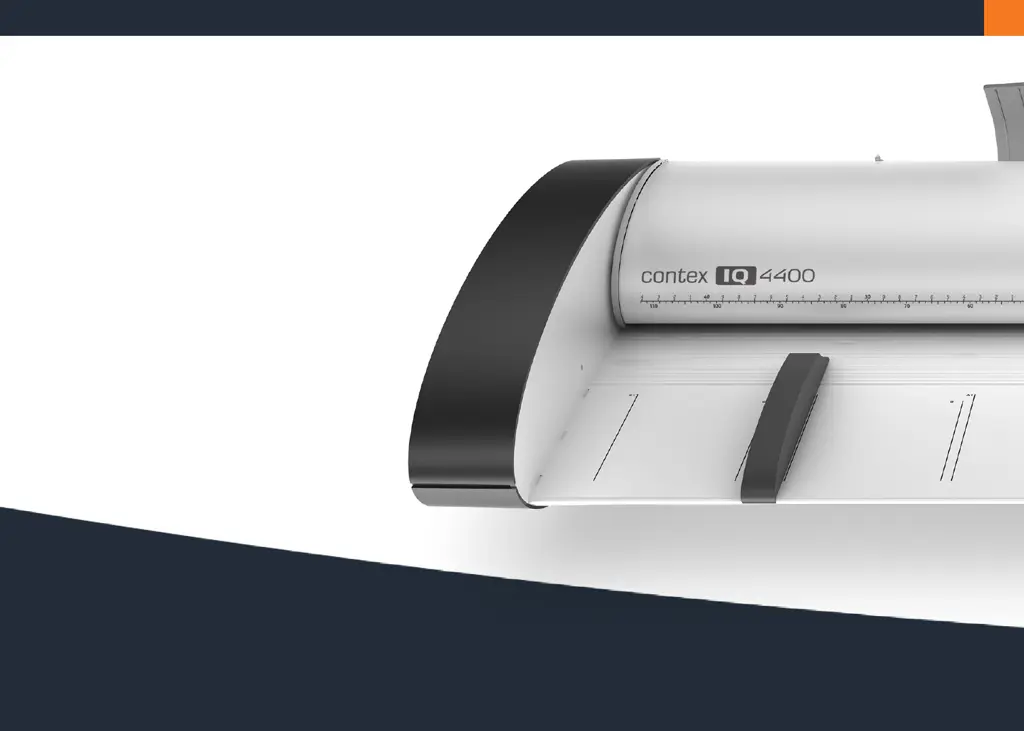
Contex IQ 4400 Series - User Manual

Contex IQ 4400 Series
61 pages
Print Icon
To Next Page IconTo Next Page
Loading...
User’s Guide
Wide Format Scanners
Models: IQ 2400 and IQ 4400 series
September 2012

Questions and Answers

Summary

About this Guide

Overview of the Scanner

Details the physical components and layout of the scanner.

Installation

Guides through the process of installing the scanner and its drivers.

Turning the Scanner ON and OFF

Explains how to power the scanner on and off, including sleep modes.

Loading Originals into the Scanner

Instructions on how to feed documents into the scanner for scanning.

Scanning

Covers software applications and scanning operations.

Maintenance

Information on keeping the scanner in good working order.

Downloading New Firmware

How to update the scanner's internal software.

Trouble Shooting

Provides solutions for common scanner problems and errors.

Appendixes

Contains supplementary information like safety and regulations.

Overview of the Scanner

Scanner front view

Identifies and labels the parts visible from the front of the scanner.

Scanner rear view

Identifies and labels the parts visible from the rear of the scanner.

Installation

System requirements

Lists the necessary hardware and software specifications for installation.

Installation step by step

Provides a step-by-step guide for installing the scanner.

Turning the Scanner ON;OFF

Main power switch

Details the location and operation of the scanner's main power switch.

Self test procedure

Describes the automatic self-test performed when the scanner is powered on.

Sleep and wake modes

Explains how the scanner enters and exits sleep and wake states.

Automatic shut down after idle time

Covers setting the idle time for automatic sleep mode entry.

Loading Originals into the Scanner

Load, face up, at the scanners center

Instructions for positioning documents for scanning.

Automatic loading

Details the process of automatic document feeding.

Manual loading

Instructions for manually feeding documents into the scanner.

Unloading the original after scan

How to eject scanned documents from the scanner.

Soft Handling

Explains the slow-feed option for delicate originals.

Setting the input size

How to define the dimensions of the document to be scanned.

Scanning

Software applications for scanning

Discusses software used to control the scanner.

Running applications from the scanner panel

How to use one-touch buttons to launch software.

Batch scanning

Instructions for scanning multiple documents with the same settings.

Monitoring your scanner with WIDEsystem

How to use WIDEsystem to check scanner status and manage functions.

Maintenance

About scanner maintenance

Overview of the three basic maintenance tasks: cleaning, calibration, and replacement.

Cleaning the scan area

Details on how to clean the scanner's internal components.

Overview - Key maintenance points - Cleaning

Visual guide to key parts of the scanner relevant to cleaning.

Calibration

Instructions on how to calibrate the scanner for optimal performance.

Replacing the glass plate

Why and how to replace the scanner's glass plate.

Downloading New Firmware

What is Firmware?

Explains the scanner's operating system and its role.

When do I need new firmware?

Details the conditions and reasons for upgrading scanner firmware.

How to identify the firmware version running in the scanner?

Guides on how to check the current firmware version of the scanner.

How to install new firmware?

Step-by-step instructions for installing new scanner firmware.

Trouble Shooting

How are errors reported on your system

Explains how the scanner indicates and reports errors via panel and software.

Correcting common errors

General advice and steps for resolving detected scanner errors.

Technical assistance

Guidance on when to seek technical support and information needed.

Problems Related to Scanner Installation

Troubleshooting common issues encountered during scanner installation.

Problems Related to Operation of the Scanner

Solutions for common issues that arise during normal scanner operation.

Error message: Paper Jam

Detailed steps to diagnose and resolve a paper jam error.

Scanner Maintenance error message: Stitching failed

How to fix stitching errors that occur during scanner maintenance.

Application control keys (one touch) do not work

Troubleshooting common problems with the scanner's one-touch buttons.

Cant operate or contact scanner after Firmware upgrade failure.

Steps to recover the scanner from a failed firmware update process.

Problems Related to the Scanning Results

Solutions for issues affecting the quality of scanned images.

Appendixes

Important safety instructions

Critical safety guidelines for operating and maintaining the scanner.

Regulations

Information on FCC, CE, and VCCI compliance for the scanner.

Toxic or Hazardous Substances or Elements

Details on hazardous materials content as per regulatory standards.

Contex IQ 4400 Series Specifications

General IconGeneral
TypeLarge Format Scanner
Maximum Scan Width44 inches
InterfaceUSB 2.0, Gigabit Ethernet
WeightVaries by model (e.g., ~100 lbs)
DimensionsVaries by model (e.g., ~54 x 25 x 15 inches)
Document LengthUnlimited
Maximum Resolution1200 dpi
Color Depth48-bit
Supported Operating SystemsWindows

Related product manuals