35
USING THE
MAINMENU
Connect Device
Manual Connect
Auto Connect
Cancel Continue
Auto Connect
are in search mode.
Before using Auto
Connect, be sure no other
nearby Medtronic devices
New Device
See User Guide to connect
new device. Select Search
below when ready.
Search
CONNECT TO PUMP
Searching...
Cancel
The search may take up to 2minutes.
Searching...
Start search on new device.
Search may take up to 2
minutes.
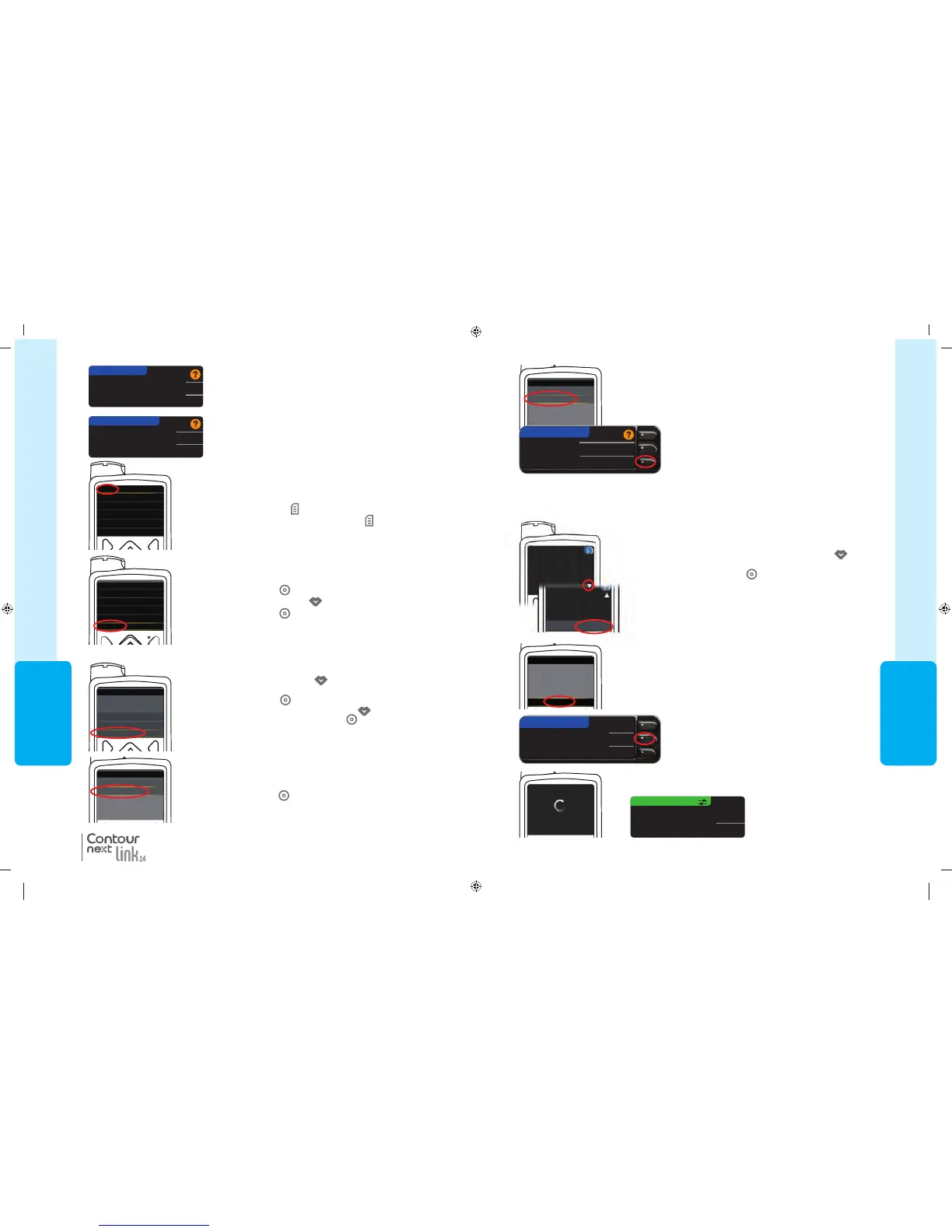
10. Read the pump screen. Be sure other nearby Medtronic
devices are NOT in search mode. Use the down arrow
to scroll to the next page. Use arrow buttons to scroll to
Continue. Press Select button
.
Connecting to the Pump Using Auto Connect
9. Place the meter and pump next to each other. Select
Auto
Connect
on your pump.
NOTE: With Auto Connect, the meter automatically searches for a pump. With
Manual Connect, you enter your meter serial number into the pump. See page 38
for information about Manual Connect.
Manual Connect
Auto Connect
CONNECT TO PUMP
Select Auto Connect on your meter.
11. Place the meter and pump next to each other. Select Search
on your pump.
Search
Cancel
CONNECT TO PUMP
Select “Search” on
Your Pump and meter.
Select Search on yourmeter.
85587269_CntrNextLINK_2_4_UG_EN_FpBp_v4.indd 35 11/18/16 9:03 AM
USING THE
MAINMENU
34
MiniMed 630G
MiniMed 670G
6a. Press any button to turn the screen on.
Press the Menu button
.
If your pump does not have a Menu button
go to step 6b.
6b. Press Select button
.
Use the Down arrow button
to scroll to
Options
.
Press Select button
.
Enter BG
Basal
Audio Options
Status
Suspend Delivery
Options
NOTE: If your pump screen turns off, press any button to turn it back on.
7. Press the Down arrow button
to scroll to Utilities.
Press Select button
.
In the Utilities menu, use the down arrow to scroll to
Device Options
. Press Select button .
8. In the Device Options menu, scroll to
Connect Device
.
Press Select button
.
5. Press OK.
Put the meter down and pick up your pump.
Select “Connect
Device” on your Pump.
CONNECT TO PUMP
OK
Go Back
4. The Connect to Pump screens appear next. Press Yes
to connect to a MiniMed insulin pump now.
No MiniMed Pump
connected. Connect now?
PUMP OPTIONS
Yes
No
Menu
Insulin Settings
Event Markers
Reminders
Utilities
Sensor Settings
®
Connecting to the Pump Using Auto Connect
Utilities
Self Test
Carb Unit
Manage Settings
Sensor Demo
Device Options
Device Options
Manage Devices
OR
For the MiniMed 670G
For the MiniMed 630G
Connect Device
85587269_CntrNextLINK_2_4_UG_EN_FpBp_v4.indd 34 11/18/16 9:03 AM
35
USING THE
MAINMENU
Connect Device
Manual Connect
Auto Connect
Cancel Continue
Auto Connect
are in search mode.
Before using Auto
Connect, be sure no other
nearby Medtronic devices
New Device
See User Guide to connect
new device. Select Search
below when ready.
Search
CONNECT TO PUMP
Searching...
Cancel
The search may take up to 2minutes.
Searching...
Start search on new device.
Search may take up to 2
minutes.
10. Read the pump screen. Be sure other nearby Medtronic
devices are NOT in search mode. Use the down arrow
to scroll to the next page. Use arrow buttons to scroll to
Continue. Press Select button
.
Connecting to the Pump Using Auto Connect
9. Place the meter and pump next to each other. Select
Auto
Connect
on your pump.
NOTE: With Auto Connect, the meter automatically searches for a pump. With
Manual Connect, you enter your meter serial number into the pump. See page 38
for information about Manual Connect.
Manual Connect
Auto Connect
CONNECT TO PUMP
Select Auto Connect on your meter.
11. Place the meter and pump next to each other. Select Search
on your pump.
Search
Cancel
CONNECT TO PUMP
Select “Search” on
Your Pump and meter.
Select Search on yourmeter.
85587269_CntrNextLINK_2_4_UG_EN_FpBp_v4.indd 35 11/18/16 9:03 AM
USING THE
MAINMENU
34
MiniMed 630G
MiniMed 670G
6a. Press any button to turn the screen on.
Press the Menu button
.
If your pump does not have a Menu button
go to step 6b.
6b. Press Select button
.
Use the Down arrow button
to scroll to
Options
.
Press Select button
.
Enter BG
Basal
Audio Options
Status
Suspend Delivery
Options
NOTE: If your pump screen turns off, press any button to turn it back on.
7. Press the Down arrow button
to scroll to Utilities.
Press Select button
.
In the Utilities menu, use the down arrow to scroll to
Device Options
. Press Select button .
8. In the Device Options menu, scroll to
Connect Device
.
Press Select button
.
5. Press OK.
Put the meter down and pick up your pump.
Select “Connect
Device” on your Pump.
CONNECT TO PUMP
OK
Go Back
4. The Connect to Pump screens appear next. Press Yes
to connect to a MiniMed insulin pump now.
No MiniMed Pump
connected. Connect now?
PUMP OPTIONS
Yes
No
Menu
Insulin Settings
Event Markers
Reminders
Utilities
Sensor Settings
®
Connecting to the Pump Using Auto Connect
Utilities
Self Test
Carb Unit
Manage Settings
Sensor Demo
Device Options
Device Options
Manage Devices
OR
For the MiniMed 670G
For the MiniMed 630G
Connect Device
85587269_CntrNextLINK_2_4_UG_EN_FpBp_v4.indd 34 11/18/16 9:03 AM
85587269_CntrNextLINK_2_4_UG_EN_FpBp_v5_UnMaskedPlaced.pdf:38


 To Next Page