53
TECHNICAL
& CARE
For more information, contact Customer Service. Please see back cover for contact
information.
IMPORTANT: The CONTOUR NEXT LINK 2.4 meter has only been tested for use with
G
LUCOFACTS DELUXE diabetes management software and CareLink Personal.
Ascensia Diabetes Care is not responsible for any erroneous results from the use
of other software.
Wrong Strip Inserted
Repeat test with
correct test strip.
E04
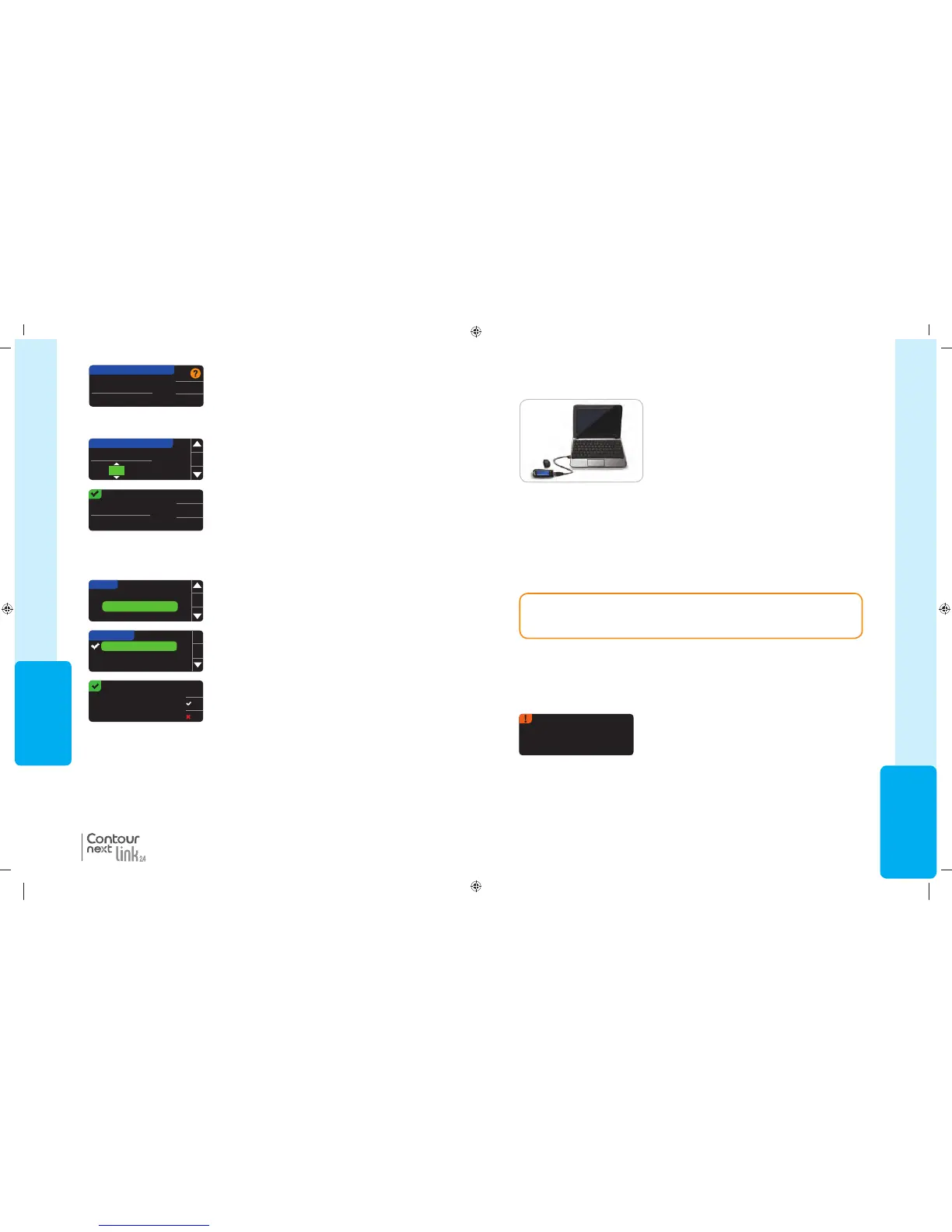
Transferring Data to CareLink
®
Personal Software
Transferring Data to CareLink
®
Personal Software
Technical and Care
You can easily transfer blood glucose results from your
meter to CareLink Personal software.
You can also wirelessly transfer data from your
MiniMed insulin pump to CareLink Personal software
using your CONTOUR
®
NEXT LINK 2.4 meter.
1. Refer to the CareLink Personal software user guide for instructions on how to set up
CareLinkPersonal software and load the required drivers onto your computer.
2. If you are running G
LUCOFACTS
®
DELUXE diabetes management software on your
computer, you must close it.
3. Start up CareLink Personal. Follow the instructions to plug your C
ONTOUR NEXT LINK 2.4
meter into a USB port on your computer. CareLink Personal will automatically find the
CONTOUR NEXT LINK 2.4 meter and your MiniMed insulin pump.
Your C
ONTOUR NEXT LINK 2.4 meter is also compatible with GLUCOFACTS DELUXE diabetes
management software, which may not be available in all countries.
Error Detection Displays
• An error screen will always have an “E” with a number in the lower left corner of
thedisplay.
• If there is an error (hardware, software, testing errors) detected by your meter, your meter
will beep twice.
• You will see specific instructions to guide you. The first line of the error screen will tell you
the error. The next lines describe what you should do. When an error screen displays an
OK, press the button next to it to continue.
• If you do not resolve the problem, contact Customer Service. Please see back cover for
contact information.
85587269_CntrNextLINK_2_4_UG_EN_FpBp_v4.indd 53 11/18/16 9:03 AM
USING THE
MAINMENU
52
Accept
Change
HIGH AND LOW ALERTS
High: 250
mg/dL
Low: 70
mg/dL
Alerts are set.
Done
Change
High: 251
mg/dL
Low: 69
mg/dL
4. Choose Accept to use the preset Alert levels (or the
Alert levels you chose during initial setup) for High and
Low Alerts. The preset High Alert is 250 mg/dL and the
preset Low Alert is 70mg/dL.
5. Choose Change if you wish to use different Alert levels.
6. Press the or button to select your High and Low
Alert. Press
OK
after each selection.
7. The next screen confirms your choices. Press Done.
High and Low Alerts
Language
Customer Service
OK
SETUP
Language:
English
OK
No
LANGUAGE
English
Deutsch
Español
OK
HIGH AND LOW ALERTS
High: 251
mg/dL
Low: 70
mg/dL
OK
®
Set Language
Set Language
1. Press and hold the top Menu button to turn the meter on.
2. Press the button to highlight
Setup
. Press
OK
to select.
5. Verify that the language you selected is displayed.
Press
OK
to confirm.
If the correct language is not displayed, press
No
.
3. Press the button to highlight
Language
. Press
OK
to select.
Customer Service
This option is to be used if you are speaking to a Customer Service representative. They will
give you a code that enables them to verify certain settings. It is not for use any other time.
Please see back cover for contact information.
4. Press the or button to select the language you
prefer. Press to see more choices. Press OK.
85587269_CntrNextLINK_2_4_UG_EN_FpBp_v4.indd 52 11/18/16 9:03 AM
53
TECHNICAL
& CARE
For more information, contact Customer Service. Please see back cover for contact
information.
IMPORTANT: The CONTOUR NEXT LINK 2.4 meter has only been tested for use with
G
LUCOFACTS DELUXE diabetes management software and CareLink Personal.
Ascensia Diabetes Care is not responsible for any erroneous results from the use
of other software.
Wrong Strip Inserted
Repeat test with
correct test strip.
E04
Transferring Data to CareLink
®
Personal Software
Transferring Data to CareLink
®
Personal Software
Technical and Care
You can easily transfer blood glucose results from your
meter to CareLink Personal software.
You can also wirelessly transfer data from your
MiniMed insulin pump to CareLink Personal software
using your CONTOUR
®
NEXT LINK 2.4 meter.
1. Refer to the CareLink Personal software user guide for instructions on how to set up
CareLinkPersonal software and load the required drivers onto your computer.
2. If you are running G
LUCOFACTS
®
DELUXE diabetes management software on your
computer, you must close it.
3. Start up CareLink Personal. Follow the instructions to plug your C
ONTOUR NEXT LINK 2.4
meter into a USB port on your computer. CareLink Personal will automatically find the
CONTOUR NEXT LINK 2.4 meter and your MiniMed insulin pump.
Your C
ONTOUR NEXT LINK 2.4 meter is also compatible with GLUCOFACTS DELUXE diabetes
management software, which may not be available in all countries.
Error Detection Displays
• An error screen will always have an “E” with a number in the lower left corner of
thedisplay.
• If there is an error (hardware, software, testing errors) detected by your meter, your meter
will beep twice.
• You will see specific instructions to guide you. The first line of the error screen will tell you
the error. The next lines describe what you should do. When an error screen displays an
OK, press the button next to it to continue.
• If you do not resolve the problem, contact Customer Service. Please see back cover for
contact information.
85587269_CntrNextLINK_2_4_UG_EN_FpBp_v4.indd 53 11/18/16 9:03 AM
USING THE
MAINMENU
52
Accept
Change
HIGH AND LOW ALERTS
High: 250
mg/dL
Low: 70
mg/dL
Alerts are set.
Done
Change
High: 251
mg/dL
Low: 69
mg/dL
4. Choose Accept to use the preset Alert levels (or the
Alert levels you chose during initial setup) for High and
Low Alerts. The preset High Alert is 250 mg/dL and the
preset Low Alert is 70mg/dL.
5. Choose Change if you wish to use different Alert levels.
6. Press the or button to select your High and Low
Alert. Press
OK
after each selection.
7. The next screen confirms your choices. Press Done.
High and Low Alerts
Language
Customer Service
OK
SETUP
Language:
English
OK
No
LANGUAGE
English
Deutsch
Español
OK
HIGH AND LOW ALERTS
High: 251
mg/dL
Low: 70
mg/dL
OK
®
Set Language
Set Language
1. Press and hold the top Menu button to turn the meter on.
2. Press the button to highlight
Setup
. Press
OK
to select.
5. Verify that the language you selected is displayed.
Press
OK
to confirm.
If the correct language is not displayed, press
No
.
3. Press the button to highlight
Language
. Press
OK
to select.
Customer Service
This option is to be used if you are speaking to a Customer Service representative. They will
give you a code that enables them to verify certain settings. It is not for use any other time.
Please see back cover for contact information.
4. Press the or button to select the language you
prefer. Press to see more choices. Press OK.
85587269_CntrNextLINK_2_4_UG_EN_FpBp_v4.indd 52 11/18/16 9:03 AM
85587269_CntrNextLINK_2_4_UG_EN_FpBp_v5_UnMaskedPlaced.pdf:56


 To Next Page
 Loading...