12
To adjust frame rate:
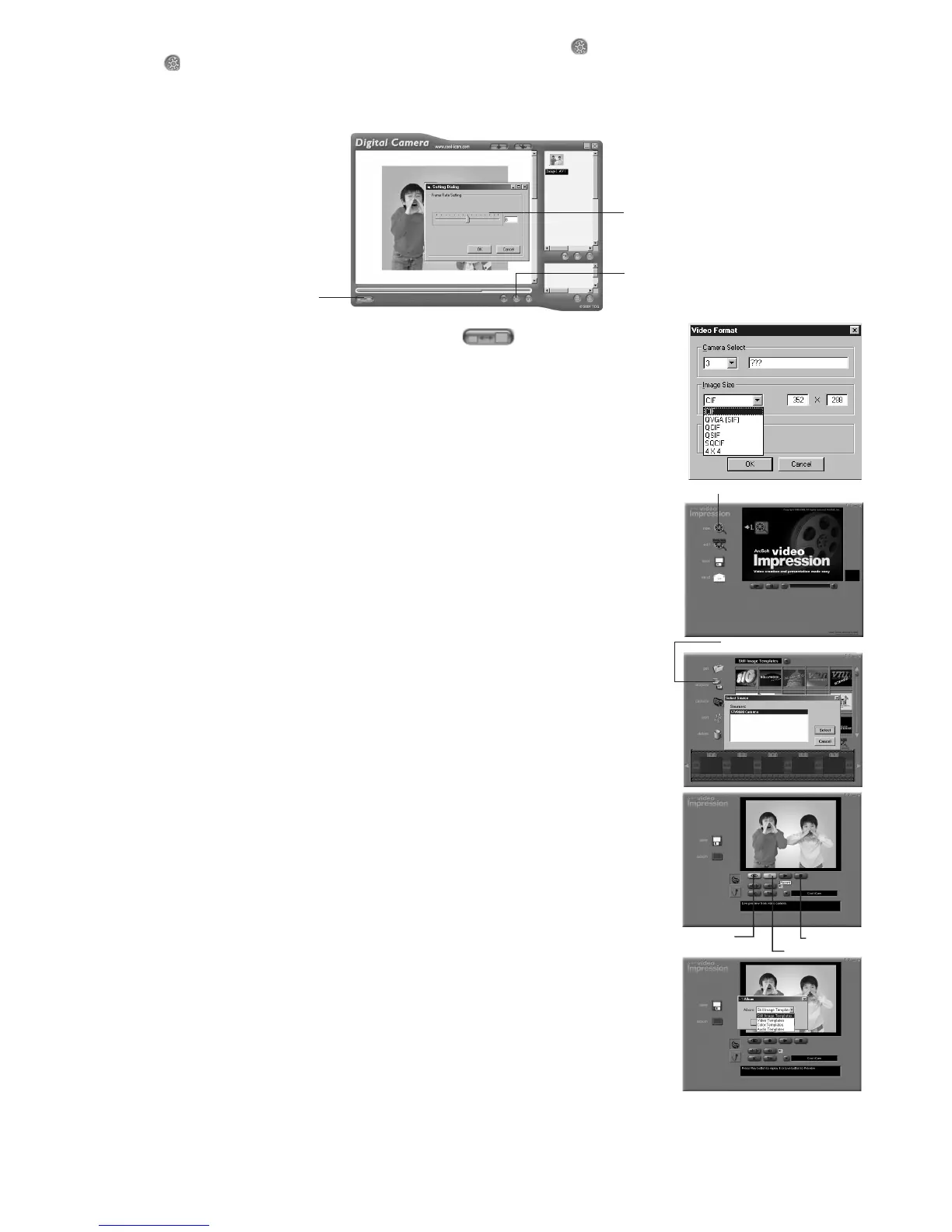
You can adjust the frame rate (number of frame per second) by pressing the Frame Rate Button.
1. Click the button.
2. Enter the frame rate you want for your movie clip.
For example:-
• 80 frames at 10 frames per second = 8 sec. movie clip
• 80 frames at 5 frames per second = 16 sec. movie clip
Adjust the frame rate
Adjust Resolution
Enter the number of seconds you want for
the video clip to run at. (frames per second)
To adjust resolution:
You can adjust resolution for the movie clip by pressing the Adjust Resolution Button.
6.11 How to use ArcSoft VideoImpression™ 1.6
“New” icon
1. Select the “VideoImpression™ 1.6” icon from the “ArcSoft Camera Suite” program
group on the Windows® Start Menu.
2. Choose the “New” icon.
Using the image(s) stored in your Pocket C@m:-
“Acquire” icon
3. Click “Acquire” icon. Select “STV0680 Camera” or “USB Dual Mode Camera” (for XP
user only) as input source. Click “Capture” and the capture interface will show up.
To capture image(s) from your Pocket C@m, select the wanted image(s) and click
“Capture”.
If you don’t want to use the images in your Pocket C@m, click “Cancel” or “x” to
close.
Using live images:-
“Pause” icon
“Record” icon
“Live” icon
4. If you want to capture live video, make sure your Pocket C@m is connected to your
PC. Click the “Live” icon and preview the live video on screen.
Click the “Record” button to start recording. Hit “ESC” key or “Pause” button to stop
recording.
A warning statement will show up which tells you now many frames you have
captured. Click “OK” to knowledge.
5. Press “Play” button to replay the video recorded.
Click the “Save” icon to save the video in .avi format. You can choose which album
you would like to allocate your video recorded.
If you save your video under the Video Template, we will be able to locate the saved
video in the Video Template album.
6. You can also use the existing templates, e.g. Still Image Template, Video Templates,
etc., to create your own movie clip
7. For further help on how to use ArcSoft™ VideoImpression™ 1.6, click the “?” at the
top right hand corner to access the Help Topics.



 To Next Page