4
5.1 Shutter Button
The Shutter Button has 5 functions. Although these are covered in more detail later in this manual, please nd below a brief
description.
5.1.1 Still Image
To take an image, aim the Pocket C@m by looking through the viewnder and press the Shutter Button once. A beep means
you have taken an image. (see section 6)
5.1.2 Movie Clip
To take a movie clip, press and hold the Shutter Button to start taking continuous images when in the Continuous
Mode. (see section 6)
5.1.3 Self-Timer
To start the 10 second Self-Timer, simply press the Shutter Button when the Pocket C@m is in the Self-Timer Mode.
(see section 6)
5.1.4 Clear Memory
To clear all images that you have taken, simply press the Shutter Button when you are in the Clear mode. (see section
6)
5.1.5 Change Resolution
The Shutter Button can be used to switch between Hi-Res and Low-Res settings. To do this, the memory must rst be cleared,
and the resolution option selected. (see section 6)
5.2 Viewnder
The viewnder is the window you look through when you aim the Pocket C@m. Make sure you center the subject in the
viewnder before taking an image.
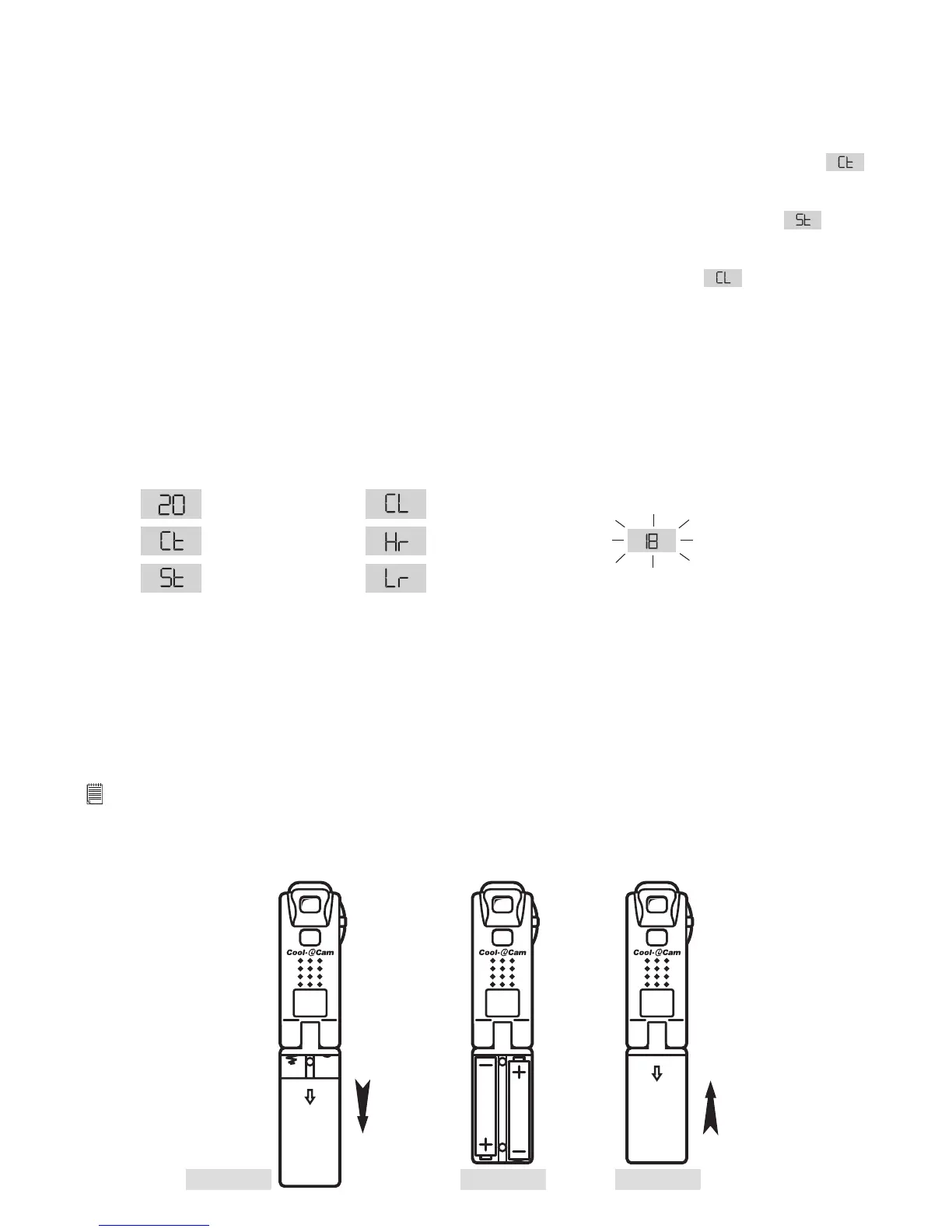
5.3 LCD Display
By default, the 2 digit LCD screen displays the number of images remaining that can be taken before the Pocket C@m’s
memory is lled. It is also used in conjunction with the Mode Button to access and display the Pocket C@m settings.
Images Remaining
Clear Memory Mode
Self-Timer Mode
Low Resolution (Low-Res) Mode
High Resolution (Hi-Res) ModeContinuous Mode
Low Battery Warning
(LCD will blink)
5.4 Mode Button
The Mode Button has 2 primary functions:
5.4.1 Turning your Pocket C@m On from the Stand-by Mode
When your Pocket C@m is in Stand-by Mode, press the Mode button to reactivate.
5.4.2 Cycling Through the Operating Modes
You can also use the Mode Button to cycle through the operating modes of your Pocket C@m. (For more details, see
section 6 Getting Started)
5.5 Battery Installation
Important Note:
To avoid lost images when change/install batteries, please make sure your images are uploaded to your PC or Mac before changing batteries. Or
make sure the Pocket C@m is connected to your PC or Mac via the USB cable with your PC or Mac is switched on.
1. Press and push the battery door downward (as shown on the diagram below). Insert the 2 fresh AAA alkaline batteries into the battery
compartment. (Make sure you follow the correct polarity (+) (-) as indicated.)
2. Push the battery door upwards to close the battery door.
Diagram A
Diagram B
Diagram C
Press and push
downward to open
push upward to
close



 To Next Page