6
6. Getting Started
6.1 How to Use Your Pocket C@m
6.1.1 Switching the Pocket C@m On
Your Pocket C@m will automatically switch on when you insert new batteries or connect your Pocket C@m to your PC or Mac
via USB port. Press the Mode Button to turn on your Pocket C@m when your Pocket C@m is in Stand-by Mode. The LCD will
indicate the
mode for high resolution and it will also display the number of images which may be taken.
6.1.2 Taking an Image
Press the Shutter Button to take an image. The Pocket C@m will beep. A high pitched beep indicates that the image was
taken successfully and the counter will count down. The LCD screen displays the number of available images remaining.
• A low beep indicates insufcient light to take an image.
• A series of beeps indicates that the Pocket C@m is full.
6.1.3 Mode Setting
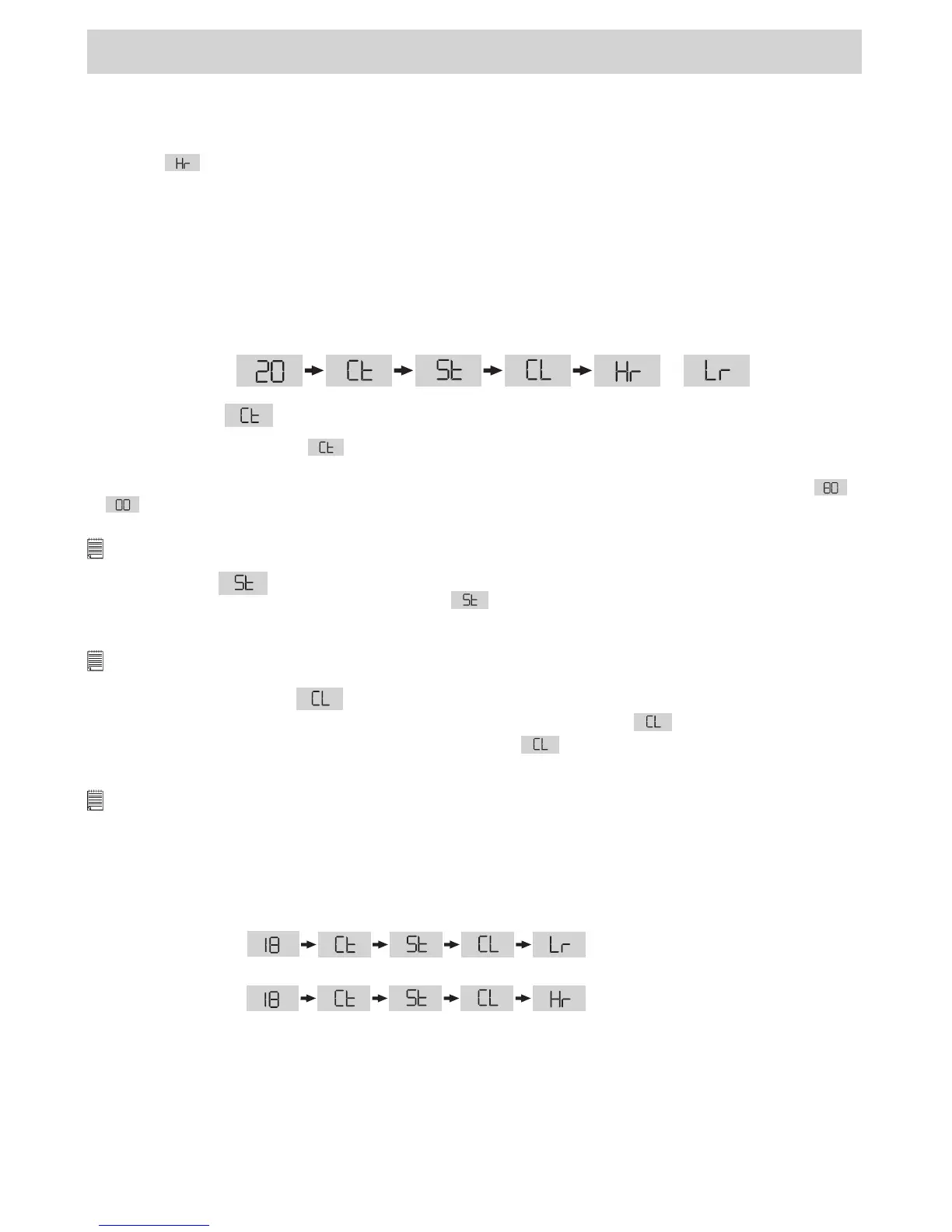
By pressing the Mode Button you can cycle through additional features as displayed on the LCD. When a given mode is
displayed it can be accessed by pressing the Shutter Button (see section 5). If an option is not conrmed within 5 seconds
the display will revert to show the number of available images that can be taken.
or
• Continuous Mode
To create a movie clip:
1. Press the Mode Button until the
appears on the LCD.
2. Press and hold the Shutter Button within 5 seconds to start taking continuous images. When you are in Low-Res mode,
the Pocket C@m will allow you to take 80 images. In Continuous Mode, the counter will rapidly decrease from to
accompanied by a series of rapid beeps as each image is taken. If the Shutter Button is not pressed within 5 seconds
the Pocket C@m will revert to the normal image taking mode.
Important Notes:
During the Continuous Mode the Pocket C@m will allow images to be taken with insufcient light.
• Self-Timer Mode
To use the self-timer feature, press the Mode Button until
appears in the LCD then press the Shutter Button to start a
9 second self-timer. The Pocket C@m will issue a short beep every second and then a long beep just prior to a further short
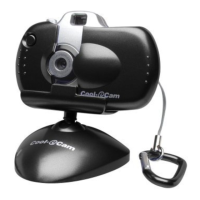
beep which indicates that the image has been successfully taken. It is a good idea to use the Pocket C@m Holder for this.
Important Notes:
The Self-Timer Mode cannot be selected when the Pocket C@m is full.
• Clearing the Stored Images
When you wish to clear the memory of your Pocket C@m, press the Mode Button until
appears on the LCD. Pressing
the Shutter Button once will cause the Pocket C@m to beep and the
start ashing. Pressing the Shutter Button
again within 5 seconds will clear all the images stored and reset the image counter.
Important Notes:
• Individual images cannot be cleared
• All images will be lost when the memory is cleared. Please make sure you upload your wanted images before clearing your Pocket C@m’s
memory.
• Changing the Image Resolution
Image resolution can be changed whenever you need.
1. Cycle through the Mode options by pressing the Mode Button.
2. Press the Shutter Button once to change to the alternative resolution.
For Example:
Changing from Hi-Res
Mode to Low-Res Mode:-
(Available Images)
Press the Shutter Button to Conrm
Changing from Low-Res
Mode to Hi-Res Mode:-
(Available Images)
Press the Shutter Button to Conrm



 To Next Page