9
ArcSoft VideoImpression™ 1.6
ArcSoft VideoImpression™ is an easy-to-use video and image editing software program. The program enables users to create
and edit new videos using existing video and image les - making desktop video presentations for home, business, and the
Web.
Visit http://www.arcsoft.com for all your FAQ’s, tips and technical support see Section 8 for more details.
How to Install ArcSoft
®
Software
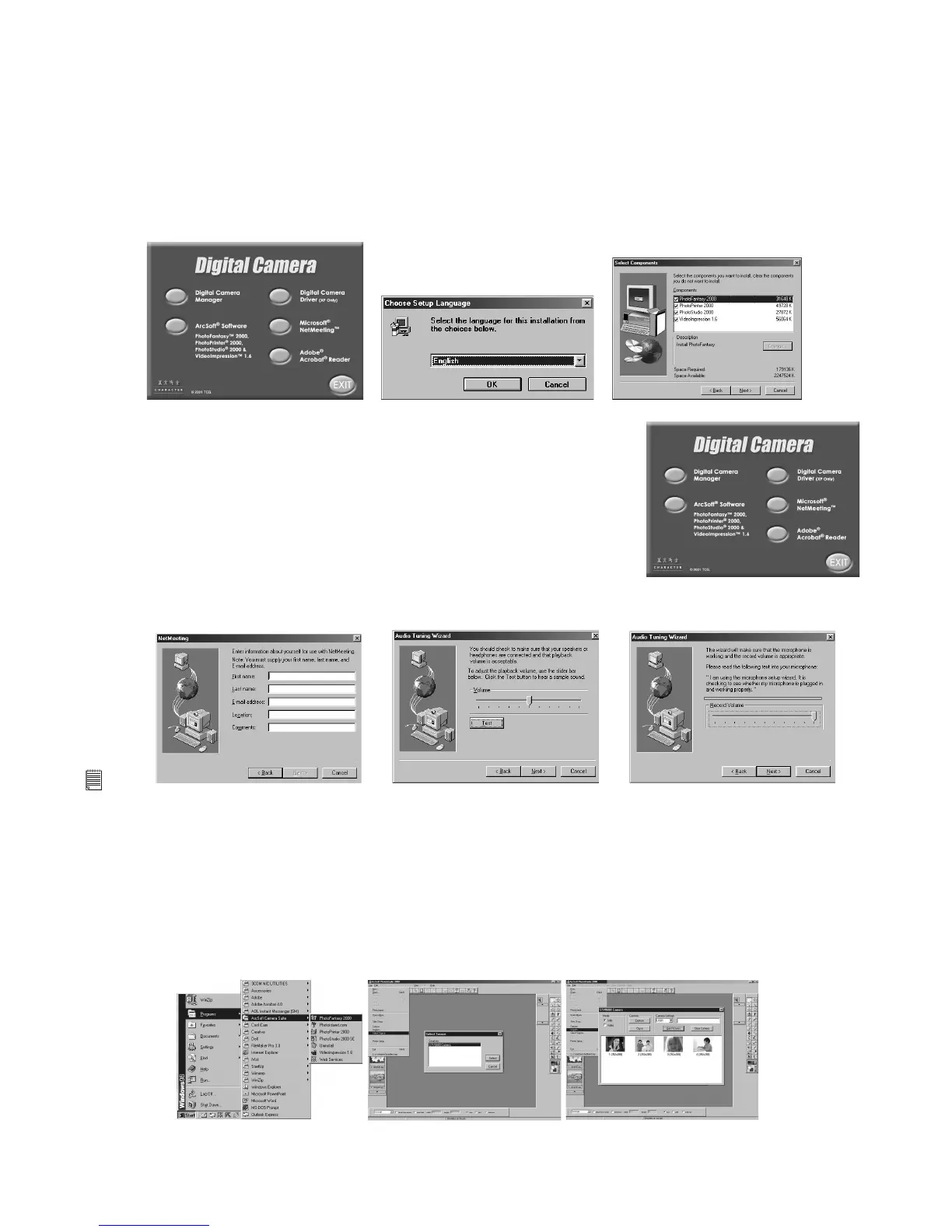
1. Re-insert the CD-ROM disc into the CD-ROM drive and close the CD-ROM drawer.
2. An installation wizard will automatically launch.
3. Click the “ArcSoft
®
Software” icon.
4. Select the language for the installation and click “OK”.
5. Select the software you want or you do not want installed by clicking on the tick boxes
next to the software title. Click “Next >” to continue.
6. Follow the instructions presented on the screen to complete the installation.
6.5 How to install Microsoft
®
NetMeeting™
NetMeeting™ provides the most complete conferencing solution for the Internet and
corporate intranet. Powerful features let you communicate with both audio and video,
collaborate on virtually any Windows-based application, exchange graphics on an
electronic whiteboard, transfer les, use the text-based chat program, and much more.
Using your PC and the Internet, you can now hold face-to-face conversations with friends
and family around the world.
To install the Microsoft
®
NetMeeting™:
1. Insert the CD-ROM disc into the CD-ROM drive and close the CD-ROM drawer.
2. An installation wizard will automatically launch.
3. Click the “Microsoft
®
NetMeeting™” icon.
4. Follow the instructions presented on the screen to complete the installation.
5. For further installation details, please visit the following website:
http://www.microsoft.com/windows/netmeeting
Note:
• You need to enter your name, your e-mail address and country details during installation.
• You need to adjust the playback volume and your record volume.
6.6 How to use PhotoStudio
®
2000
1. Select the “PhotoStudio
®
2000” icon from the “ArcSoft Camera Suite” program group on the Windows® Start Menu.
You can now start to download your stored images from your Micro Cam by the following steps:
2. Go to “File” and select “Select Source”. Select “STV0680 Camera” or “USB Dual Mode Camera” (for XP user only) as
source.
3. Go to “File” and select “Acquire”. The capture interface will show up. To capture image(s), highlight the wanted image(s)
and click “Capture”.
4. For further help on how to use PhotoStudio
®
2000, go to “Help” to access the Help Topics.
Visit http://www.arcsoft.com for all your FAQ’s, tips and technical support. See Section 8 for more details.



 To Next Page