3
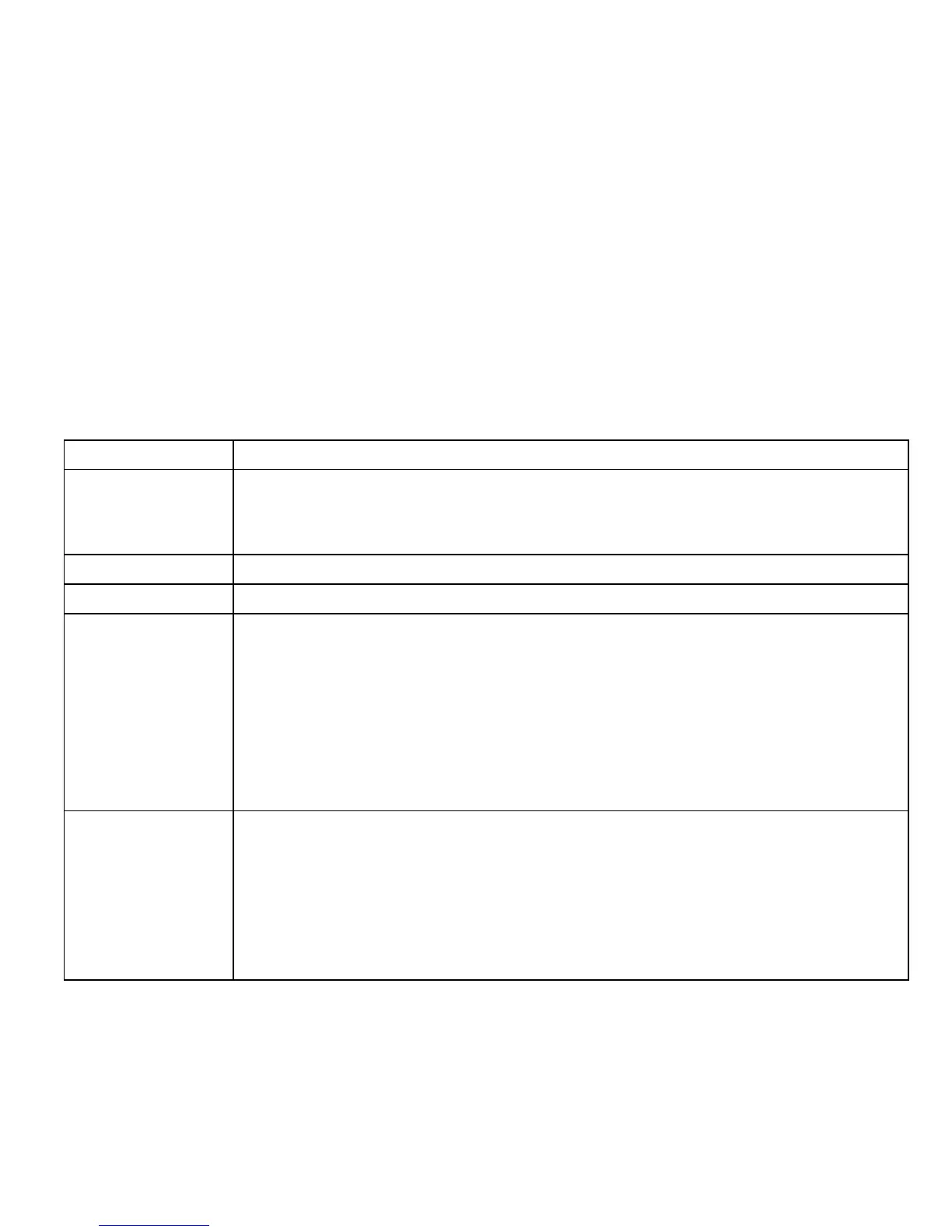
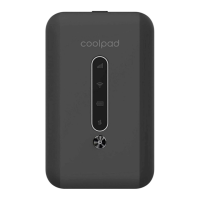
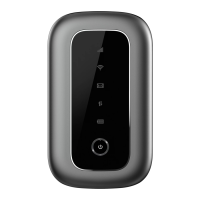
• USB port: Use the USB port to charge your device via the USB cable.
• Reset: Hold both the Power key and the WPS key simultaneously for 15 seconds. All
LED indicators will flash green 4 times to indicate that the device has been reset to
factory default settings.
• Reboot: Hold the Power key for 10 seconds to restart your device.
On-Screen Indicators
Displays your current network status. Green light indicates good
network connection; yellow light indicates poor network connection;
red light indicates no network connection, no SIM card, or no service.
Indicates when Wi-Fi is connected.
Indicates when there is a new message.
Displays your current battery status. Solid green light indicates the
battery level is 40%-100%, solid yellow light indicates the battery
level is 16%-39%, and solid red light indicates the battery level is less
than 15%; when the device is charging, the indicator will flash red
when the battery level is below 15%, will flash yellow when the
battery level is 16%-39%, and will flash green when the battery level
is 40%-100%.
Indicates when your data allotment is running out. The indicator will
flash red when the data usage is higher than 75% of the monthly data
plan set, will flash yellow when the data usage is 51%-75%, and will
flash green when the data usage is below 50%. You will need to
configure your monthly data plan and tick the "Auto Disconnected"
box on Web User Interface first.


 To Next Page