WaveLinx Networked Relay Panel Quick Start (Version 15)
www.cooperlighting.com 9
Adding the Relay Panel to the WaveLinx Area Controller Using the Mobile App
The following sections will use the WaveLinx Mobile App loaded on a mobile device (tablet/smartphone). Use the following sections to
login to the mobile app and add the WaveLinx Networked Relay Panel.
Login to the WaveLinx Area Controller
Before proceeding, complete the initial configuration for the WaveLinx Area Controller and the WaveLinx Networked Relay Panel. With
the mobile device in hand, stand within 150 feet of the WaveLinx Area Controller for best signal.
Follow the steps below to login to the WaveLinx Area Controller
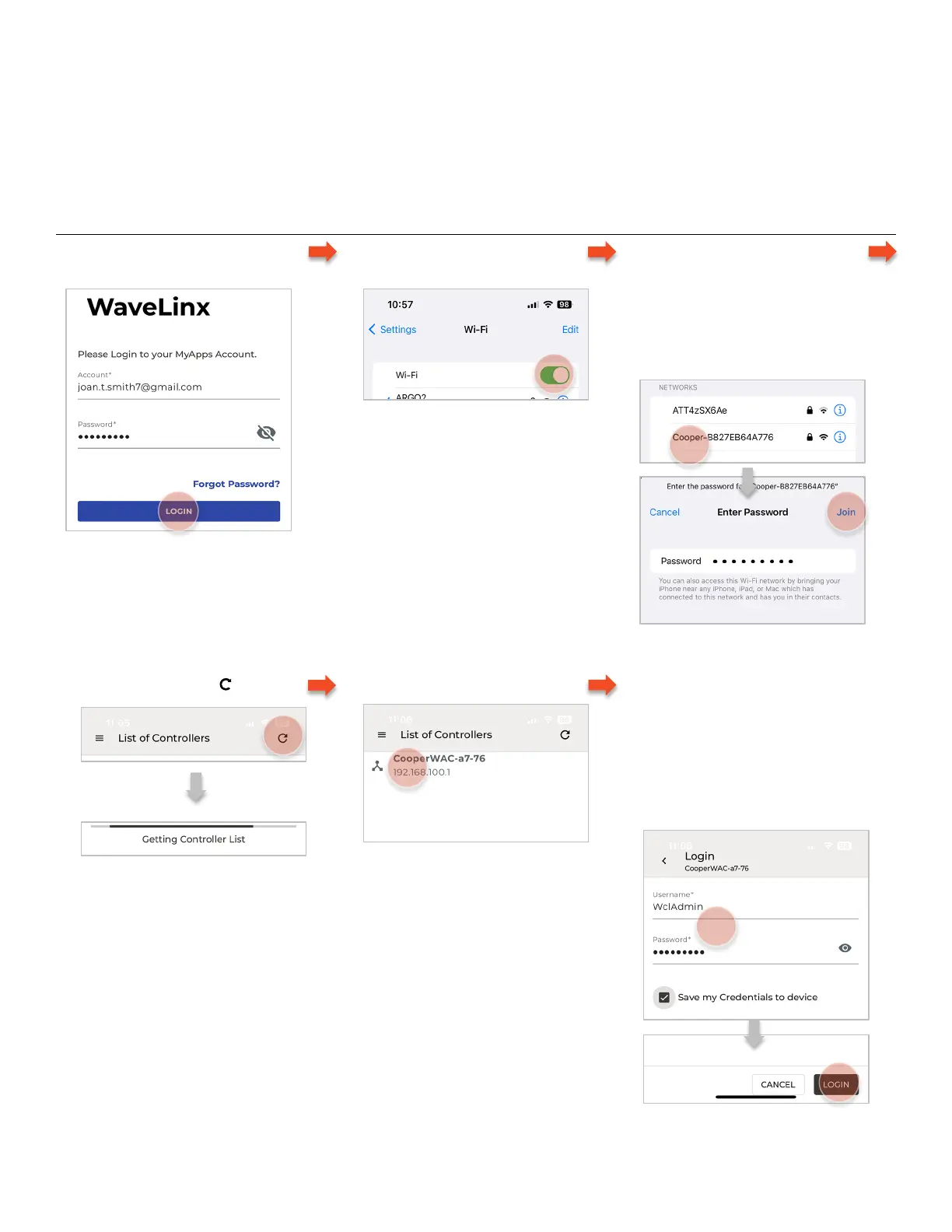
1 – Open and, if not already signed in,
login to the Mobile Application
2 – Make sure mobile device Wi-Fi
is ON.
3 – Join the WaveLinx Area Controller
Wi-Fi using the assigned network
key password
• The network name = Cooper-
XXXXXXXXXXXX where X is the
MAC address on the controller’s
label
4 – Scan for Controllers
5 – Select the Area Controller
6 – Enter the username and password
and login:
• Username: WclAdmin
• Password: enter assigned
password
• Optionally select Save my
Credentials to streamline future
logins to this Area Controller



 To Next Page