5
1. To turn the unit on hold down the green button on the front panel for one or
two seconds. The startup screen briefly appears and the unit starts.
2. To turn the unit off press and hold the green button until the unit beeps twice,
and the unit will then shut itself down.
3. To put the unit into sleep mode press and hold the green button until the unit
beeps once, and the unit will go into sleep mode. To “wake up” the unit, touch
the green power button, and it should take about 4 seconds for the unit to load
up. This power mode can be used throughout the day, but should be fully
powered down at the end of the day.
2c. To start/exit a Module or the VFL/Power Meter or Probe Application
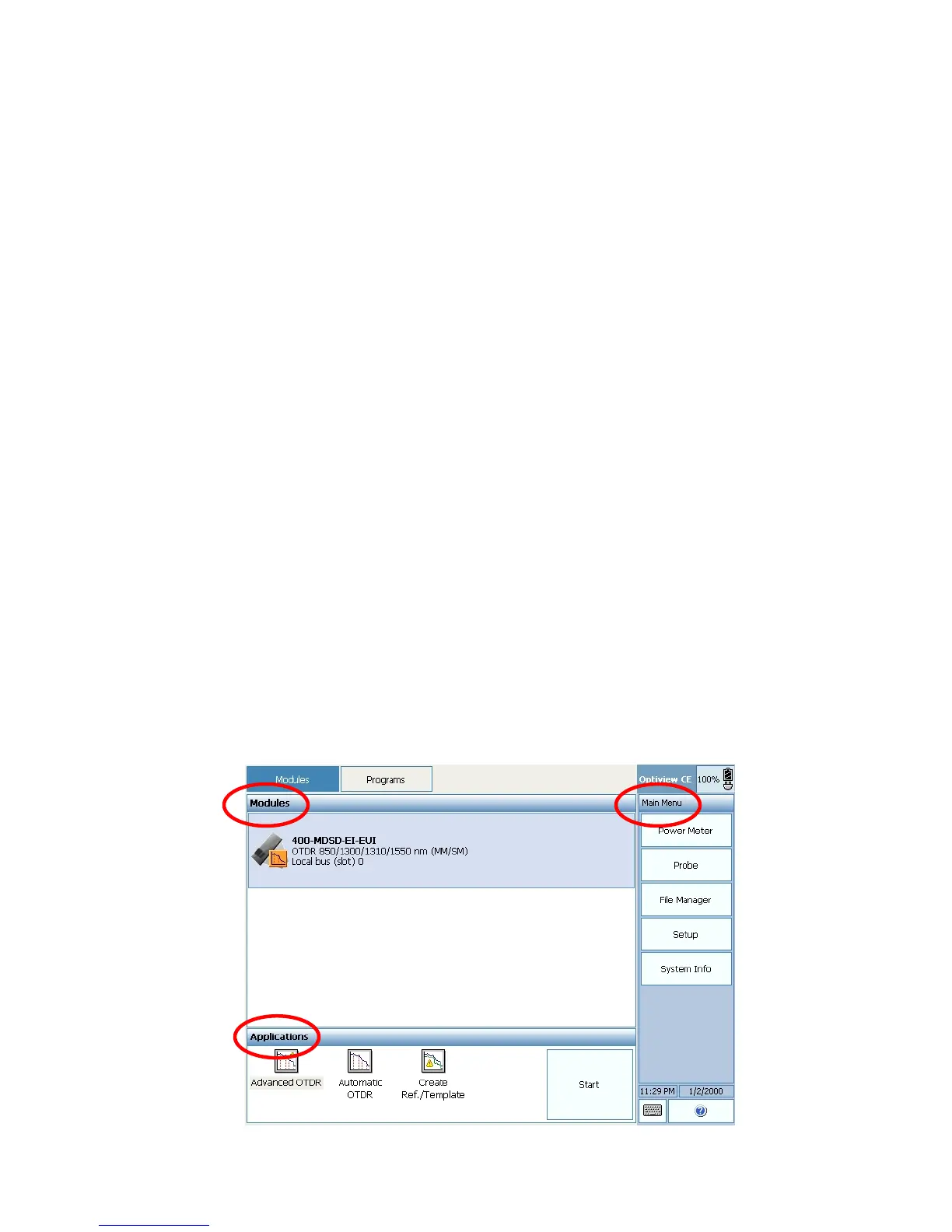
Once the startup screen is loaded, you should see a list of your modules on the left
and a main menu on the right. If you have more than one module, both modules will
be listed. To start a module select the one you would like to use by touching the
screen with your finger/stylus or by touching the button/hot key on the front panel of
the unit (corresponds to the slot). Under the module list, a list of applications
associated with the module should appear. Select the application you would like to
use then touch the start button on screen.
To start a VFL/Power Meter or Connector Probe application, look under the main
menu list and select the application you would like to use. Data storage is located
under the File Manager tab. The Setup tab is used to calibrate the stylus and
customize the system settings. See screenshot below.
Please note that each application is started in a new window. You must exit an
application to get back to the main menu. To exit any application, look for a red X at
the bottom right hand corner of the screen and touch it. Touching the X will close the
application and return you to the startup menu.
Figure 2. Main Menu


 To Next Page