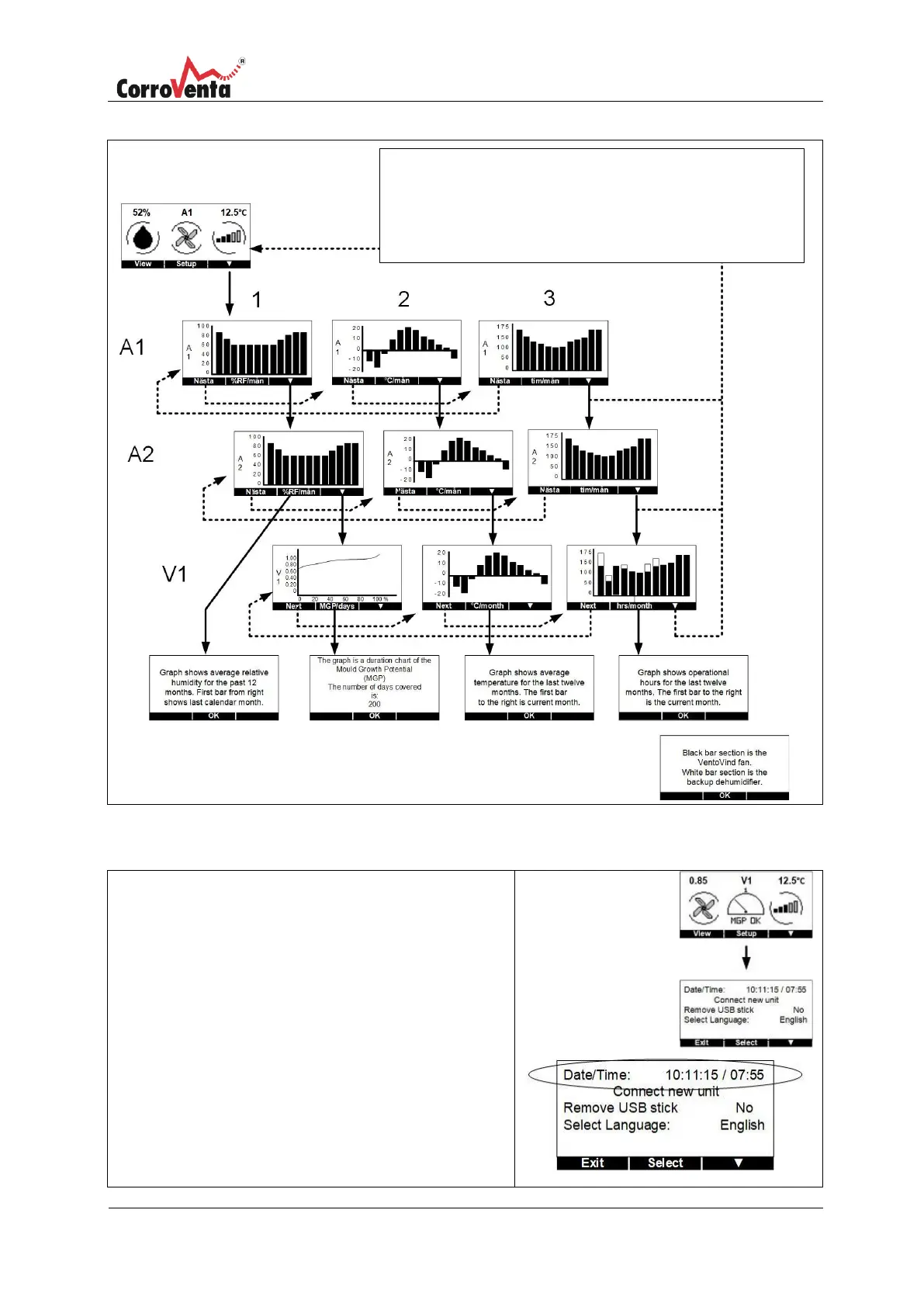
In status view, normal view, press <Setup> to get to
Administration view where Date/Time can be found on
the first row.
Press <Select> and check that the Date/Time row is
marked.
Press <OK> to select it.
The date is as follows: Year – Month – Day.
The first digit, the year, is now marked. Use the outer
buttons, <▲> and <▼> to obtain the desired value and
press <Next> to edit the next digit. When the last digit,
the minutes, is edited, <Save> appears on the centre
button instead of <Next>. When the correct digit has been
set, press <Save> to finish setting.
Press <Next> to scroll between graphs 1-3 for the
given machine. Press <▼> to scroll from machine to
machine and then back to the status view. The
current machine is shown in the left margin.


 To Next Page