YHC 700 8. Software update
In this page you can force the device software restart. Once clicked on the Restart button, you
will be informed that the process has started. If it completes successfully, you will be
redirected to the Homepage. Otherwise, you will get an error message.
8. Software update
The YHC700 software can be update through the device web pages.
8.1 Software update via FTP (remote update)
• Access the HTML pages as described in chapter 7.2
• Select Settings -> Software update (insert username and password if required, as
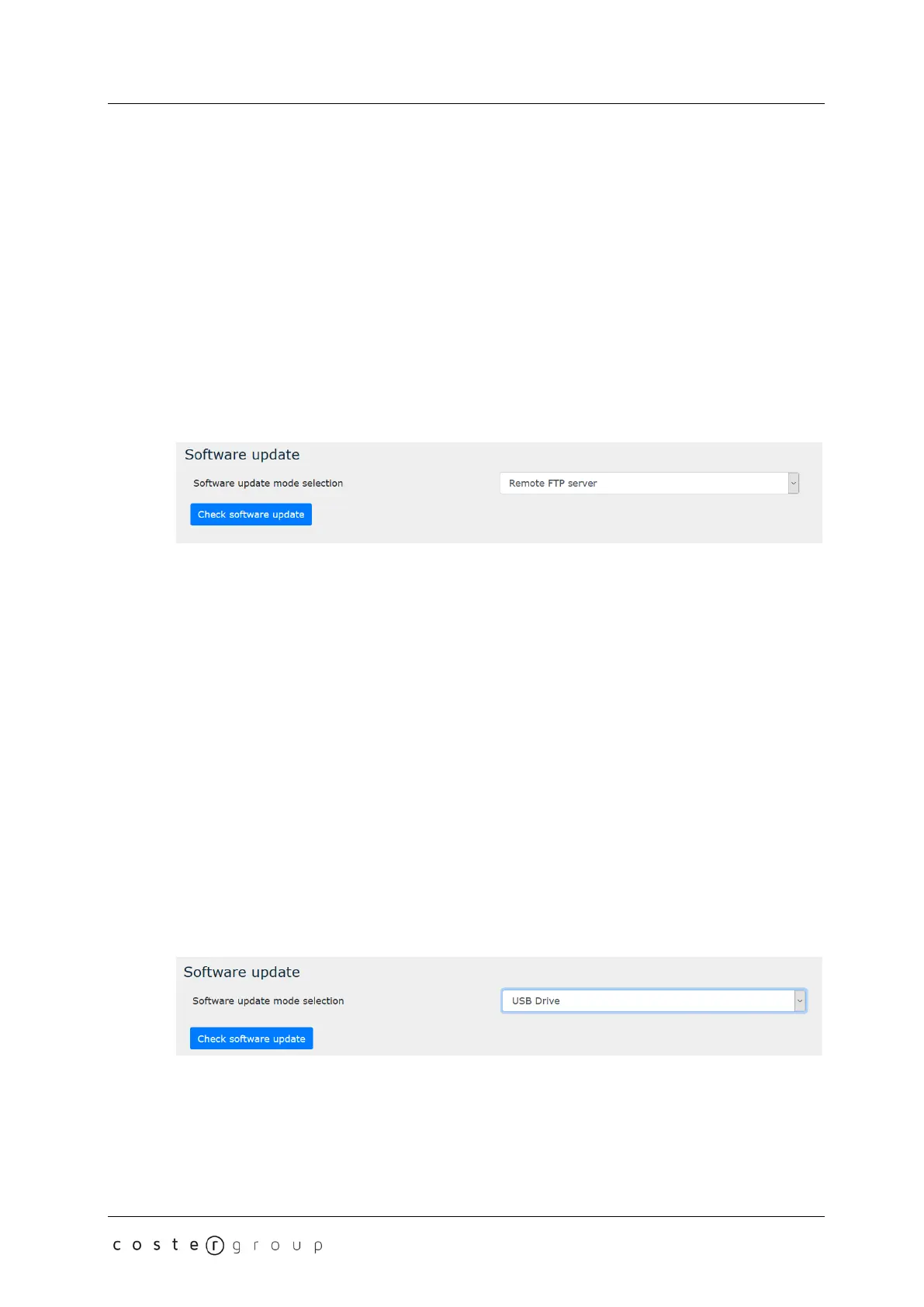
specified in chapter 7.2). The following page will be shown:
• Select the Remote FTP server option and then click the Check Software update
button: if a new software release is available, an Update button will appear on the
screen
• Click on the Update button to start the update process
Should the update procedure fail, the user is notified, and the previous software remains
active on the device.
NOTE: when a software update is requested, YHC 700 connects - via http - to an external
website, to download the latest software available. This mechanism requires YHC700 to be
connected to the Internet.
8.2 Aggiornamento software da locale
From release 2.0 YHC software can be updated locally, from a USB pen drive. To do it, you
need to:
• Insert the USB pen hosting the new software release (.zip file) into the YHC
• Access the HTML pages as described in chapter 7.2
• Select Settings -> Software update (insert username and password if required, as
specified in chapter 7.2). The following page will be shown:
• Select the USB Drive option: the device will scan its content, to check if any software
package is available and if so, it will show them on the screen
• Select the software version you want to install and then click on the Update button
29


 To Next Page