Using Your Player 4-17
To make an FM radio recording
1. Press the Scroller.
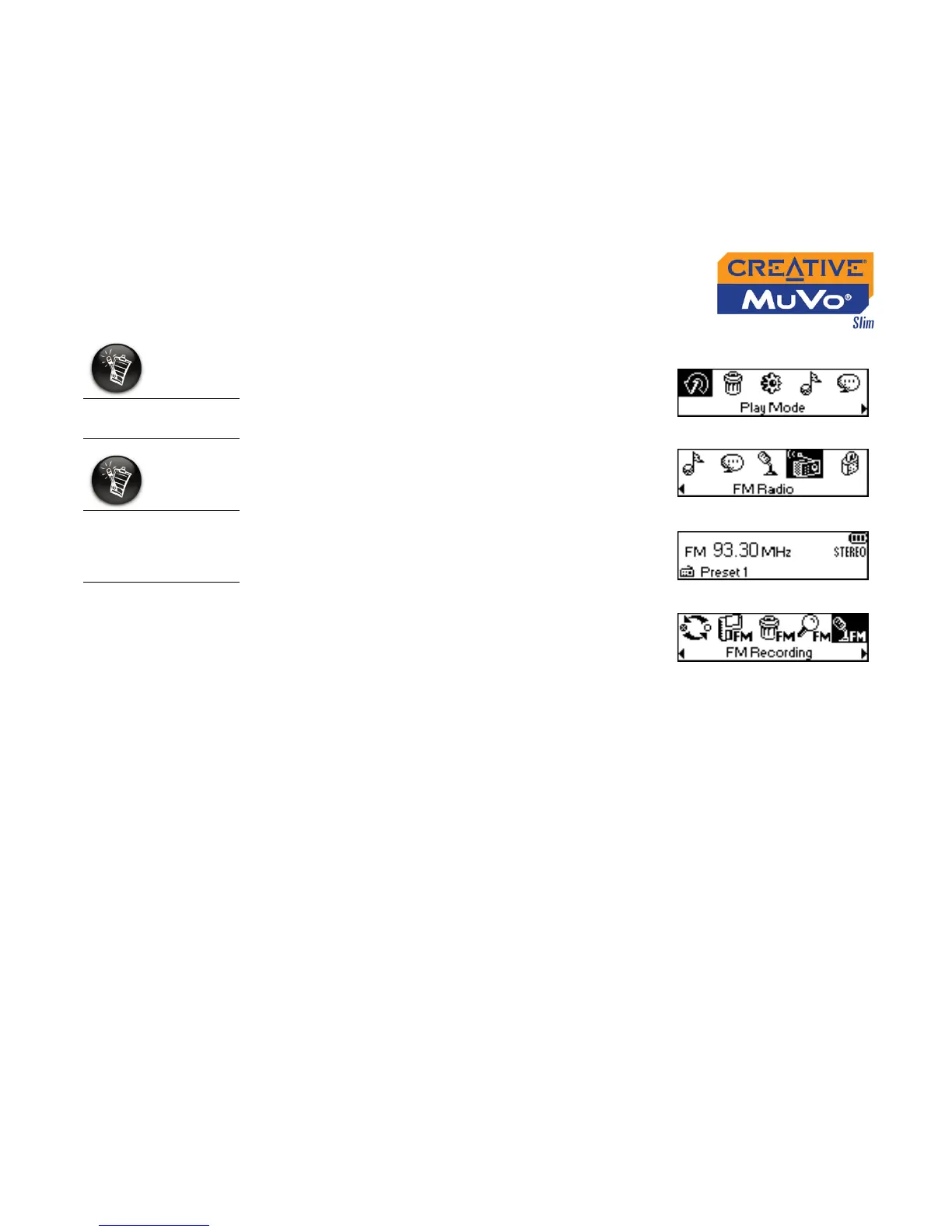
The Main Menu similar to Figure 4-52
appears.
2. Scroll Select the FM Radio icon (Figure 4-53).
A radio frequency appears on the LCD screen
(Figure 4-54).
3. Turn the Scroller to select the preset channel
you want.
4. Press the Scroller.
5. Scroll Select the FM Recording icon (Figure
4-55).
A recording bar appears on the LCD screen
and recording starts.
6. Press the Play/Pause button to end the
recording. A name is automatically assigned to your FM radio recording
and the file is saved in your player. The naming convention typically used
is: FM [Current File Number].
To play voice and FM Radio tracks that you have recorded on your player,
see "Playing Recordings" on page 4-18.
You cannot pause an
FM radio recording.
If you do not see a
preset channel, press
the Play/Pause
button.
Figure 4-52
Figure 4-53
Figure 4-54
Figure 4-55




 To Next Page