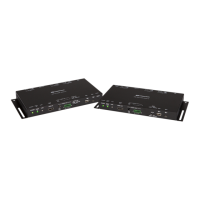
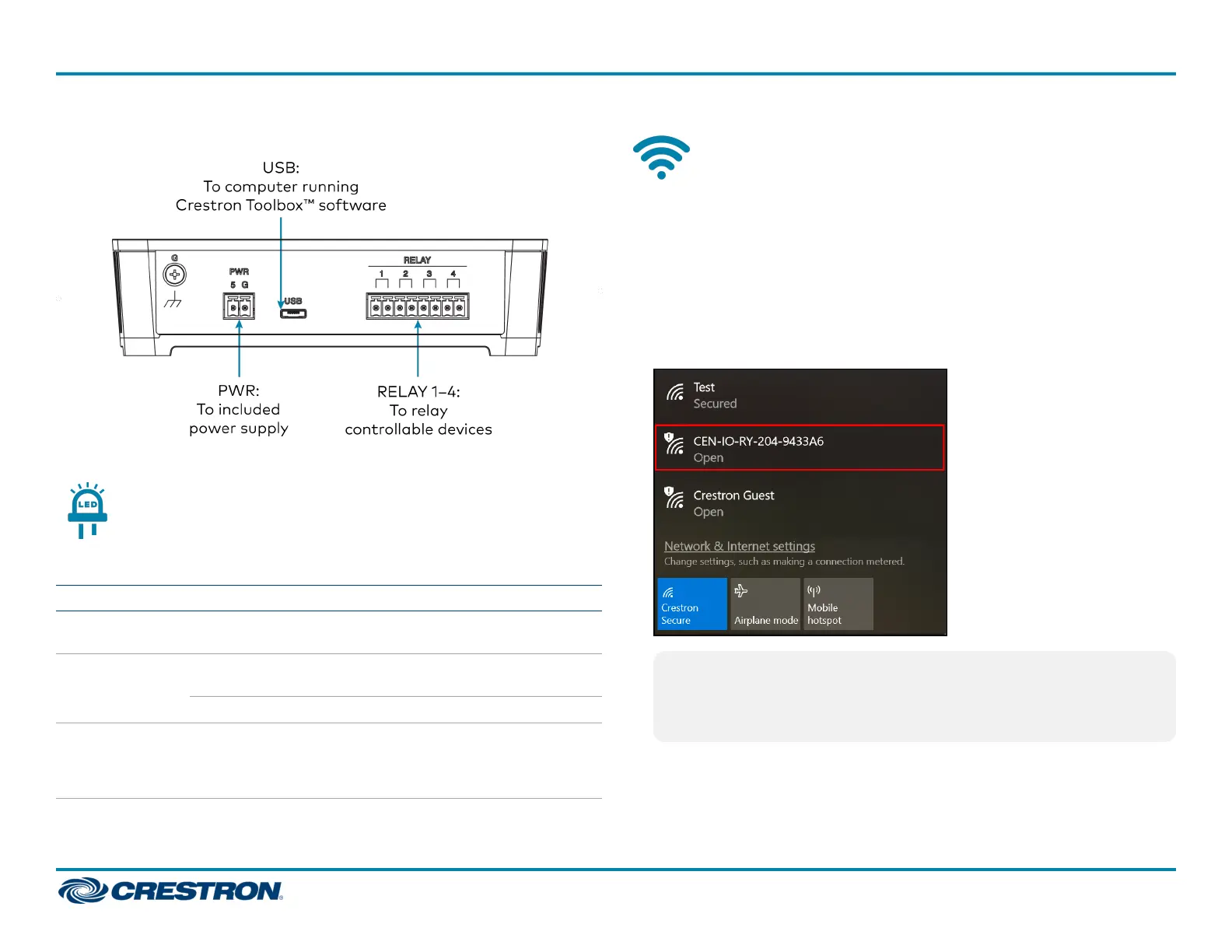
CEN-IO-RY-204 Rear Panel Connections
Observe the LEDIndicators
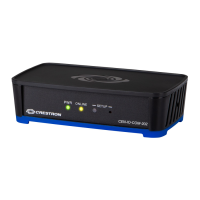
The following LEDindicators appear on the extender front panel:
LEDIndicator Color Meaning
ONLINE Green The extender is connected to a Crestron
control system via Wi-Fi communications.
PWR(dual
color)
Amber Power is being supplied but the extender is not
yet ready for operation.
Green The extender is ready for operation.
SETUP(with
recessed push
button)
Red The extender has rebooted into Wi-Fi
configuration mode after clearing its
memorized access points (after pressing the
SETUPbutton five times).
Connect to a Wi-Fi Network
The extender advertises itself as an open wireless access point when it is
in access point mode or wireless configuration mode. The extender is in
access point mode out of the box.
To connect to a Wi-Fi network:
1. Ensure the extender is powered on and ready for operation.
2. Use the Wi-Fi scan function on a computer to discover the extender
access point. The access point name is the device SSID.
NOTE: The device SSID is the extender’s model name plus the last
three octets of its MAC address, and it is printed on the product
label located on the bottom of the extender. The SSIDcan be
modified using Crestron Toolbox™ software.
4
CEN-IOSeries
QuickStart
Wi-Fi® Network I/O Extenders



 To Next Page
 Loading...