DO GUIDE
NOTE: Connection of the included 24 Vdc power pack to the DM-DA4-4K-C is always required
to power the DM-DA4-4K-C. The Crestron PoDM power supply that connects to the PoDM
INPUT port supplies power to the DM OUTPUT ports only and does not function as the power
source of the DM-DA4-4K-C.
DO Select the EDID Mode
Select the EDID mode by moving the EDID switch to either of the following positions:
• DEFAULT: (Default setting) The DM-DA4-4K-C sends a predened Crestron EDID to the
input device. The Crestron EDID supports 2-channel LPCM audio and the following video
resolutions: 1920 x 1080 @ 60 Hz (preferred resolution), 1920 x 1080 @ 30 Hz,
1280 x 720 @ 60 Hz, and 720 x 480 @ 60 Hz.
• COPY 1ST: The DM-DA4-4K-C copies the EDID settings of the device connected to
DM OUTPUT 1 and sends the EDID settings to the input device.
NOTE: If the device that is connected to DM OUTPUT 1 is disconnected, the current EDID
is retained. Changing the device that is connected to DM OUTPUT 1 does not automatically
update the EDID at the input device. To update the EDID, move the EDID switch to the
DEFAULT position and then back to the COPY 1ST position.
DO Select the HDCP Version
Select the HDCP version of the device by moving the HDCP switch to one of the following
positions:
• OFF: Disables HDCP support
• 1.4: Sets the HDCP version to 1.4
• 2.2: (Default setting) Sets the HDCP version to 2.2
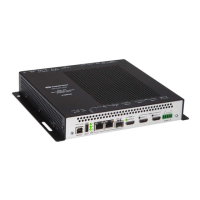
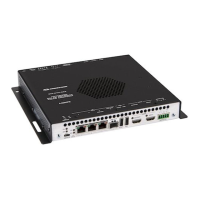
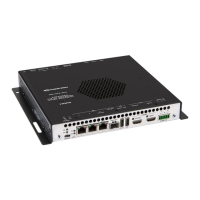
DM-DA4-4K-C
1:4 4K HDMI
®
to DM 8G+
®
and HDBaseT
®
Splitter
DO Install the Device
The Crestron
®
DM-DA4-4K-C can be mounted into a rack, attached to the underside of a table,
or placed onto a at surface. To mount the device into a rack, use the ST-RMK Rack Mount Kit
(sold separately). To attach the device to the underside of a table, use the UTK-1U-HALF
Under-Table Mounting Kit (sold separately). To place the device onto a at surface or to stack it
with other equipment, attach the included feet near the corners on the underside of the device.
DO Connect the Device
Connect the device as appropriate for the application.
NOTE: The PoDM INPUT and DM OUTPUT 1–4 ports are PoDM+ and HDBaseT
®
PoE+ power
sourcing equipment (PSE) ports. Any wiring that is connected to a PoDM+ or HDBaseT PoE+
PSE port is for intrabuilding use only and should not be connected to a line that runs outside of
the building in which the PSE is located.
When connected to an appropriate Crestron PoDM power supply (for example, the
PW-4830DUS), the PoDM INPUT port supplies power to enable PoDM+ or HDBaseT PoE+
power sourcing capability to each of the four DM OUTPUT ports. Each DM OUTPUT port
supplies up to 25.5 watts of power to a PoDM+ or HDBaseT PoE+ powered device (PD) and is
also compatible with PoDM and HDBaseT PoE PDs. Since the power from the Crestron PoDM
power supply is shared among the four DM OUTPUT ports, the power supply must be capable
of supplying enough power to meet the requirements of the PDs.
DO Check the Box
QTY PRODUCT COLOR PART NUM.
4 Foot, 0.5" x 0.5" x 0.23", Adhesive Black 2002389
1 Power Pack, 24 Vdc, 1.25 A, 100-240 Vac 2045870
HDMI INPUT:
From
audio/video
source
HDMI
OUTPUT:
To display
DM OUTPUT 1–4:
To DM
®
switcher,
receiver, or other
DM device or to
HDBaseT
®
device
PoDM INPUT:
From Crestron
PoDM
power supply
SERVICE:
For rmware
loading
10BASE-T
100BASE-TX/
1000BASE-T
Ethernet to LAN
24V
1.25A:
24 Vdc from
power pack
(included)

 Need help?
 General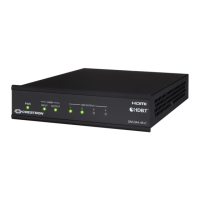

 To Next Page