70 • TSW-560, TSW-760, and TSW-1060 Product Manual — Doc. 7927K
1. Access the touch screen web configuration interface. For more information, refer to Web
Configuration (on page27).
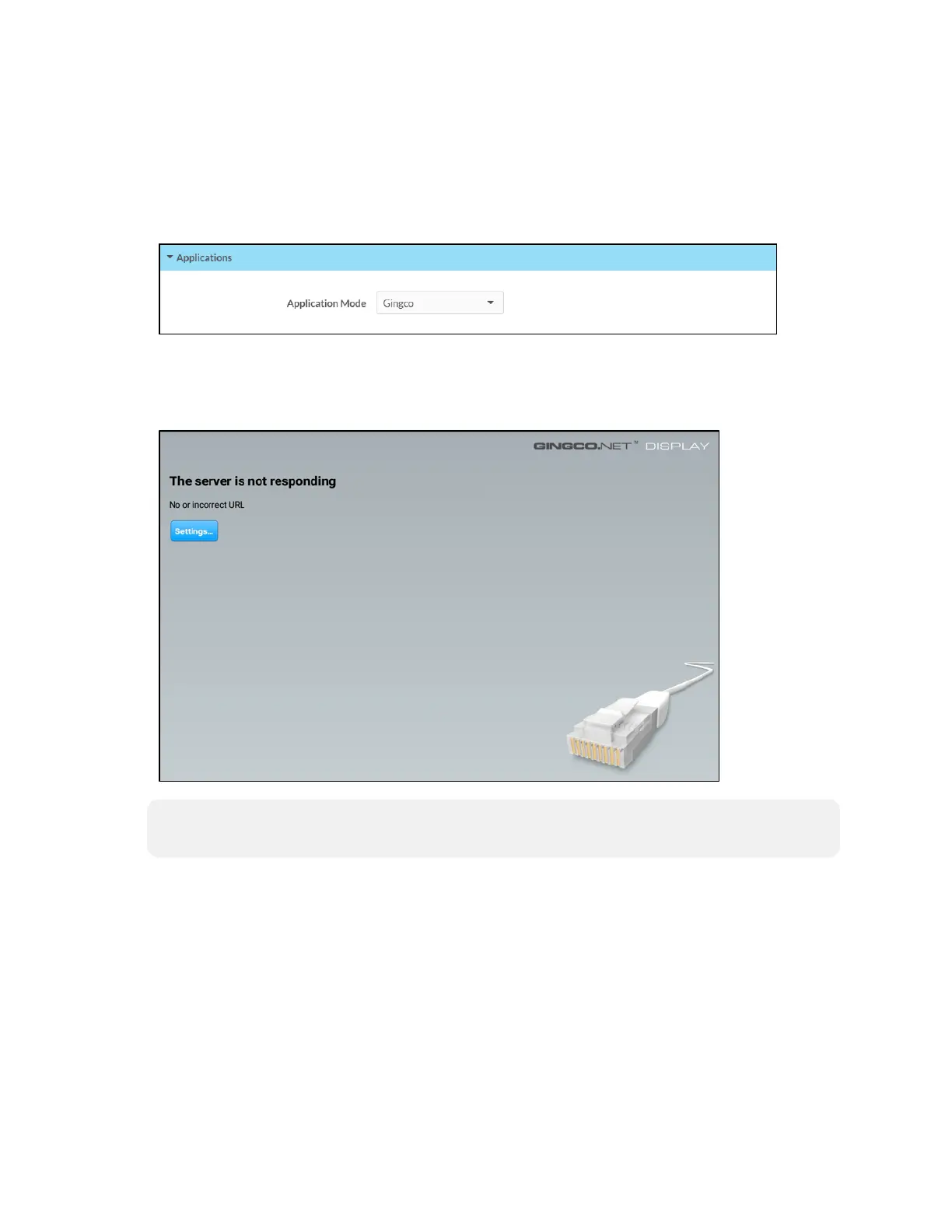
2. Navigate to Settings > Applications.
3. Select Gingco from the Application Mode drop-down menu.
Settings Tab - Applications(Gingco)
4. Reboot the touch screen. The Gingco.net user interface is displayed on the touch screen
following the reboot.
Gingco.net Display User Interface
NOTE: A “The server is not responding” message is displayed until the application is
connected to a valid room URL. This message is normal prior to initial setup.
5. Tap Settings.
6. Use the onscreen keyboard to enter the device settings password when prompted, and then
tap OK. The default password is “gingco”.
7. Enter the following information in the BROWSER SETTINGS fields:
l URL: Enter the URL of the room that will be used with the touch screen.
l User Name: Enter the username for the HTTP connection (optional)
l Password: Enter the password for the HTTP connection (optional)











 To Next Page