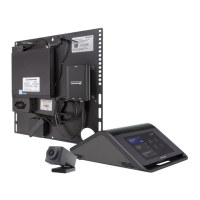
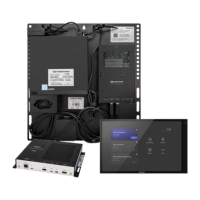
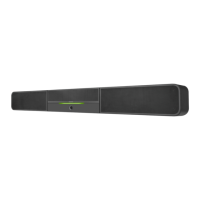
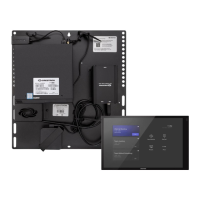
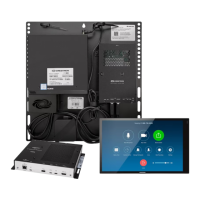
Configure
Apply Power
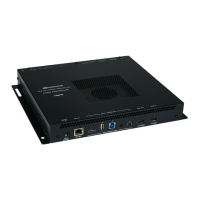
Press the power button on the bottom of the UC-ENGINE-SD and apply
power to all of the other devices in the system.
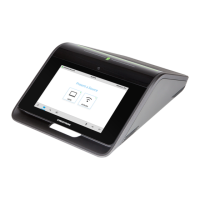
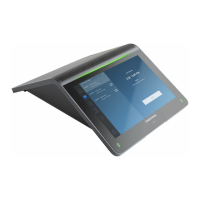
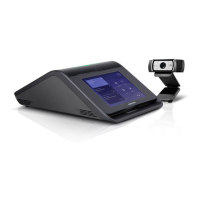
Configure the Crestron Mercury Device
NOTE:If the Crestron Mercury device is directly connected to the
UC-ENGINE-SD, skip to "Configure the System."Otherwise, continue
below.
1. On a computer, open a web browser to the IP address displayed on the
Crestron Mercury device to configure the device to operate in Teams
Video mode.
NOTES:
l The Crestron Mercury device and computer must be on the same
network switch and VLAN.
l A login with administrative rights for the Crestron Mercury device
is required.
2. Log in to the Crestron Mercury device and navigate to DEVICE >
Applications.
3. Enter the following information in the appropriate fields:
l Teams Video PC Address: Enter the IP address or hostname of
the UC-ENGINE-SD.
NOTE: The hostname is printed on a label affixed to the
UC-ENGINE-SD (mounted on the bracket assembly).
l Teams Video PC Port: By default, port number 49500 is used. If
a different port number has been configured on the
UC-ENGINE-SD, enter that port number instead.
l Teams Video Username: Enter the login username for the
UC-ENGINE-SD. (The default username is “admin”.)
l Teams Video Password: Enter the login password for the
UC-ENGINE-SD. (The default password is “sfb”.)
4. Click Save Changes.
For more information, refer to the CCS-UC-1 Product Manual (Doc.
7844).
Configure the System
Use the Crestron Mercury device and your Microsoft Teams or Skype
account credentials to configure the UC-ENGINE-SD. Refer to the
Crestron Flex UC Video Conference Systems Supplemental Guide (Doc.
8360).
8
UC-M130-T
QuickStart
Crestron Flex Tabletop UC Video Conference System for Microsoft Teams® Rooms


 To Next Page
 Loading...