Basic settings
From the Home screen, swipe up to access Apps and tap Settings to access your phone’s Settings menu. You can also access the Settings menu
from the Status bar. Swipe the Status bar down twice and tap Settings.
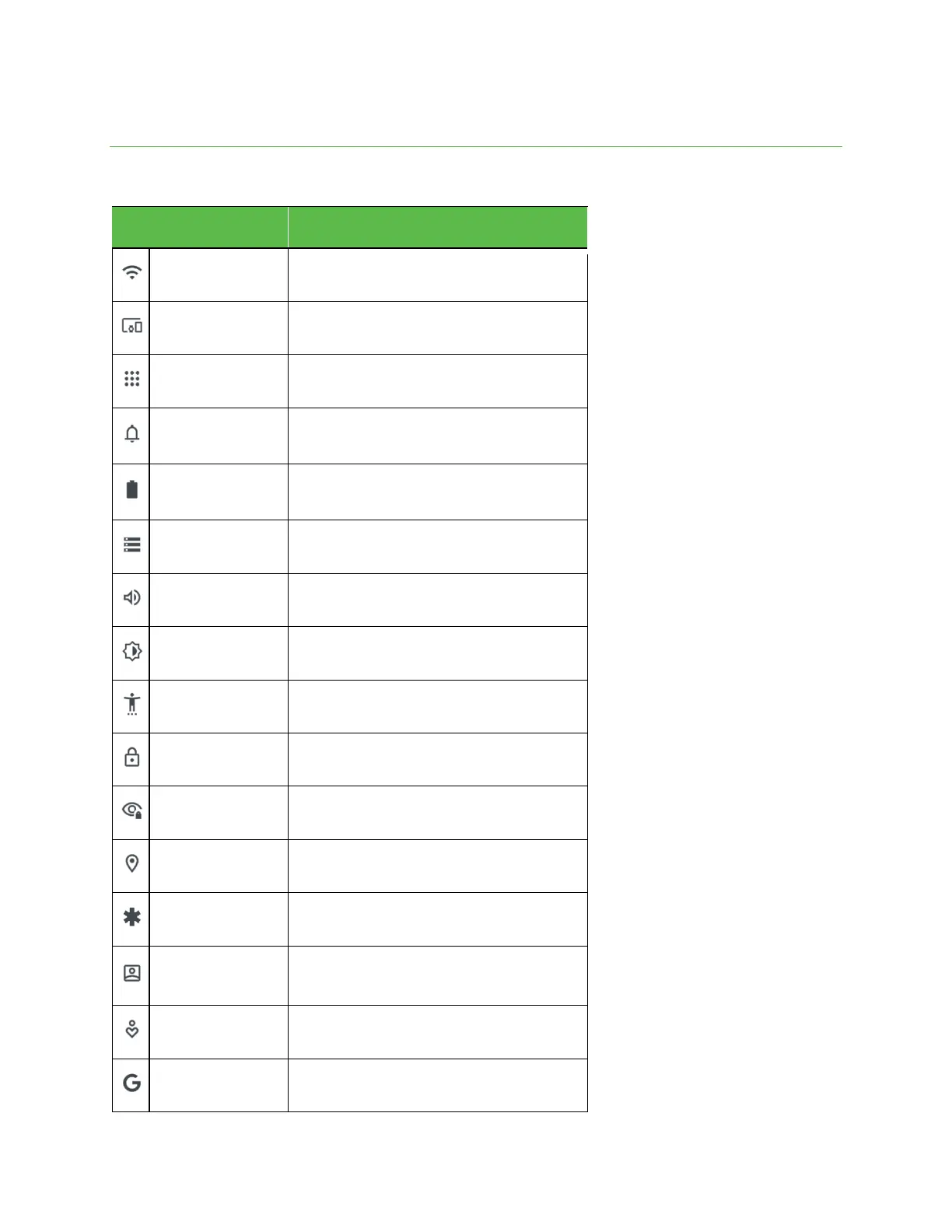
The table below outlines the Settings categories.
Set Wi-Fi, mobile network, Hotspot, VPN, airplane mode,
and view data usage.
Manage settings for devices connected by Bluetooth,
USB, etc.
View your recently opened apps.
Manage settings for notifications, permissions, etc.
Monitor your phone’s battery usage.
Manage internal storage on your phone and provide
settings for an optional SD card (not included).
Set ringtone, operation tones, etc.
Set wallpaper, brightness, font size, etc.
Set accessibility options such as screen magnification,
hearing aid compatibility, etc.
Turn on Find My Device, set screen lock methods,
password settings, etc.
Manage app permissions, set your account activity and
personal data, etc.
View and manage apps using your location.
Manage your emergency SOS, medical information and
alerts.
Manage saved passwords, autofill, and synced accounts
for all your email, social networking, and picture and
video sharing accounts.
Digital Wellbeing &
parental controls
Statistics screen usage time, app timers, bedtime
schedules, manage notifications, etc.
Check and set Google service options.



 To Next Page