Crowcon Gasmaster Operation
19
Faults
Lists the fault conditions present
Warnings
Lists the warning conditions present
View
View current status of relays, outputs,
detector inputs, power supply and con-
figuration
Action
Perform routine operations: tests of con-
trol panel or audio visual alarms
Supervisor
Perform password protected supervisor
functions: inhibit channels, calibration,
testing and configuration
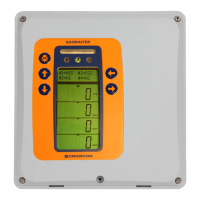
Use the Continue button and the Up
and Down buttons, to navigate through
the menu system. Use the Continue
button to select and action menu items,
submenus and wizard menus.
During editing and configuration of
Gasmaster, use the Continue button to
accept changes made to settings.
BACK
Use the Back button to exit the menu
system or cancel actions. Double-click the
Back button to cancel text edits or return
to the main menu.
3.2 Gasmaster start up
sequence
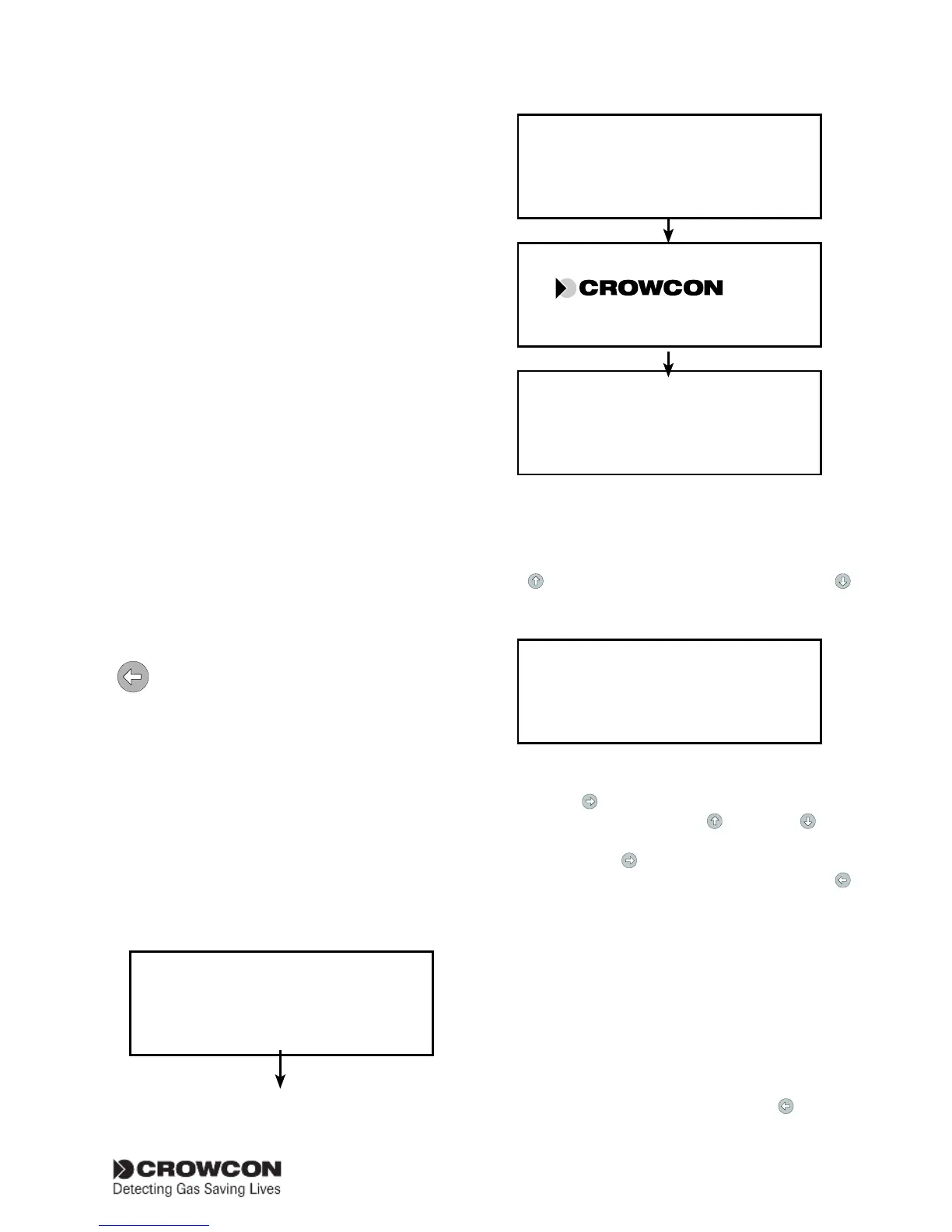
At power up during Gasmaster installation, or
when Gasmaster is restarted, Gasmaster will
initialise the system by performing a self-test. The
start up sequence is shown below:
Display and AV test
GASMASTERII
= Software version number
...Detecting Gas, Sav
#1=CH4 #2=O2
#3=H2S #4=FIRE
3.3 How to adjust display
contrast
To edit the display contrast press and hold the
Up
button to increase contrast, and Down
to decrease contrast. The contrast level will be
displayed.
Menu contrast
=
+++++......
The menu display contrast is altered indepen-
dently from the channel display area. Press the
Continue
button whilst still in the Menu
Contrast screen, use the Up
or Down but-
ton to choose Menu Display or Channel Display.
Press Continue
to select. Adjust the display
contrast as described above. Press the Back
button to finish.
3.4 How to display Instrument
serial number and system
identity
The system identity and instrument serial number
can be displayed during normal channel monitor-
ing, alarm or fault conditions.
To display the system identity and instrument
serial number, press and hold the Back
button.
scrolling text


 To Next Page