2 Connectors, Lights, Switches, and Jumpers
2.1 Switches
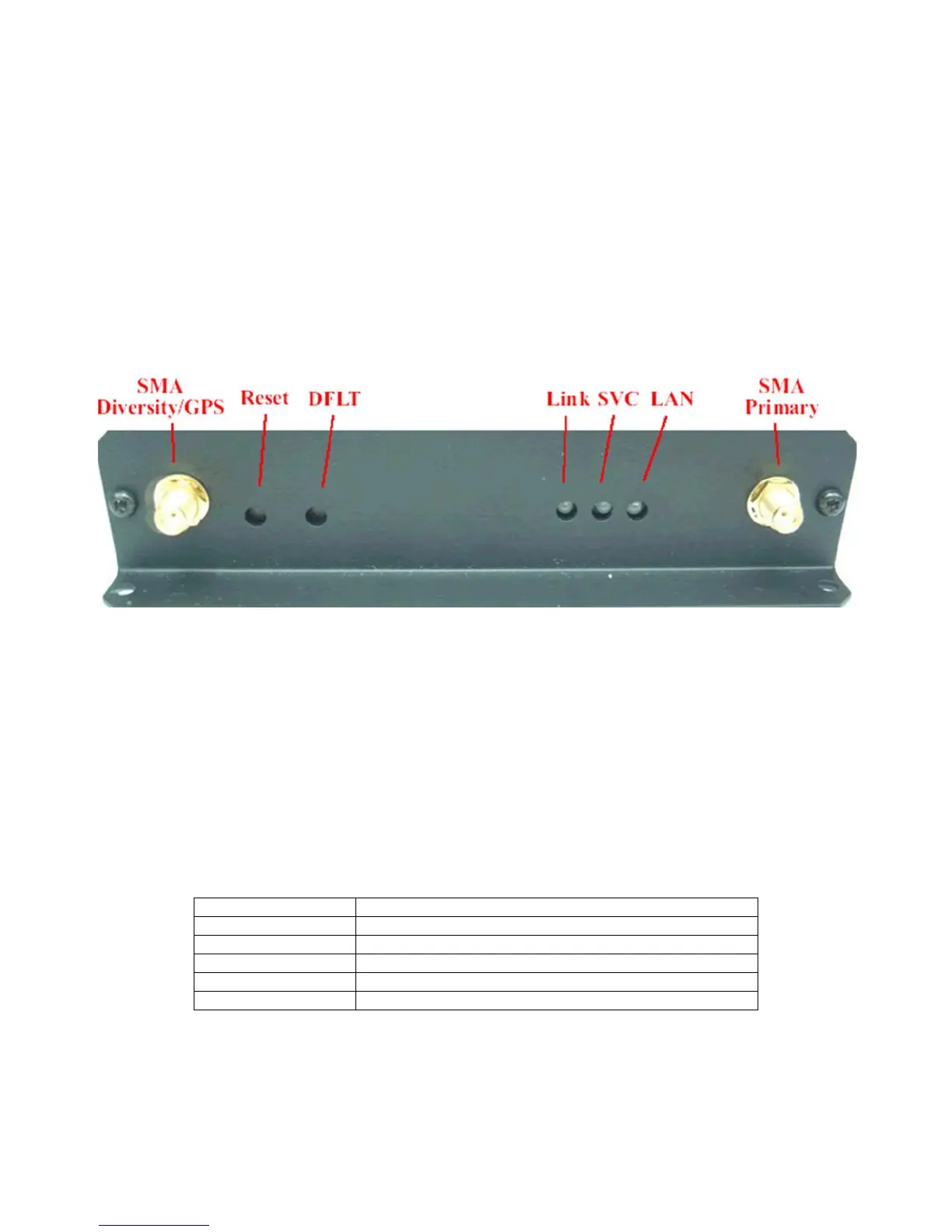
Referring to Figure 1, there are two switches on the front of the Z Series router. S1 (Reset) causes a hard reset of unit.
S2 (DFLT) is used to restore the firmware settings that were included when the product was shipped from the factory. To
restore factory defaults, the unit must be running. You should wait a full two (2) minutes after booting or powering on the
unit before restoring factory defaults. After waiting two minutes press and continue to hold down the Restore Defaults
(inner) switch until the lights begin blinking (about 10 seconds). Release the DFLT switch as soon as the lights begin to
blink. The unit will restore its factory defaults and reboot itself. There is no need to restart or power cycle the unit.
Figure 1 - Lights and Switches
2.2 Lights
The Z Series router has indicators as shown in Figure 1.
LAN – The LAN light indicates that the Ethernet port is connected to an active Ethernet device.
The network status indicators LINK and SVC are interpreted as follows:
SVC – Multi-color (yellow/green). Indicates:
a) Power
b) RSSI



 To Next Page