Wired Touch Panels - User Manual
31© CUE, a.s. | All Rights Reserved.
Password
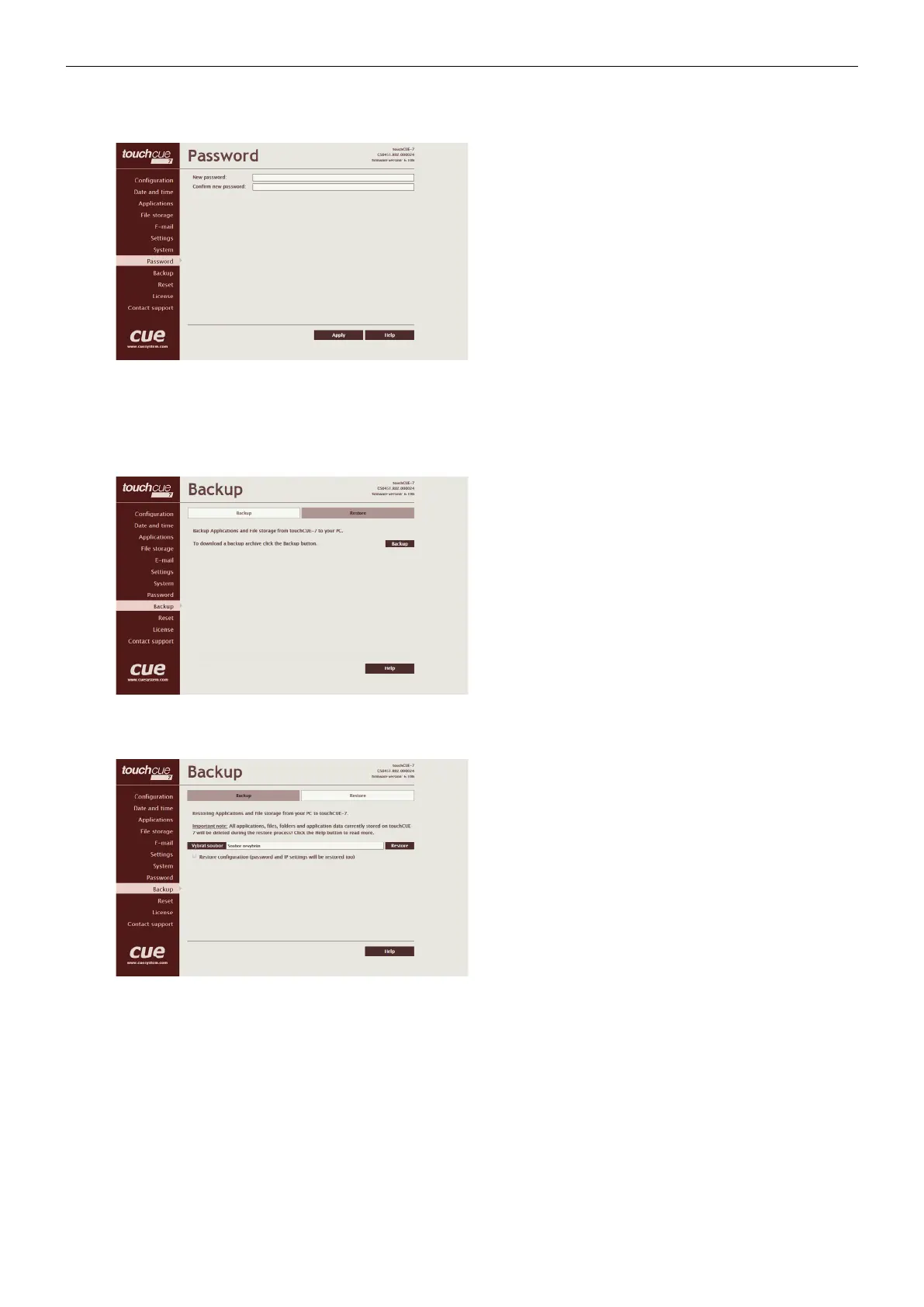
A case sensitive password is necessary to login to the admin
web pages. Set a new password via the New password
box. You must reenter the password in the Confirm new
password box. An error message will appear if the
confirmation does not match, in which case you should
reenter your password again in both boxes.
Finally, the new password is implemented by clicking the
Apply button.
Backup
Backup
The page is used for the backup applications, files and
folders. The Backup copies all Applications, Application
data, File storage and Web storage to the one archive. This
archive is saved to the PC. To start the backup process, click
the Backup button.
Note: To see the backed-up/restored applications, click the
Applications menu. To see backed-up/restored files and
folders, click the File Storage menu. The page is used for the
backup of all applications, files and folders.
Note: To see the backed-up/restored applications, click the
Applications menu. To see backed-up/restored files and
folders, click the File Storage menu.
Restore
READ ALL IMPORTANT NOTES THAT FOLLOW BEFORE
USING THIS OPERATION!
The page is used for the restoring of all applications,
files and folders. Restore copies of all applications, files,
and folders from a backup archive on the PC to their
corresponding locations on the CUEunit. To start the restore
process, select the desired backup archive, then click the
Restore button. The restore process can take up to 10
minutes, depending on the size of the files being restored.
If you want CUEunit’s settings will be restored too, check
the “Restore configuration” box. The CUEunit’s settings
are accessible via the Configuration, Date and time and
Password menus.
Important notes
• Actual password and IP settings will be restored too.
The restore process takes from 1 to 10 minutes. It
depends on the sizes of the restored files.
• When restoring files, the running application will
be stopped and all applications, files, and folders
currently stored in the CUEunit will be deleted! If you
want to retain them, use the Backup command before
the Restore command.
• To see the backed-up/restored applications, click the
Applications menu. To see backed-up/restored files
and folders, click the File Storage menu.



 To Next Page