Wired Touch Panels - User Manual
23© CUE, a.s. | All Rights Reserved.
on sCreen dIsplay
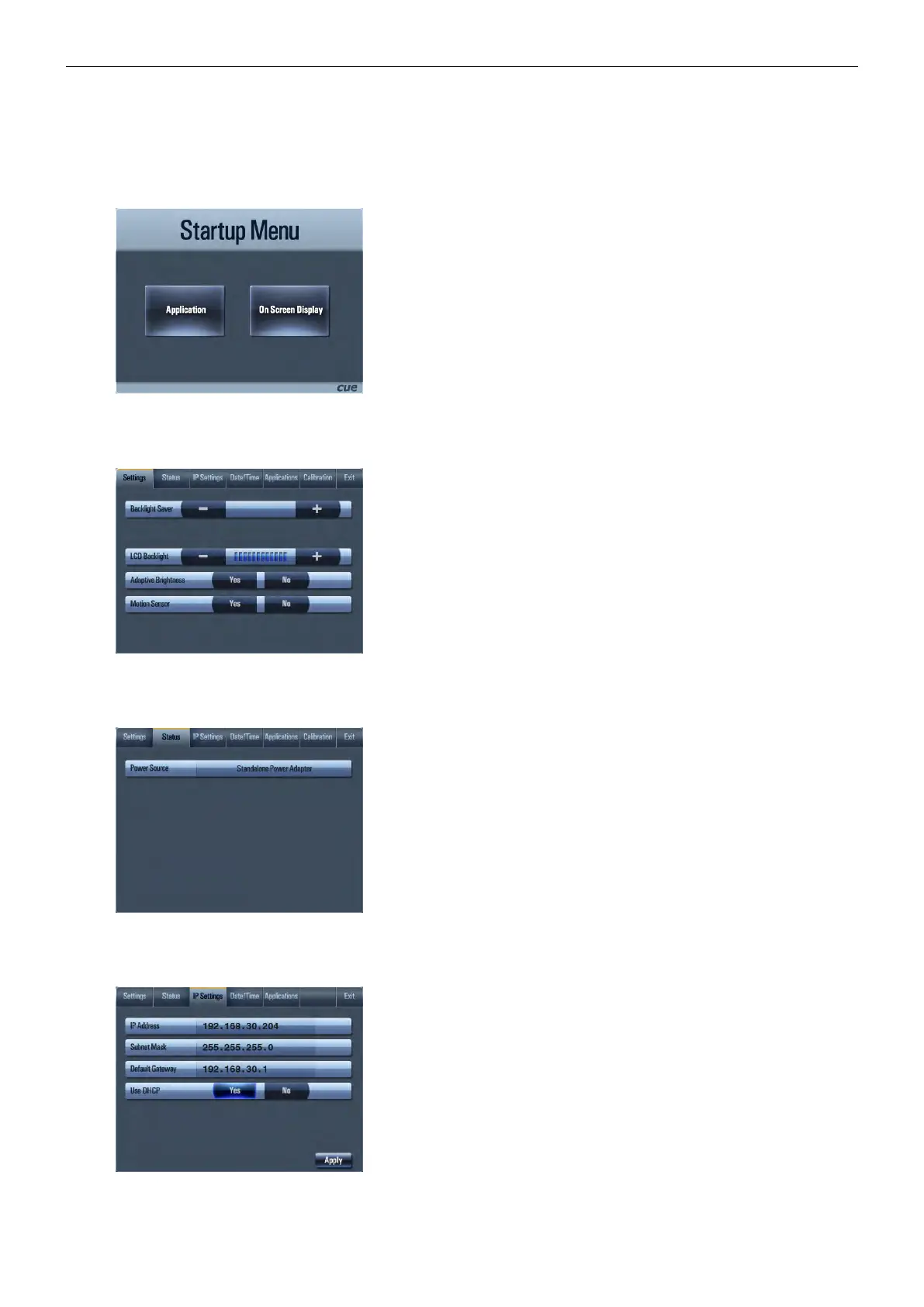
Access On Screen Display
The Startup Menu is activated if no application is running.
Application button starts downloaded application.
On Screen Display button launches menu described below.
Settings
1 min
The Backlight Saver will switch off automatically display backlight. Time in
minutes can be set by buttons - and +. Time set to 0 means that Backlight
Saver is disabled.
LCD Backlight sets display backlight level.
If Adaptive Brightness is switched to Yes, the light sensor automatically
adjusts display backlight according ambient light level.
If Motion Sensor is switched to Yes the Motion Sensor resumes touch panel
from Backlight Saver mode automatically.
Status
This page shows current status of the touch panel.
IP Settings
This page is used for setting the communication parameters for your
touch panel. The touch panel uses standard internet protocol (IP)
communication parameters. Certain parameters can be reset by the user.
On start up, this page will display current IP address. Carefully note this
addressing information (and any changes you elect to make to the IP
address, subnet mask, or default gateway). You can also set touch panel
to obtain IP address automatically from DHCP server. For it select Yes
in the field Use DHCP. IP address (or Magic name, see chapter Admin
Web) must be entered into the Cue Visual Composer program written for
your specific application. For control systems with more than one unit, a
unique IP address must be given to each CUEunit. For setting please select
appropriate field using Edit button and then use numeric keypad. Be sure
to click the Apply button for any changes to become effective.



 To Next Page