EasyManua.ls Logo

CyberPower LE850G - User Manual

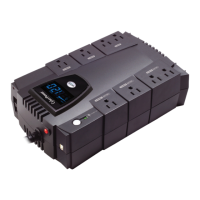
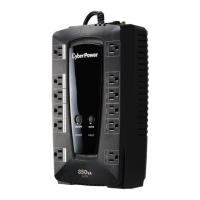
CyberPower LE850G
9 pages
Print Icon
To Next Page IconTo Next Page
Loading...
YOUR ULTIMATE ALLY IN POWER
STANDBY UPS SERIES
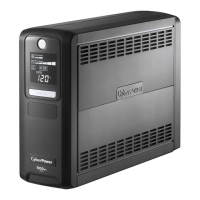
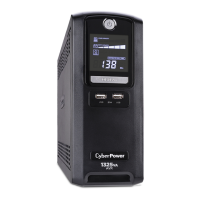
LE850G / LE1000DG
USER MANUAL
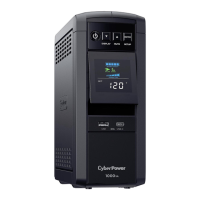
LE850G LE1000DG
FEATURES
1. Battery and Surge Protected Outlets
2. Full-Time Surge Protection Outlets
3. Power Switch
4. Power On Indicator
5. Mute Button (LE850G)
6. Fault Indicator (LE850G)
7. Mode Switch (LE1000DG)
8. LCD Module Display (LE1000DG)
9. USB Port
10. Communication Protection Ports
11. Circuit Breaker
12. Ground Screw
13. Outlets Designed for AC Adapters
Cyber Power Systems (USA), Inc.
4241 12th Avenue East, Suite 400 | Shakopee, MN 55379 | CyberPowerSystems.com

Questions and Answers

  • M
    Mr. James BuchananJul 28, 2025
    Why CyberPower LE850G UPS will not turn on?
    • A
      Amanda CastanedaJul 28, 2025
      There are several reasons why your CyberPower UPS might not be turning on. First, the on/off switch is designed to prevent damage from rapidly turning it off and on, so turn the UPS off, wait 10 seconds, and then turn it back on. Ensure the unit is connected to a 120V 60Hz outlet. If the frequency is beyond 57 to 63 Hz, turn the UPS off, ensure the frequency range is within this range, or turn it on in battery mode. For a worn-out battery or mechanical problems, contact CyberPower Systems for support.
  • J
    Jason SmithAug 4, 2025
    What to do if CyberPower LE850G UPS doesn't perform expected runtime?
    • T
      Tony ShermanAug 4, 2025
      If your CyberPower UPS isn't providing the expected runtime, it could be due to a battery issue. First, ensure the battery is fully charged by leaving the UPS plugged in to recharge it. If the battery is old, it may be worn out. In this case, contact CyberPower Systems about replacement batteries.
  • X
    xfarrellAug 11, 2025
    What to do if PowerPanel® Personal is inactive on CyberPower UPS?
    • D
      David MillerAug 11, 2025
      If the PowerPanel® Personal software shows all icons grayed out, it indicates inactivity. Here's what to check: * Ensure the USB cable is correctly connected between the UPS unit and an open USB port on your computer. * Try a different USB port, as the current one might be faulty. * If the unit isn't providing battery power, shut down your computer, turn the UPS off, wait 10 seconds, and then turn the UPS back on to reset the unit.
  • C
    Charles MartinAug 20, 2025
    How to fix CyberPower LE850G UPS surge protection outlets that stop providing power?
    • A
      Allen HerreraAug 20, 2025
      If the full-time surge protection outlets on your CyberPower UPS stop providing power, it's likely that the circuit breaker has been tripped due to an overload. To resolve this, turn the UPS off and unplug at least one piece of equipment. Then, reset the circuit breaker by depressing the button, and turn the UPS back on.

Summary

Installing Your UPS System

Unpacking

Inspect the UPS upon receipt. Check contents like UPS unit, user manual, and USB cable.

Automatic Voltage Regulator (AVR)

Stabilizes inconsistent utility power to nominal levels for equipment safety and data protection.

Determine Power Requirements

Ensure equipment plugged into the UPS does not exceed its rated capacity for optimal performance.

Hardware Installation Guide

Provides essential steps for UPS installation, including initial battery charging.

Basic Operation

Battery and Surge Protected Outlets

Six outlets provide temporary uninterrupted operation and surge protection for equipment.

Full-Time Surge Protection Outlets

The unit features six surge suppression outlets for connected devices.

Power Switch

Master on/off switch for equipment connected to battery-supplied outlets.

Power On Indicator

LED illuminates when utility power is normal and UPS outlets are providing power.

Mute Button (LE850 G)

Enables or disables the audible alarm, indicated by beeps.

Fault Indicator (LE850 G)

LED illuminates if there is a problem with the UPS unit.

Mode Switch (LE1000 DG)

Allows selection of functions like voltage range and LCD sleep mode.

Basic Operation Continued

LCD Module Display (LE1000 DG)

Displays UPS information using icons and messages for operational status.

USB Port

Facilitates connection and communication between the UPS and a computer.

Communication Protection Ports

Protects standard modem, fax, or telephone lines from surges.

Circuit Breaker

Located on the side for overload and fault protection.

Ground Screw

Used for connecting equipment requiring a chassis ground.

Outlets Designed for AC Adapters

Four widely-spaced outlets accommodate AC power adapters without overlap.

Replacing the Battery

Battery Replacement Procedure

Step-by-step guide for safely removing and installing a new UPS battery.

Troubleshooting

Definitions for LED Indicators & Audible Alarms

Definitions for Illuminated LCD Indicators

Technical Specifications

CyberPower GreenPower UPS Technology

FCC Compliance Statement

Limited Warranty and Connected Equipment Guarantee

CyberPower LE850G Specifications

General IconGeneral
WaveformSine
Output power460 W
UPS topologyLine-Interactive
Product colorBlack
Battery voltage12 V
Input frequency57/63 Hz
Audible alarm(s)Yes
Battery capacity7.2 Ah
Output frequency60 Hz
Battery technologySealed Lead Acid (VRLA)
Audible alarm modesFault, Low battery alarm, Overload alarm
Surge energy rating1030 J
Battery recharge time8 h
Output power capacity0.85 kVA
Short-circuit current (Isc)15 A
Number of batteries included1 pc(s)
Input operation voltage (min)- V
Output operation voltage (min)120 V
Operating temperature (T-T)0 - 40 °C
Operating relative humidity (H-H)0 - 90 %
Number of batteries supported1
Form factorTower
Cable length2 m
LED indicatorsPower
Power plugNEMA 5-15P
AC outlet typesNEMA 5–15R
AC outlets quantity12 AC outlet(s)
Weight and Dimensions IconWeight and Dimensions
Depth89 mm
Width310 mm
Height178 mm
Weight6300 g
Package depth374.65 mm
Package width127 mm
Package height247.65 mm
Package weight6600 g

Related product manuals