EasyManua.ls Logo

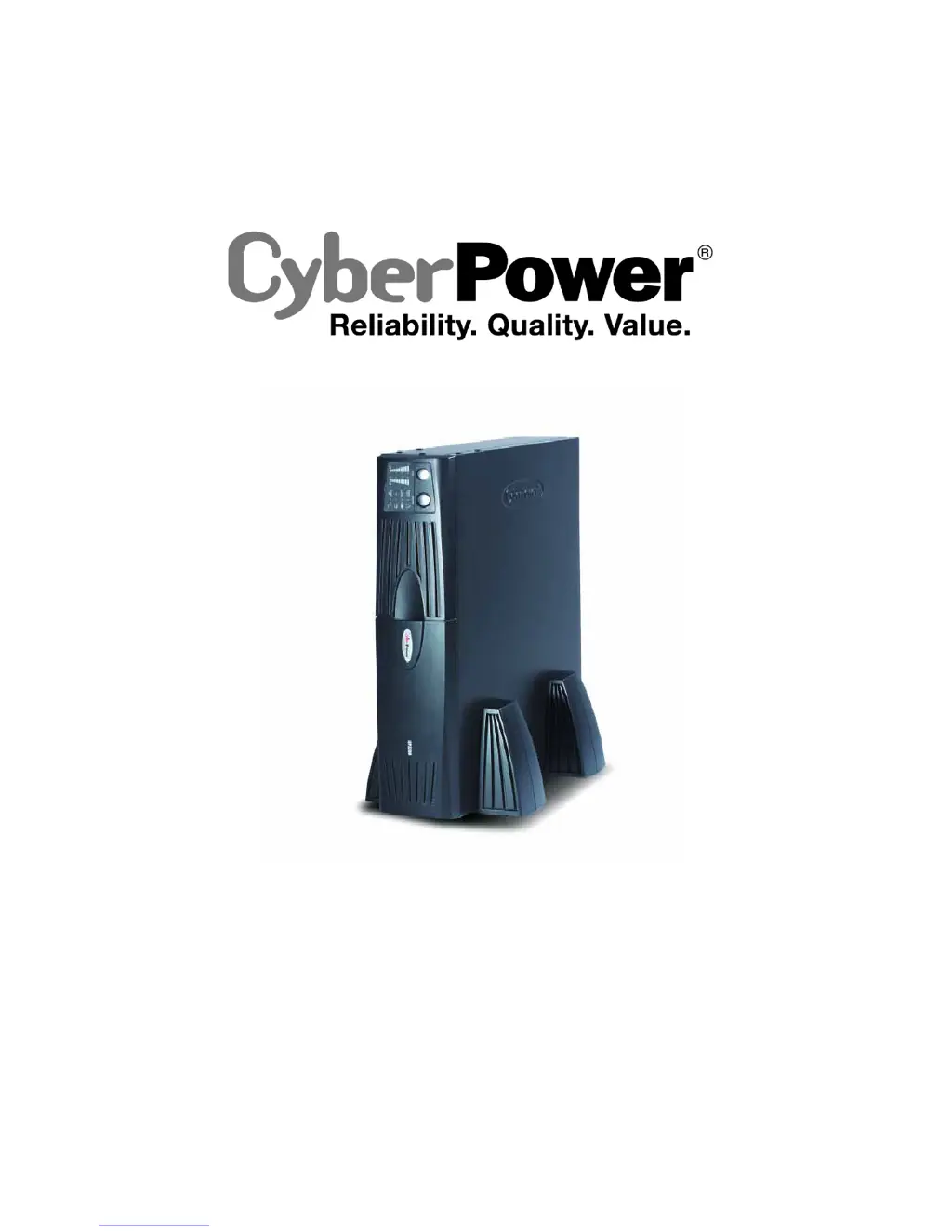
CyberPower PR1500 - User Manual

CyberPower PR1500
18 pages
Print Icon
To Next Page IconTo Next Page
Loading...
User’s Manual
Professional Rack Mount UPS
PR1500 / PR2200
K01-1500S0A-04

Questions and Answers

  • F
    fsanchezJul 26, 2025
    Why CyberPower PR1500 UPS will not turn on?
    • Z
      zbergJul 26, 2025
      If your CyberPower UPS won't turn on, first turn the UPS off, wait 10 seconds, and then turn it back on. The on/off switch is designed this way to prevent damage from rapid cycling. Also, ensure the unit is connected to a 110/120v 60Hz outlet. If these steps don't work, contact CyberPower Systems about replacement batteries or for assistance with a mechanical problem.
  • N
    nelsonscottJul 31, 2025
    Why my CyberPower UPS will not turn on?
    • C
      Chad SantosJul 31, 2025
      If your CyberPower UPS will not turn on, there are a few potential causes. The on/off switch is designed to prevent damage from rapid cycling, so turn the UPS off, wait 10 seconds, and then try turning it on again. Ensure the unit is connected to a working 110/120V 50/60Hz outlet. If only the individual Backup power outlet provides power, press the Self-Test button to recover the other six outlets.
  • S
    selena65Aug 4, 2025
    What to do if CyberPower UPS outlets do not provide power?
    • N
      Neil ObrienAug 4, 2025
      If the CyberPower UPS outlets aren't providing power, it could be due to a tripped circuit breaker from an overload. To resolve this, turn off the UPS, unplug a device, wait 10 seconds, reset the circuit breaker, and then turn the UPS back on. Alternatively, the batteries might be discharged; in that case, recharge the unit for at least 4 hours. It is also possible that the unit has been damaged by a surge or spike, which can be resolved by recharging the battery by leaving the UPS plugged in.
  • G
    Gina GarrettAug 9, 2025
    Why CyberPower PR1500 UPS does not perform expected runtime?
    • S
      Stacey JacksonAug 9, 2025
      If the CyberPower UPS does not perform the expected runtime, it might be because the battery isn't fully charged. Try recharging the battery by leaving the UPS plugged in. If the problem persists, the battery may be slightly worn out, and you should contact CyberPower Systems about replacement batteries.
  • B
    Brianna CollinsAug 15, 2025
    How to fix inactive PowerPanel Plus™ on CyberPower UPS?
    • J
      Jane HudsonAug 15, 2025
      If PowerPanel Plus™ is inactive (all icons are gray), ensure the serial cable is correctly connected to both the CyberPower UPS unit and an open serial port on your computer, using the cable that came with the unit. If it's connected, try a different serial port. If issues persist, shut down your computer, turn off the UPS, wait 10 seconds, and then turn the UPS back on to reset the unit. Finally, verify that you are using the serial cable that was included with the unit, as the software requires it.
  • W
    william06Aug 20, 2025
    What to do if CyberPower PR1500 UPS PowerPanel is inactive?
    • D
      Diana EllisAug 20, 2025
      If PowerPanel or PowerPanel Business Edition shows all gray icons, indicating it's inactive, the serial cable might not be connected properly. Ensure the serial cable is connected to both the UPS unit and an open serial port on your computer, using the cable that came with the unit. If it's connected, try a different serial port on your computer. If the unit isn't providing battery power, shut down your computer, turn off the UPS, wait 10 seconds, and then turn the UPS back on to reset it. Also, ensure you are using the serial cable that was included with the unit, as the software requires it.

Summary

Important Safety Warnings

Unpacking Instructions

Details on how to unpack the UPS unit and check for all included accessories upon receipt.

Hardware Installation Guide

Step-by-step instructions for installing the UPS hardware, including initial setup and connections.

Basic Operation Overview

Front Panel Description and Indicators

Description of the UPS front panel controls, lights, and indicators to understand unit status and operation.

Rear Panel Component Descriptions

USB Port Functionality

Explanation of the USB port's role in managing software and communicating with the UPS.

Circuit Breaker Reset

Information on the resettable circuit breaker for overload protection and how to use it.

Battery Backup and Surge Outlets

Details on the four battery-powered, surge-protected, and AVR outlets for essential equipment.

Critical Load Outlets

Description of the two battery-powered, surge-protected, and AVR outlets for critical equipment.

Communication Protection Ports

Information on RJ11/RJ45 ports for protecting modem, fax, telephone, or network cables.

Dual Serial Port Configuration

Battery Replacement Guide

Battery Replacement Procedure

Step-by-step instructions for safely replacing the UPS battery pack, including reassembly.

LED Indicator Definitions

Troubleshooting Common Issues

Technical Specifications

Product Registration and Warranty

Limited Warranty and Connected Equipment Guarantee

Details the terms, coverage, and conditions of the product's limited warranty and connected equipment guarantee.

Conformance Approvals

FCC Notice and Compliance

Information regarding FCC compliance, operating conditions, and measures to mitigate interference.

CyberPower PR1500 Specifications

General IconGeneral
BrandCyberPower
ModelPR1500
CategoryUPS
LanguageEnglish

Related product manuals