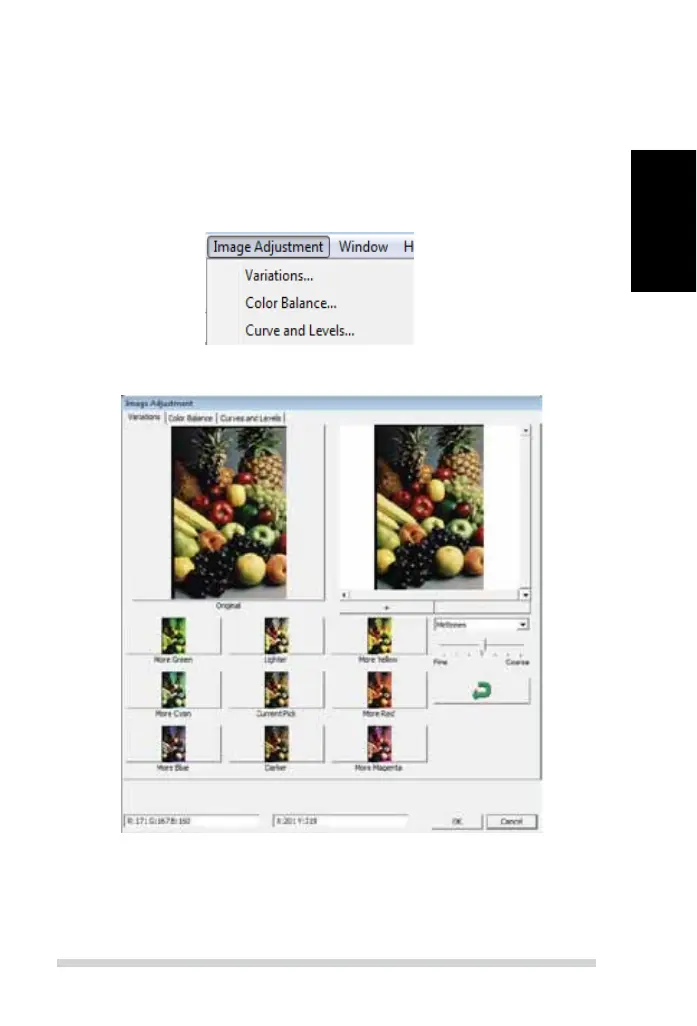
Menu Commands - Image Adjustment
a. Image Adjustment
1. Variations: Generates di erent views of image with options to make
changes to highlights, midtones, etc.
2. Color Balance
To adjust the brightness, contrast, saturation, and color (CMY or RGB)
of the image. Comparisons between before and after adjusted images
are shown for reference.
Example:
If a previewed image appears too dark, use the “Brightness” slider in the “Color
Balance” window to adjust the image by selecting the slider in the center and moving it to
the right. The image’s “After” view becomes lighter. Select “OK” to accept the changes which
will be sent to the scanning hardware. This can also be used to adjust each of the functions
in “Color Balance” by contrast, saturation and speci c color ranges of cyan, magenta and
yellow.
27
ENGLISH
26
USER INTERFACE
There are three major parts of the CyberView user interface:
I. Menu Commands [Overview + Full]
II. Function Bar Diagram / Toolbar Diagram
III. Active Frame Settings Area
I. Menu Commands [Overview]
Menu Commands - Scan
(overview)
a. Prescan
b. Scan
c. Revert
d. Preference
e. Exit / Quit
Zoom, Rotate & Flip features.
Menu Commands - Preview (overview)



 To Next Page