Cyrus ONE
HD User Instrucons
11
ONE REMOTE APP
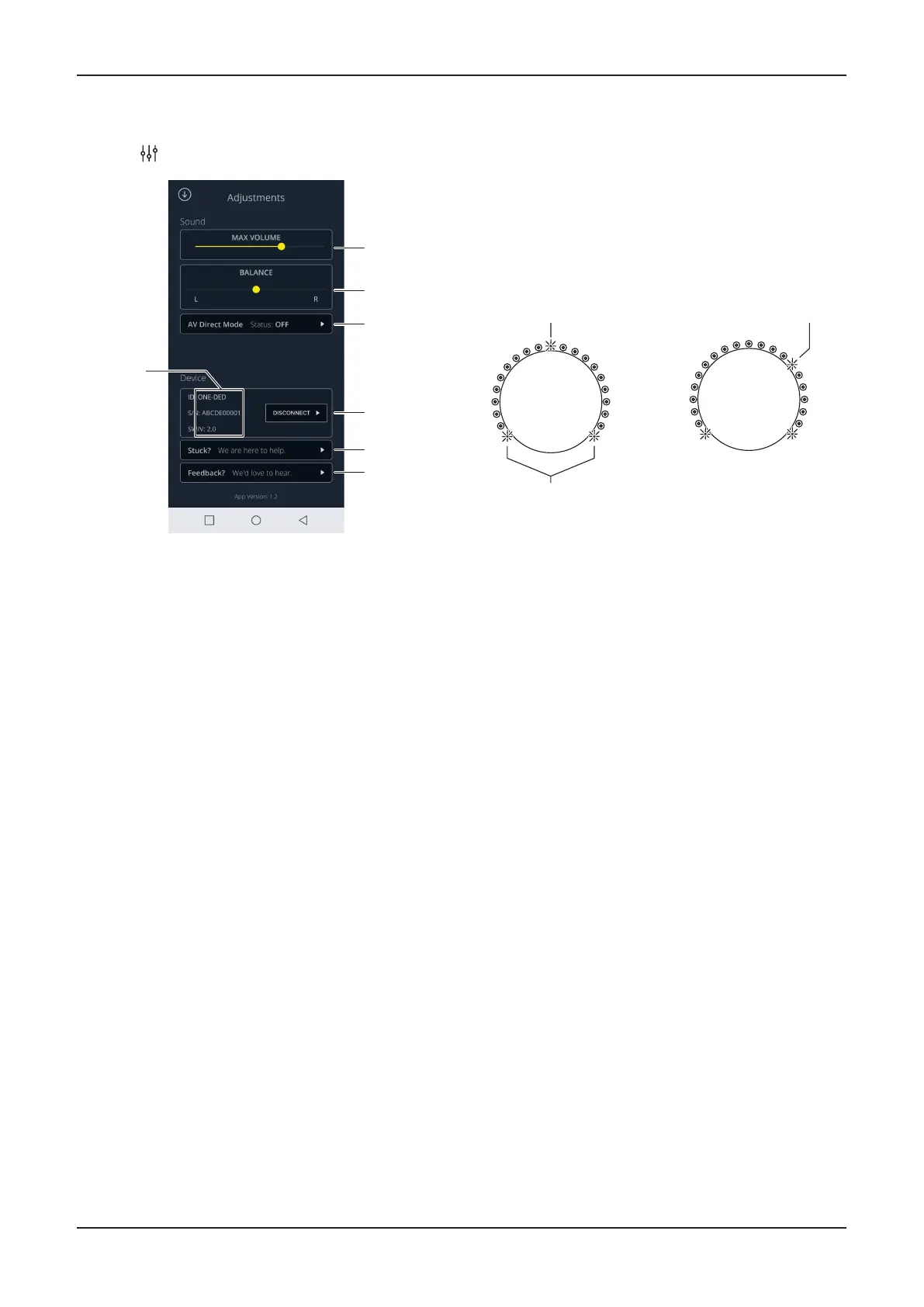
Opening the sengs screen
Touch •
to go to the sengs screen.
Channel balance
The balance seng will make one speaker louder than the
other. Use the balance sengs to equalise the speaker
volumes if you sit closer to one speaker than the other.
Move the BALANCE slider to the le or right to change •
the channel balance.
The balance seng will also be shown on the front panel by
the volume control indicators.
Indicates that balance
is displayed
Balance is centred
Balance is oset
4dB to the right
Balance can be moved by up to 9dB in each direcon. When
turned beyond 9dB to the le or right, only the selected
channel will play.
AV Direct mode
Refer to the ‘Advanced operaon’ secon on the next page
for more informaon about using AV Direct mode.
Device pane
The Device pane shows the ID of the connected Cyrus •
ONE
HD and enables you to disconnect the app from your
Cyrus ONE HD.
App help screen
Touch the ‘Stuck?’ pane to open a help screen if you are •
having any problems running your app.
Feedback
Touch the Feedback? pane to tell us about your •
experiences with the ONE Remote app.
Using the app and playing music simultaneously
It is possible to use the app to control a Cyrus ONE HD from
the same mobile device that is streaming music to the
Bluetooth input.
In this case the ONE Remote app and music stream are
separately connected to the Cyrus ONE
HD.
NOTE: Connecng the app to a Cyrus ONE
HD does not pair
your mobile device to the Cyrus ONE HD for Bluetooth audio.
Follow the instrucons in the ‘Playing Bluetooth devices’
secon on page 8 to pair your mobile to the Cyrus ONE HD
for audio.
Volume limiter slider1.
Balance slider2.
AV Direct mode selecon3.
Disconnect tab4.
Help tab5.
Feedback tab6.
Device informaon pane7.
Volume limiter
In the Sound pane you can set the MAX VOLUME slider •
to set a maximum selectable volume for the app.
NOTE: This does not set a maximum selectable volume
for the front panel voume control.


 To Next Page