13D-Link DCS-8526LH User Manual
Section 3 - mydlink
Using the mydlink App
Controlling Your Device
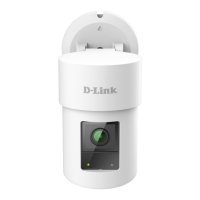
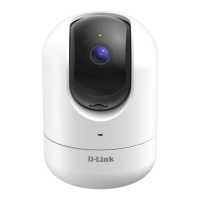
After setting up your DCS-8526LH Full HD Pan & Tilt Pro Wi-Fi Camera with a
mydlink account in the mydlink app, you will be able to remotely access your
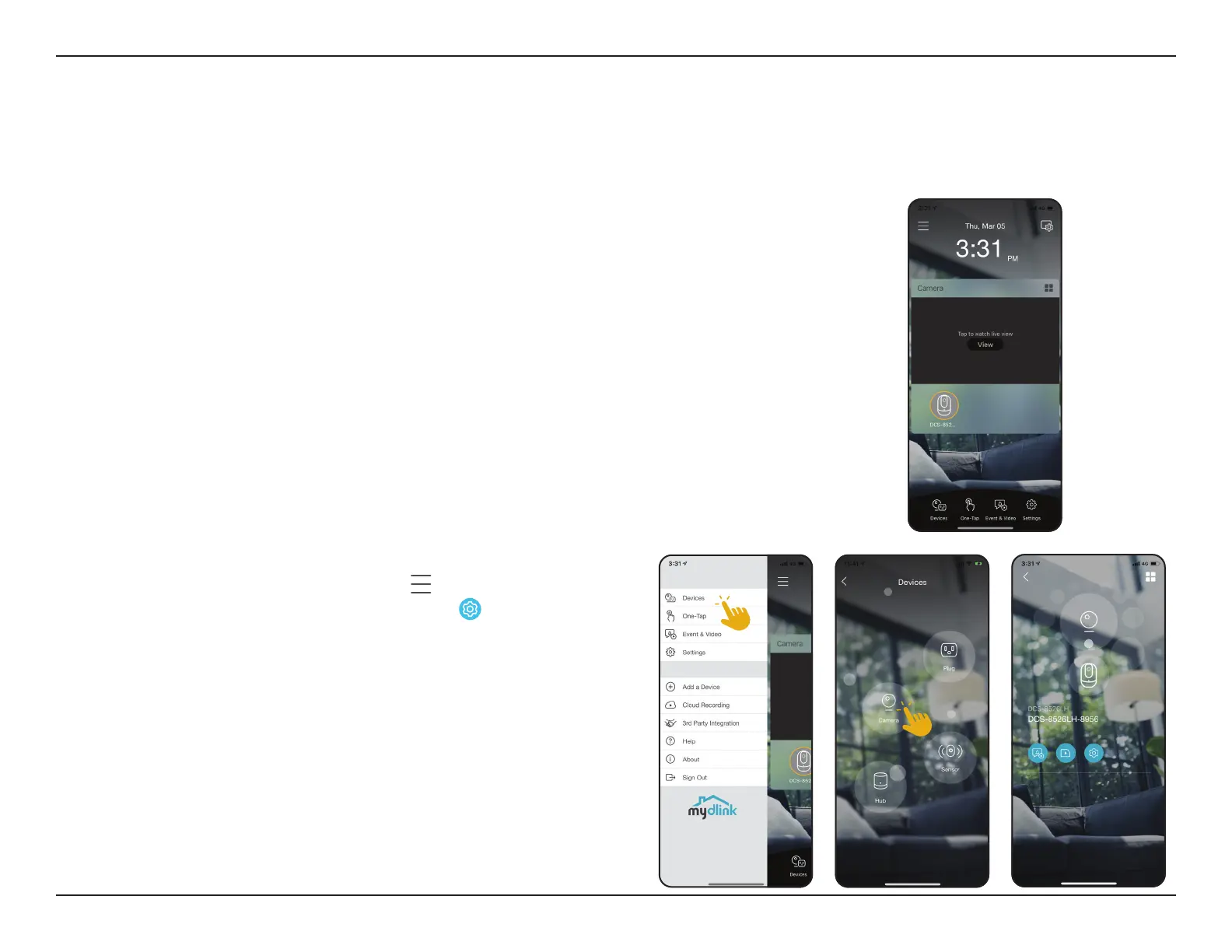
camera through the app. After signing into your mydlink account, you will
see a screen similar to the one on the right.
If you have previously checked the Add to shortcut option while installing
the camera, you will see a quick link to your camera directly on the home
screen. Tap the shortcut link to your camera on the home screen and by
default you will see a live video feed of your camera on the top half of the
app.
To access the settings for your DCS-8526LH
Full HD Pan & Tilt Pro Wi-Fi Camera, tap
> Devices > Camera
> navigate to your camera on the carousel >
.
Note: Screenshots are representative only. The mydlink app is constantly being updated
and so may appear dierent.


 To Next Page