DP-301 Print Server Hardware Guide
Unpacking and Installation
7
Installing the DP-301
Follow these steps for a trouble-free start of print-server operations with
your DP-301. Please take particular notice of the warning in step 4: the
network connection should be made before supplying power to the DP-301.
1.
Confirm proper operation of the printer to be connected to the DP-301.
2.
When you have confirmed proper operation of the printer, switch its
power off.
3.
Confirm that your network is operating normally.
4.
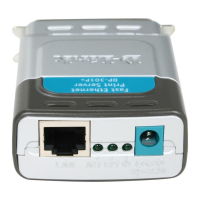
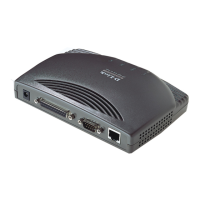
Connect the DP-301 to the network (through the RJ-45 receptacle on the
print server’s rear panel).
WARNING:
Configuration problems may result if the DP-301 is
powered up without first establishing its network
connection. Follow this procedure to avoid
complications at the configuration stage.
5.
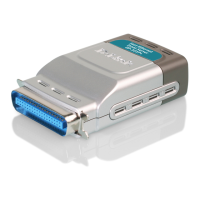
While the printer is power off, install a printer cable to connect its
parallel port to the printer port of the DP-301.
6.
Switch printer power on.
7.
Plug the DC power adapter’s output plug into the DC power input socket
on the rear panel of the DP-301.
8.
Plug the DC power adapter into an electric service outlet. This will
supply power to the DP-301. (The DP-301 has no power switch.) The
DP-301’s self-test routines will proceed automatically.




 To Next Page