EasyManua.ls Logo

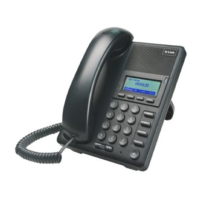
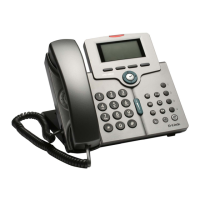
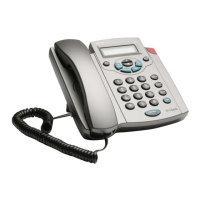
D-Link DPH-150SE - User Manual

D-Link DPH-150SE
89 pages
Print Icon
To Next Page IconTo Next Page
Loading...
1
Contents

Other manuals for D-Link DPH-150SE

Questions and Answers

  • C
    cserranoJul 27, 2025
    Why does my D-Link IP Phone say “Can’t Upgrade Now”?
    • L
      Lucas FosterJul 27, 2025
      If your D-Link IP Phone displays a “Can’t Upgrade Now” screen after clicking [Submit] in the configuration menu, ensure you exit any setting mode (like phonebook, menu, or speed dial) before submitting the configuration.
  • O
    ohansenAug 2, 2025
    What to do if D-Link IP Phone does not boot up after enabling DSL?
    • B
      beverly08Aug 2, 2025
      If your D-Link IP Phone doesn't boot up after accidentally enabling DSL, unplug the power cord, wait two seconds, and plug it back in. Then, press and hold the MENU key. This should bypass the boot process and take you directly to the phone setup menu. Remember to save any changes you make before exiting.
  • M
    Maria MasonAug 7, 2025
    Why can’t I dial a SIP number from my D-Link IP Phone?
    • D
      Damon FosterAug 8, 2025
      If you can't dial a SIP number on your D-Link IP Phone, first check the Registrar Server Domain Name/IP address and Outbound Proxy Domain Name/IP Address under SIP Settings in the Configuration Menu to ensure they are correct. Also, check the LCD display for a displayed name or number. If nothing is displayed, use a web browser to access the configuration menu and verify the Registrar Server Domain Name/IP Address. Finally, check the register status under SIP Account Settings in the configuration menu (via web browser). If the status is unregistered, contact your SIP service provider to get an account.
  • D
    Deborah WeberAug 14, 2025
    What to do if my D-Link IP Phone is disabled after connecting to another D-Link IP Phone?
    • A
      Andrea McgrathAug 14, 2025
      The WAN port of your DPH-150SE (PhoneB) is connected with the LAN port of another DPH-150SE (PhoneA), and your DPH-150SE (PhoneB) became disabled on the network, change the IP segment of the PhoneA LAN port to something other than “192.168.15.xxx” (for example, “192.168.10.xxx”). The PhoneB will automatically start to get the VoIP connection and the associated VoIP services. This issue occurs because the DPH-150SE, in its default settings, uses an integrated DHCP server that assigns LAN port IP addresses within the “192.168.15.xxx” segment. Connecting PhoneA and PhoneB in this manner places both the WAN and LAN ports of PhoneB in the same IP segment, causing a system conflict that disables PhoneB on the network.
  • J
    Janet SmithAug 20, 2025
    What to do if nothing is displayed on my D-Link IP Phone LCD screen?
    • K
      kayla91Aug 20, 2025
      If there is no display on the LCD screen of your D-Link IP Phone, check if the power cord is properly connected and ensure that the power outlet is providing AC power.

Summary

Your Phone

Using the Keys

Explains how to use the phone's keypad and buttons.

LCD Display

Details the LCD screen, icon fields, and their meanings.

Keypad Layout and Functions

Describes the phone's keypad and button definitions.

Text Input Methods

Explains ABC, abc, and 123 input modes.

Getting Started

Prepare Network Settings

Instructions for connecting the phone to the network.

Prepare VoIP Settings

Instructions for configuring VoIP settings.

Basic Functions

Making and Managing Calls

Covers dialing, answering, holding, muting, and switching calls.

Call Transfer

Detailed steps for transferring calls.

Conference Calls

How to initiate and manage conference calls.

Menu Operation

Call Records Management

Accessing and managing missed, received, and dialed calls.

Network Settings Configuration

Setting IP mode, address, mask, and default gateway.

SIP Settings

Configuring SIP proxy, registrar, and user information.

Phone Settings

Adjusting language, forwarding, alarm, time, and ring settings.

Web Setting

Accessing the Web Interface

Instructions to connect to the phone's web management portal.

Installation Wizard

Step-by-step guide for initial configuration.

Advanced SIP Client Settings

Detailed configuration of SIP port, timers, and user agent.

Account Settings

Setting up SIP user accounts and authentication.

Phone Book Management

Saving, importing, and adding phone book entries.

Firmware Update

Updating the phone's firmware via web or auto provision.

Auto Provision Settings

Configuring HTTP/TFTP servers for firmware auto-provisioning.

Example Configuration

Call Transfer Procedures

Details attended and unattended transfer methods.

Troubleshooting

D-Link DPH-150SE Specifications

General IconGeneral
BrandD-Link
ModelDPH-150SE
CategoryIP Phone
LanguageEnglish

Related product manuals