8D-Link DWA-132 User Manual
Section 2 - Installation
Disable Other Adapters
Most newer laptops may include a built-in wireless adapter. To prevent any conicts with the D-Link wireless adapter, it is recommended to disable
the wireless adapter (as well as any unused Ethernet adapters).
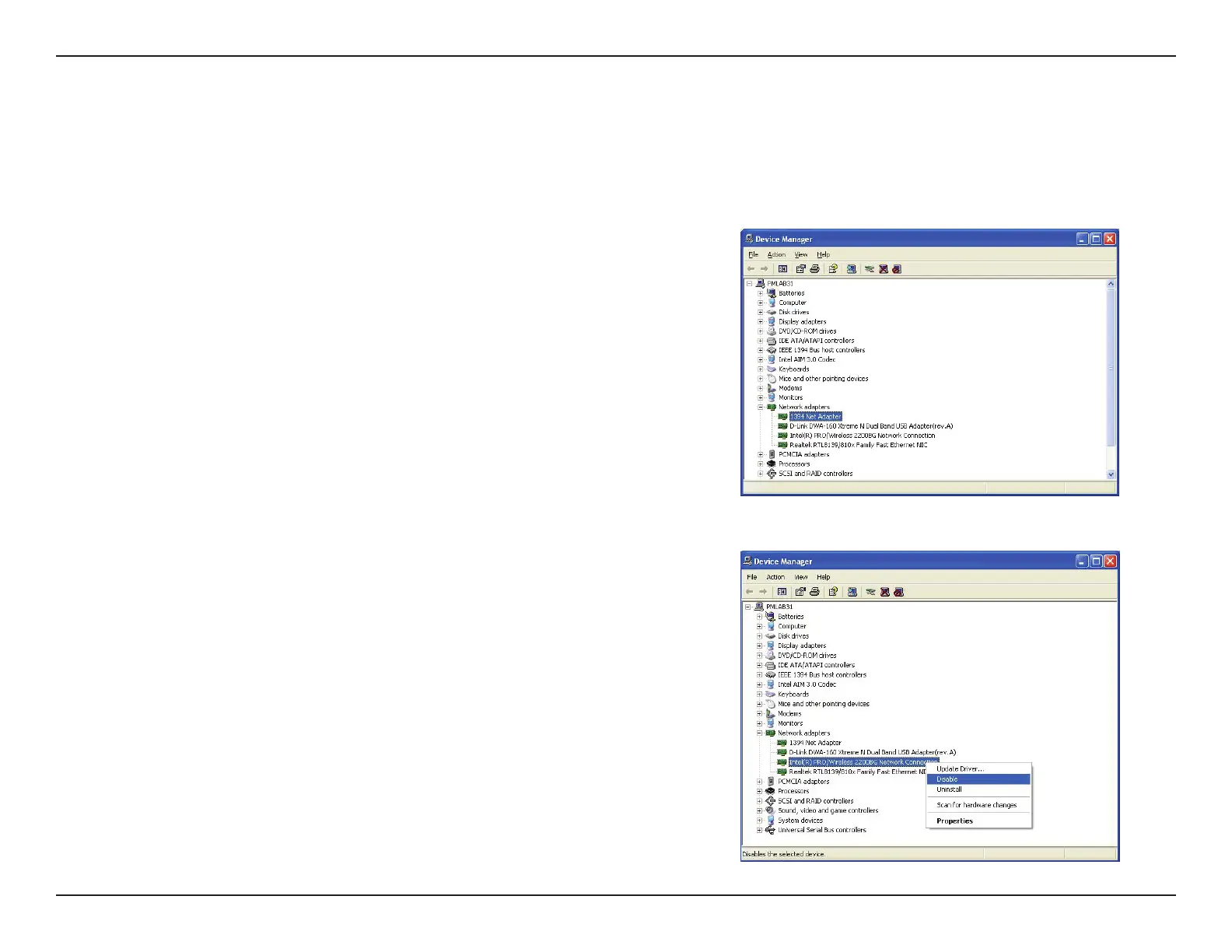
Windows XP - Go to Start > My Computer > Properties > Hardware > Device Manager.
Windows Vista/7 - Go to Start > Device Manager.
Windows 8 - Press the Windows key and X together and then click Device Manager.
Click the Hardware tab and then click Device Manager. Scroll down the list and click
the + sign to the left of Network Adapters.
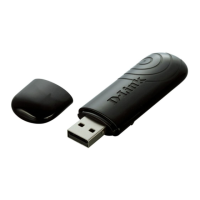
Right-click the adapter you would like to disable and select Disable.


 To Next Page