• Select and adjust brightness, contrast,colour • Select and adjust volume as described above.
and sharpness as described above.
When the speakers on the screen face
•
The values you select are automatically stored
outwards, the sound effect makes mono sound
and you can bring these back by pressing the
like stereo and it makes stereo sound as if the
NORMAL button during normal viewing.
speakers were further apart.
• If you keep pressing the normal button it
Bass and treble change the volume of low-frequency
brings back two other picture settings,
and high-frequency sounds. Balance shifts
‘Normal I’ and ‘Normal II’, which have different the sound between the left and right speakers.
fixed levels of brightness, contrast and colour
.
• For NTSC videos the ‘tint’ function appears.
See ‘NTSC and tint control’ on page 19.
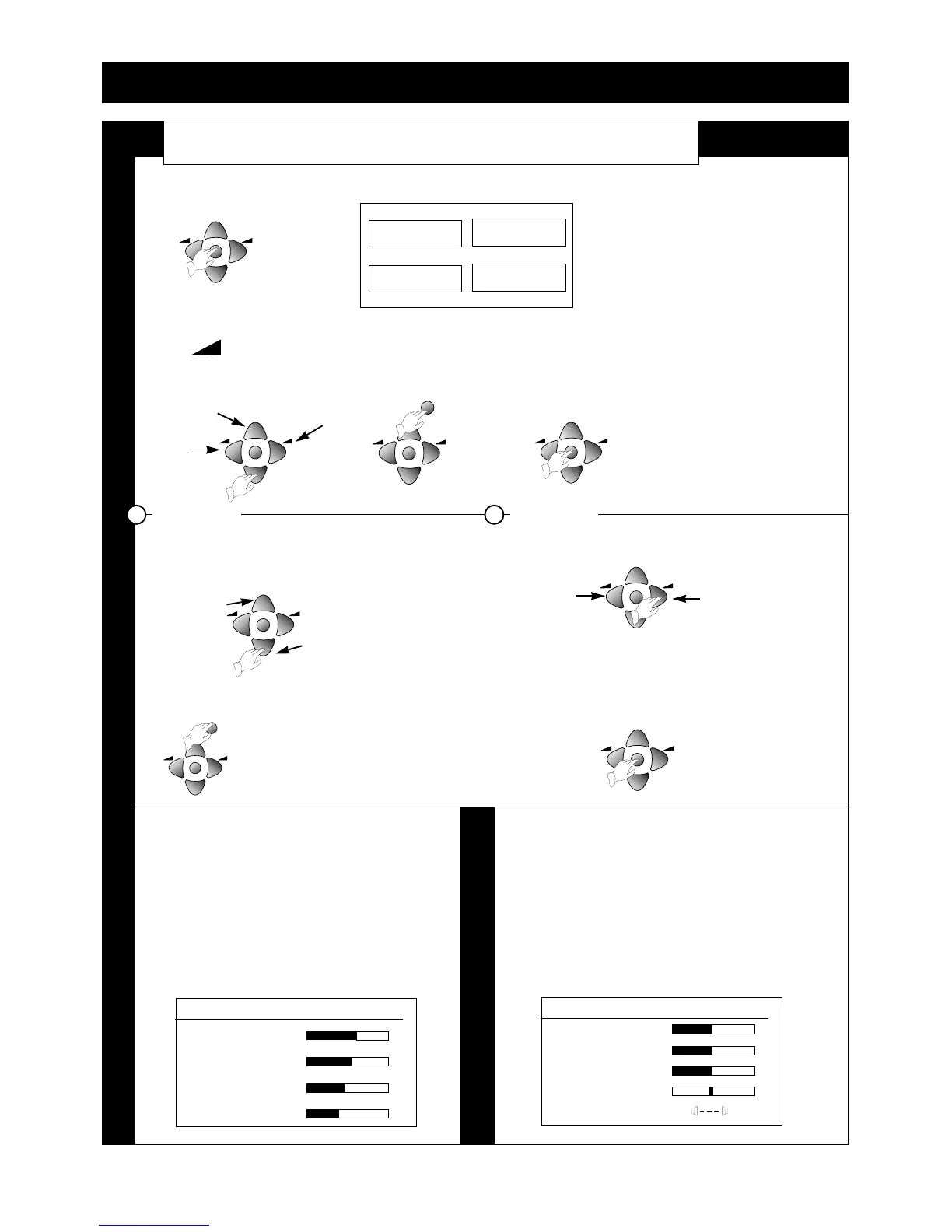
Display the sub-menu as described Use the volume buttons to adjust the function.
in steps 1 and 2 in ‘Main menu’
above, then use the PR buttons to
select the function you want to change.
The install menu is slightly different. 3 Return to the main menu by pressing the MENU
button. Press it again to return to normal viewing.
In this menu you
press OK to enter the
programme editing
menu or store a
channel.
9
Menus for controlling and setting up the television
1 Press the remote control MENU button to display the main menu. A choice of several sub-menus appears
on the screen.
2 To select one of the sub-menus, press the 3 To get back to normal television, just keep pressing
PR or (volume) buttons to highlight the MENU button until all the menus have
the sub-menu you want, then press the gone from the screen.
OK button.
All the menus go off the screen within 30 seconds if you don’t press any buttons.
A box at the bottom of the screen reminds you what the buttons do.
Main menu
How to use sub - menus


 To Next Page