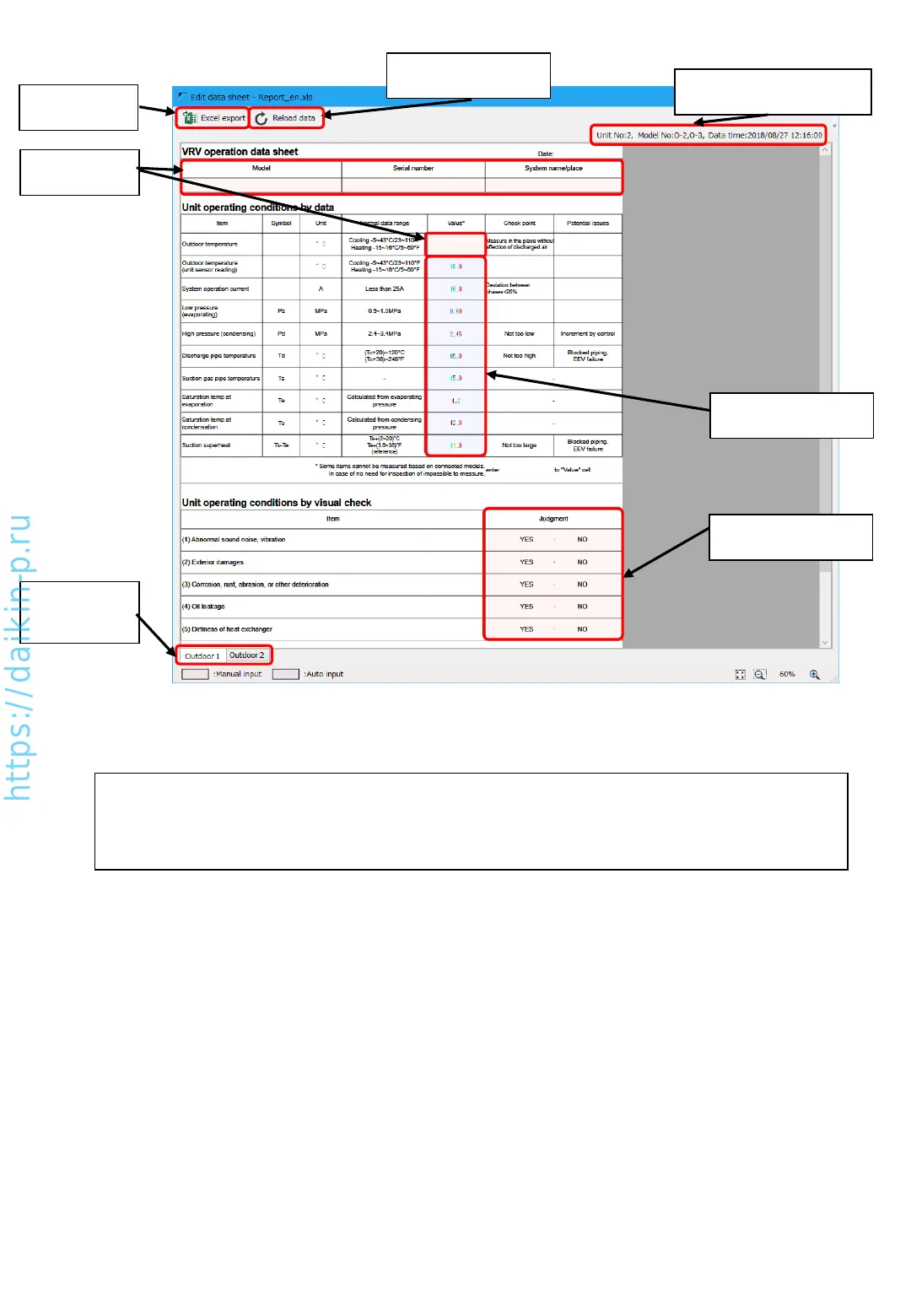
(4) Inspection sheet display
(4-1) Excel file
export
(4-2) Reloading data in
the sheet
(4-5) Select judgment
result
(4-1) Excel file export
Inspection sheet will be exported as Excel file format.
If no Excel software is installed to your PC, Excel file export function would work.
(4-2) Reload data
Reloading selected data in [Operation data display] graph and updates inspection sheet values.
(4-3) Displaying outdoor unit information listed below
•Unit No.: For some models, unit number of outdoor unit is shown.
•Model No.: Displays outdoor unit number (e.g. O-2 = outdoor unit 2)
•Data time: Time of data acquired in [Operation data display] graph
(4-4) Manual input box
•Data box in pink background is required to enter/select manually.
•After clicking once, you can enter necessary values.
(4-5) Select judgment result
•For judgment result area, you can select and put circle by clicking YES or NO.
•Values cannot be entered manually (YES/NO selection only).
(Note) About the position of “circles”
If you open exported Excel file, “circle” symbol selected in the Judgment box might be in the offset position
based on the Excel version.
(4-3) Outdoor unit info and
data acquisition time is shown
(4-4) Manual
input boxes
(4-6) Auto filled from
checker data
(4-7) Switch
between outdoor
units
AS0112-P-DENV
30


 To Next Page