Chapter 4: Overview of the checker software function
4-1 Start up the checker software
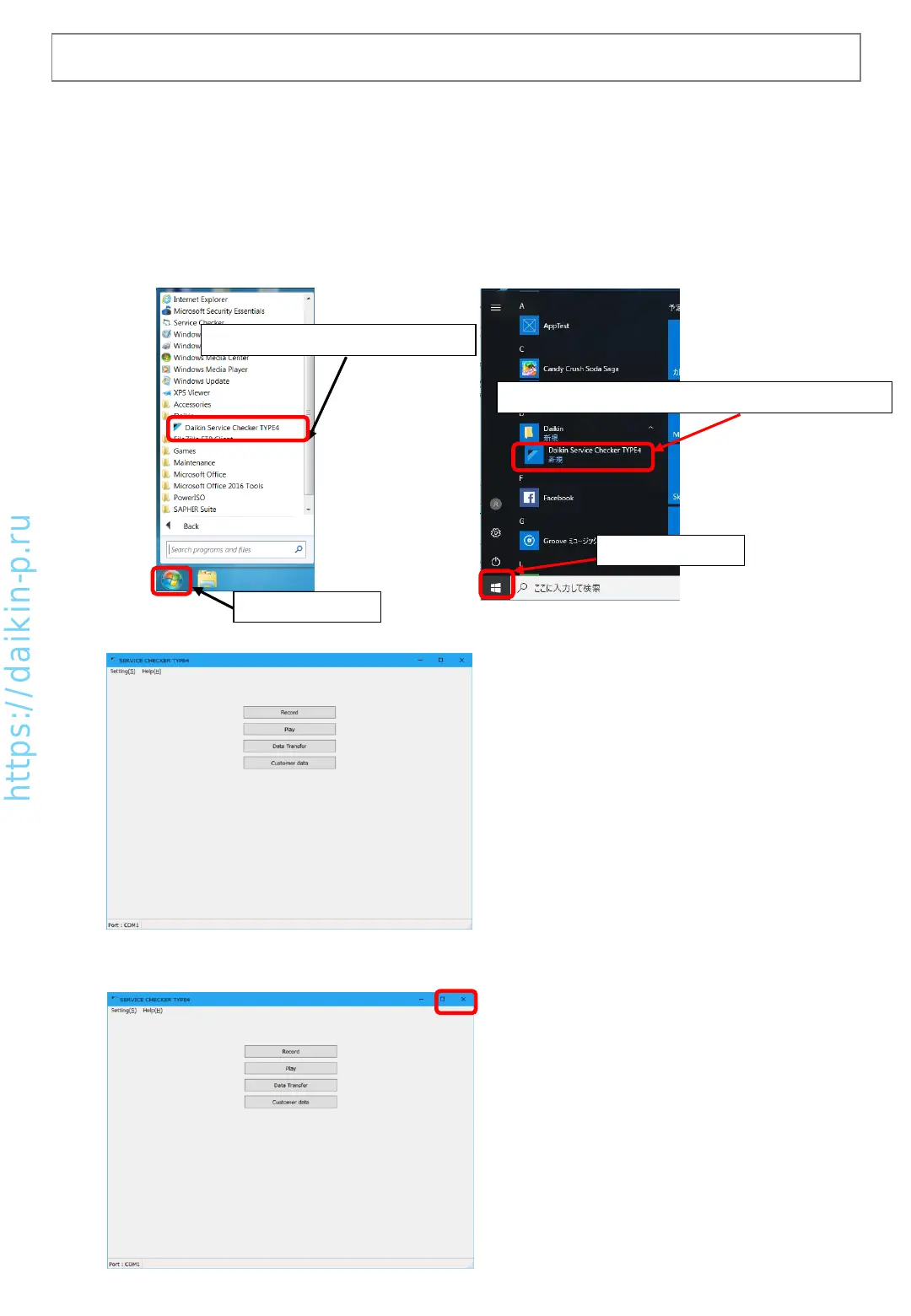
After installation of checker software, icon will be added to the Windows start menu.
[Procedure]
1) From (Start[ button, select [Program] and select checker software.
[ Windows 7 ] [ Windows 10 ]
2.Select “Daikin Service Checker TYPE4” under Daikin folder
2. Select “Daikin Service Checker TYPE4”
1. Click Start button
1. Click Start button
2) Checker software starts up and shows the main
menu shown left.
(It looks same for both Windows7 and 10)
4-2 Quit the checker software
There are two ways to quit checker software.
1) Click “X” button on the top right corner.
AS0112-P-DENV
17


 To Next Page