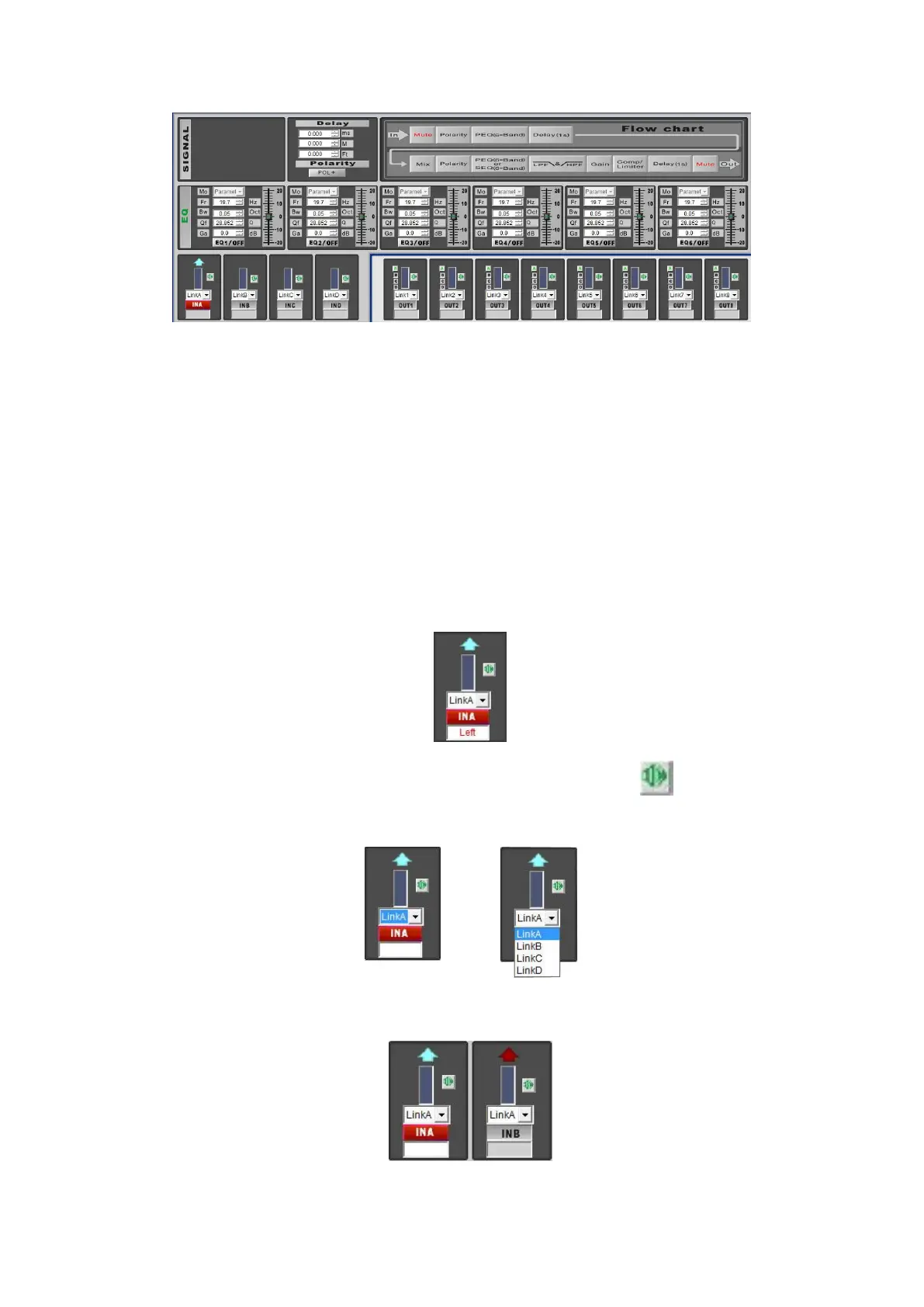
C. the parameter adjustment zone
Channel selection
Click the channel button (INA, INB, INC, IND, OUT1, OUT2, OUT3, OUT4, OUT5, OUT6, OUT7 or OUT8) to
select and edit a channel. An arrow above the channel button will light up, indicating the channel is in
edit mode.
Now you can edit the parameters to your liking. Changing a parameter will also change the
corresponding curve. It is even possible to click and drag the corresponding curve in the display in order
to change the parameters.
Each input channel allows you to edit EQ1 – EQ6, delay and polarity.
Each output channel gives you access to Gain, delay, polarity, X-over, limiter and EQ1-EQ6.
Editing labels
The Digital Speaker Management software allows you to ad labels to each channel. If the channel is in
edit mode, you can enter a name in the box under the channel button as shown in the picture below.
Mute button
Clicking the mute button allows you to mute the corresponding channel.
Copy and link function
The Digital Speaker Management software allows you link input channels to your needs. In example
below the B input is linked with the A input.
Now input B is linked with input A, all settings (except mute) from input A will automatically be copied to
input B.


 To Next Page