16
File Management Icon
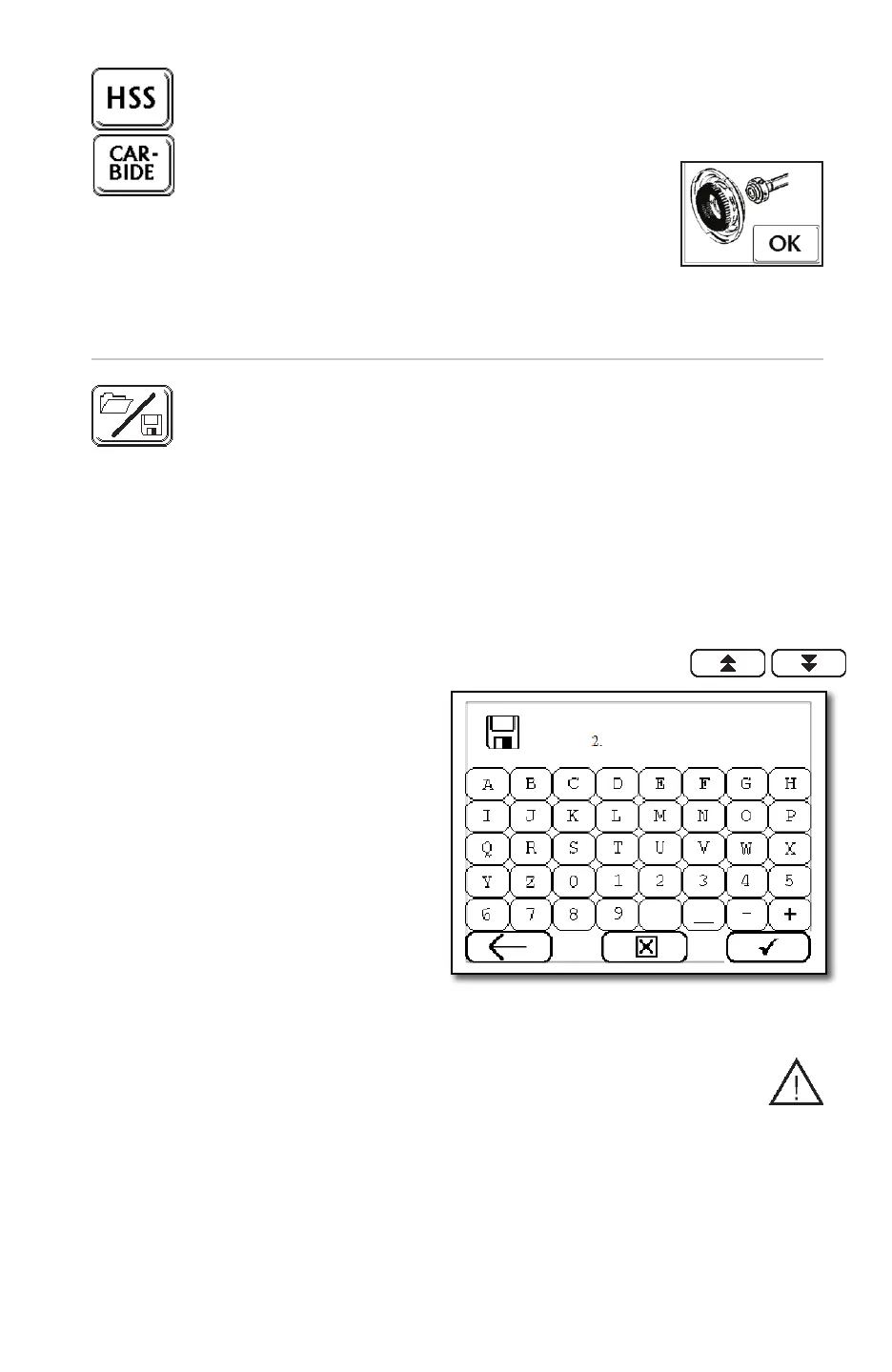
Press this icon in order to save, recall or delete drill les. The XPS-16+ will store 100
custom dened drill les. In the event that more storage is necessary, the X-Loader
software supplied with your XPS-16+ will allow drills les to be sent and retrieved via
your computer.
Note: File #1 DAREX FILE is factory created and is the default le to start with
when creating new drill les.
• Press the File Management Icon – a list of the drill les existing on the XPS-16+
will appear.
• Press the [DOWN] or [UP] to move the selector arrow to an open position.
Note: page up or down arrows will move selector much faster.
• Press the [SAVE] icon to
initiate a new program. A
keyboard will appear. Using
a maximum of 20 characters,
name your program.
• Press the [CHECK] to
return to the Main Operating
Screen. Notice the le name
now appears on the File
Management icon.
• In the event a program is no
longer necessary, use the arrow
keys to move the selector to
the desired program and press the [DELETE] icon. Press the [CHECK] icon to
remove the program.
Note: In the event a program is over-written, a warning will show on the
display. Pressing the [CHECK] will allow the changes to the program and
pressing the [X] will not allow the changes.
Note: A drill le can be locked to avoid being edited or removed. In order to do so,
start the drill le name with a plus [+] symbol. Example: +135facet
To delete or modify a locked drill le, a password is needed. Please contact your
Darex Representative for customer service.
Drill Material Icon
Pressing this icon will prompt the user to execute a grind wheel change, CBN for HSS/
Cobalt and Diamond for carbide drills. Changing to the correct icon internally adjusts
some of the grind stock removal and grind speed rates.
Tip: Even though the XPS-16+ prompts the operator for a grind
wheel change, the machine does not know if that grind wheel
change has been executed. Using the incorrect grind wheel will
have a negative effect on grind wheel life.
Tip: After a grind wheel change, it may be necessary to make an offset adjustment to
the grind wheel face and/or the grind wheel edge. Those adjustments will be covered in
the Wheel Position Adjustment portion of the User Guide.


 To Next Page