17
Point Split Offset Icon
Select the point split type you wish to grind using the Point Split icon already covered in the user
guide. Any split geometry you wish to alter can be adjusted using this menu. The user adjustments
are:
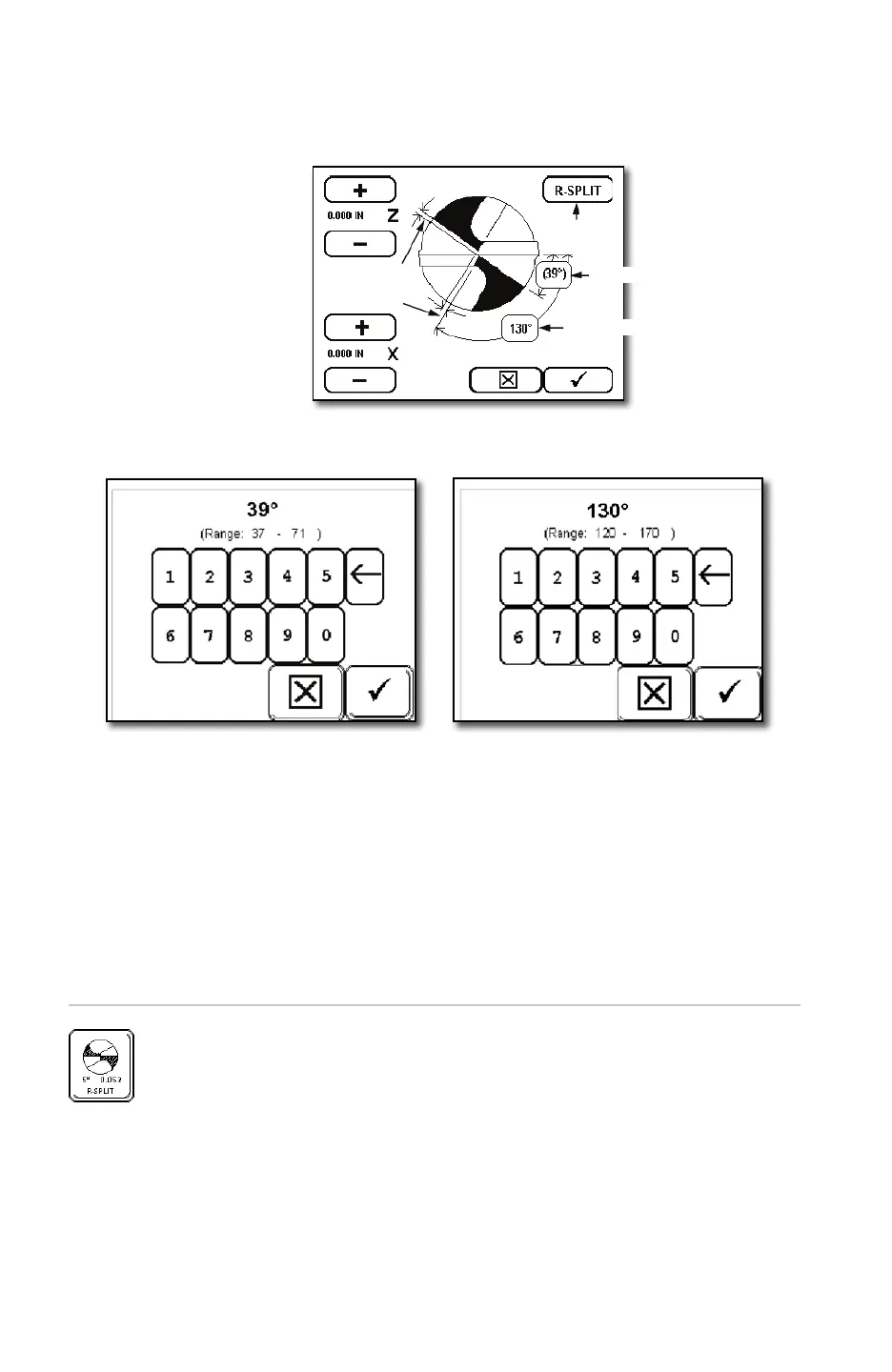
Pressing the Z axis offsets (plus
and minus) which will control
split depth.
X axis offsets (plus and minus)
which will control the center of
the split.
Tip: Each axis is dened by a
decal applied to the Base Casting
showing direction of movement.
Reference these decals when
making offset adjustments to either the X or Z axis. Movement increments are in 1/1000th’s of an
inch or .025MM if the utilized in the metric mode.
Radius Split
In order to create a radius split, the user must rst measure the web thickness and
manually enter the gure into web thickness screen. Press the split icon until the
R-Split option appears. When the R-Split is selected, the point split offset icon will
display an R-Split option. When the R-Split is selected, the Point Split Offset page
will have all the X Split offset adjustments plus some additional ones. In the upper
right hand corner of the Point Split Offset menu will have [R-Split] icon. Press
this icon to allow you to make adjustments to the amount of radius [OFFSET] and
the stop angle as dened by the location of the cutting edge. A keypad will appear
when the [OFFSET] icon is pressed allowing the operator to enter a value. Press the
[CHECK] button to accept the value and exit back to the main Split Offset menu or
press the [X] icon to exit without any changes made.
Fan Angle: Press to Adjust
Split Angle: Press to Adjust
To make changes to either angle, press the touch display where either angle is displayed. A keypad
will appear allowing the requested change.
Note: The Fan Angle and the Split Angle are interdependent to one another. When reducing the
Split Angle, it may impact the amount of Fan Angle. The XPS-16+ is able to automatically adjust
the Fan Angle if necessary once the user has dened Split Angle. Notice the Fan Angle is always
displayed as a (reference value).
Fan Angle – included angle from
the cutting edge to the depth of split
controlled with the Z axis.
Split Angle – include angle from the
cutting edge to the split edge (secondary
cutting edge).


 To Next Page