Need help?
Do you have a question about the Datacolor Spyder5 Express and is the answer not in the manual?
Overview of the Spyder5 user guide and its purpose.
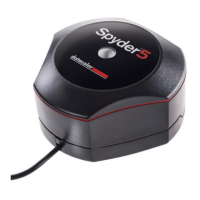
Lists the components included with the Spyder5 package.
Details the hardware and software needed for Spyder5 operation.
Step-by-step process for activating the Spyder5 software and device.
Explanation of the Spyder5 software interface and help features.
Initial screen guiding through the calibration process.
Choose the display to calibrate in a multi-monitor setup.
Select Desktop or Laptop display for calibration.
Identify display manufacturer and model for calibration.
Place the Spyder5 unit on the display for calibration.
Save the monitor profile and set recalibration reminder.
Compare calibrated and uncalibrated images to preview results.
Initial screen for the Spyder5PRO calibration wizard.
Choose the display to calibrate from connected monitors.
Select whether the display is Desktop or Laptop.
Specify monitor's brightness and Kelvin preset controls.
Input display manufacturer and model for calibration.
Configure target values like Gamma, White Point, and Brightness.
Read ambient lighting conditions for optimal calibration settings.
Review room light reading and recommended target settings.
Execute calibration and adjust display brightness.
Save the calibrated monitor profile and set a reminder.
Perform a quick recalibration to save time.
Check current calibration accuracy without full recalibration.
Visually compare calibrated vs. uncalibrated display output.
View and compare display gamut against industry standards.
Access common software functions quickly.
Perform tests to evaluate display strengths and weaknesses.
Initial screen for the Spyder5ELITE calibration wizard.
Choose calibration mode: Assistant, StudioMatch, or Expert Console.
Configure calibration targets for first-time calibration.
Customize advanced options like custom targets and grey balance.
Configure settings to match multiple displays for consistent color.
Measure ambient light for display brightness recommendations.
Save StudioMatch target settings for multi-monitor calibration.
Access all calibration settings simultaneously for expert control.
Execute calibration and adjust display brightness.
Save the calibrated monitor profile and set a recalibration reminder.
Perform a quick recalibration after initial full calibration.
Check the accuracy of the current calibration status.
Compare calibrated and uncalibrated views of images.
Fine-tune monitor matching with backlight technologies.
Analyze display gamut and compare to industry standards.
Access key software functions like Expert Console and Display Analysis.
Perform tests to analyze display performance and identify weaknesses.
 General
| Device Type | Colorimeter |
|---|---|
| Function | Monitor Calibration |
| Software | Spyder5Express |
| Compatibility | Windows, Mac |
| Supported Display Types | LCD, LED |
| Sensor Type | Colorimeter |
| Type | Display Calibration Device |

 To Next Page