18
4.3 How to save / load the camcorder settings to / from a PC
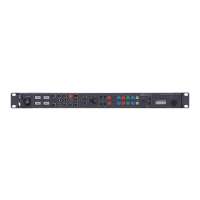
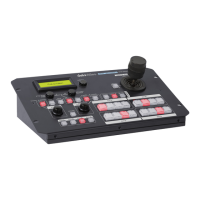
It is possible to save the current settings on all four cameras from MCU-100P to a PC for later use.
Also any previously saved MCU-100P settings stored on a PC can also be loaded back to the MCU-
100P unit. This can be handy if multiple users have access to the equipment and you need a quick
way to get back to your preferred settings.
Use the following procedure to save the current camera settings set by the MCU-100P unit to a PC.
1. Power off the MCU-100P unit.
2. Connect the MCU-100P unit to PC using a USB cable via the USB 2.0 (Mini B) interface.
3. Set the five switches on the MCU-100P unit to their
middle position.
4. Press and hold in both the CAM 1 & MU-1 buttons at same time and then power on the
MCU-100P unit.
5. The seven segments LED Display will show “cU--”, and the PC will detect the MCU-100P
unit as an external storage device named “MCU-100P_MUx”.
6. Open the “MCU-100P_MUx” folder on the PC and copy “mu_param.bin” file to desired PC
hard drive location.
7. Once complete unplug the USB cable and reboot the MCU-100P unit.
To load previously saved settings on a PC to MCU-100P, repeat steps 1~5 of the above procedure
and then continue with the following steps.
6. Open the “MCU-100P_MUx” file folder on PC and delete the “mu_param.bin” file.
7. Copy the previously saved “mu_param.bin” file from the PC hard drive location to the
“MCU-100P_MUx” folder.
Note: Do not worry if the previously saved xxxxxxxxx.bin file has been renamed on the PC.
The MCU-100P unit will automatically amend the file name back to “mu_param.bin” after
a reboot.
8. Once the copy process is complete unplug the USB cable and reboot the MCU-100P unit.



 To Next Page
 Loading...