Need Help? Visit DefenderCameras.com/support
7
SETTING UP MOTION RECORDING
Your Defender Phoenix system records footage directly
to a SD card inserted into the monitor. You can either
set motion-based or schedule-based recording.
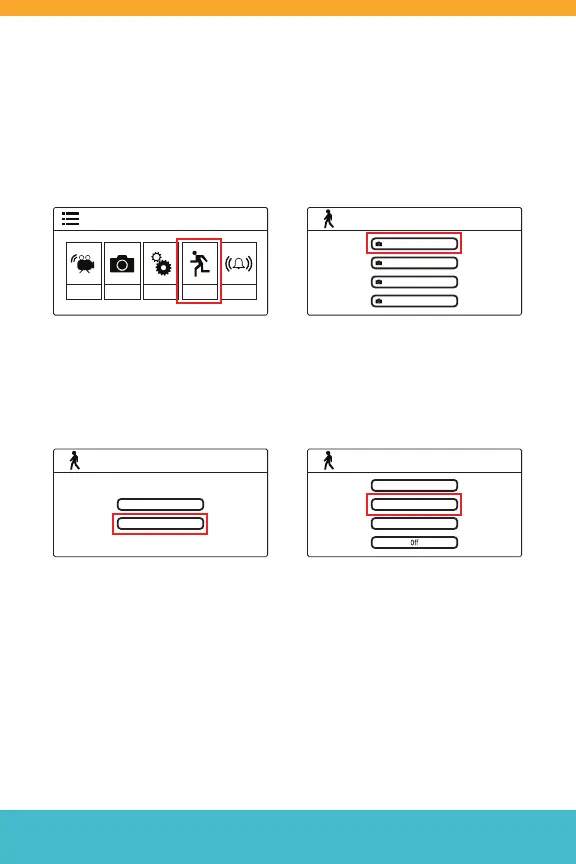
Step 1: Press the Menu Button
to open the Menu, then navigate
to “Detect.”
Step 3: Select Day time or
Night time to adjust motion
notications for that period of
the day.
Step 2: Select the camera you
would like to activate motion
notications for.
Step 4: Select sensitivity.
Repeat Step 3 and 4 if you would
like to activate motion noti-
cations or the other remaining
period of the day.
Menu
CameraRecord Settings Detect Alert
Video Motion Detect
Camera 1
Camera 2
Camera 3
Camera 4
Video Motion Detect
Day time
Night time
Video Motion Detect
High
Medium
Low
Note: Adjust the duration of each motion-based recording by going to
Record > Duration in the Phoenix menu.



 To Next Page