DATE FORMAT
FIRMWARE UPGRADE
Select [Date Format] in Sys Set mode and press the < >
button, then rotate the Tuning knob to select the belowing
date format:
- yyyy mm dd
- mm dd yyyy
- dd mm yyyy
- Exit
Press the < > button to confirm selection or wait for 5
seconds to automatically cancel and exit.
Select [Time Format] in Sys Set mode, press the
button, then rotate the Tuning knob to select your desired time
format, and press the < > button to confirm.
< >
DATE FORMAT
TIME FORMAT
- 12 Hour Mode
- 24 Hour Mode
- Exit
MENU
MENU
MENU
MENU
FIRMWARE UPGRADE
Before upgrade, please remove or copy the files in the unit
to save place.
1. Download the upgraded firmware from our website to a
computer. (http://www.degen.com.cn)
2. Use the provided USB cable to connect both unit and
computer, then transfer the data to the unit.
3. Disconnect the USB cable, then turn on the unit and
select [Firmware Upgrade] in Sys Set mode.
4. Press the < > button and select [Local Folder] to enter
firmware upgrade software. [Updating, please wait!]
appears on the display.
5. After [Updating Success!] appears on the display, the
unit will turn off automatically.
6. Remove the battery and insert few seconds latter.
MENU
If the unit can not be turned on, please use a computer to
upgrade by the following steps:
1. Download the ungraded firmware from our website to a
computer.
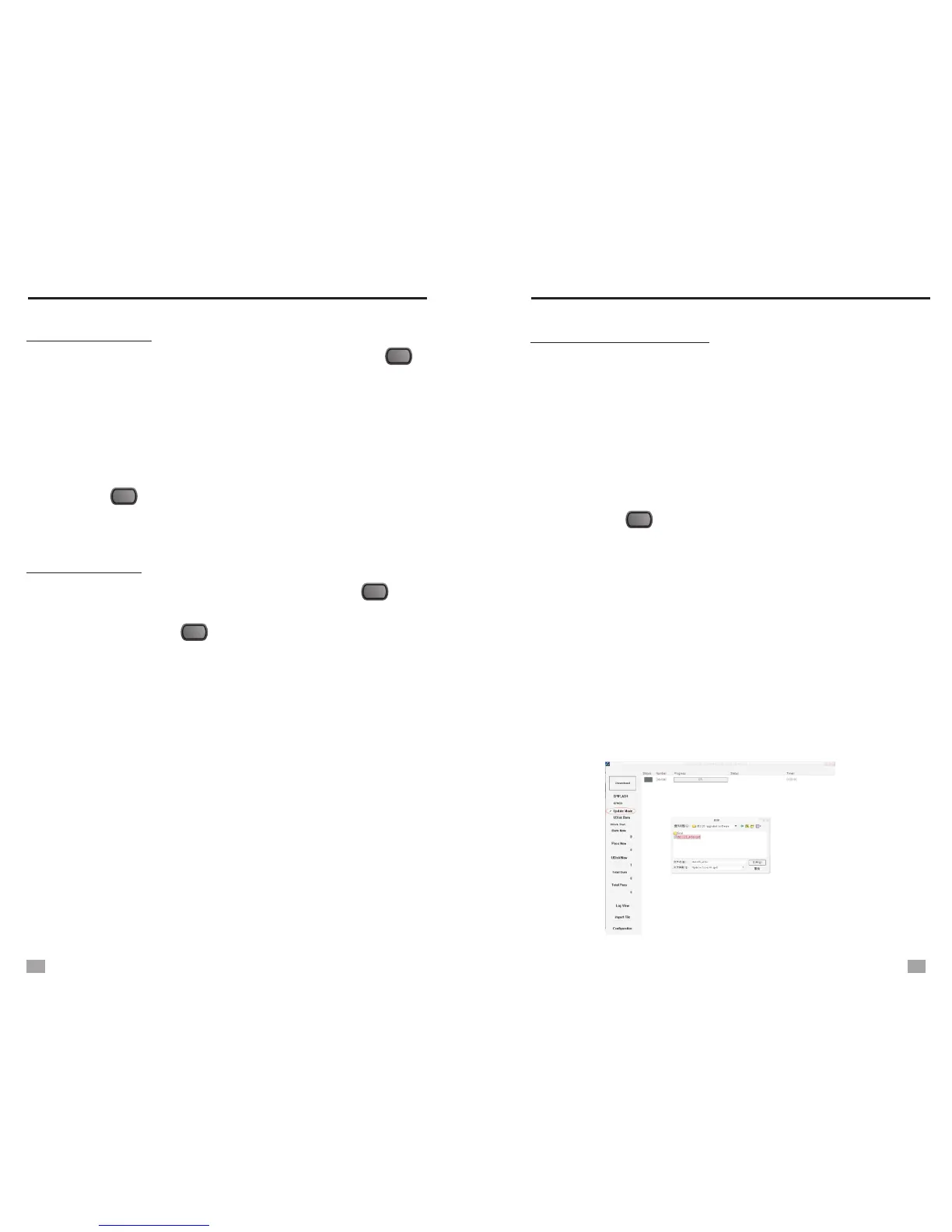
2. Open [Burn Tool] under the DE1129 Firmware Upgrade
Folder. The below program appears on the screen:
27
28


 To Next Page