LISTEN TO MP3 FILES
1. Turn on the unit and select [Music] from Main menu, then
press the < > button to enter.
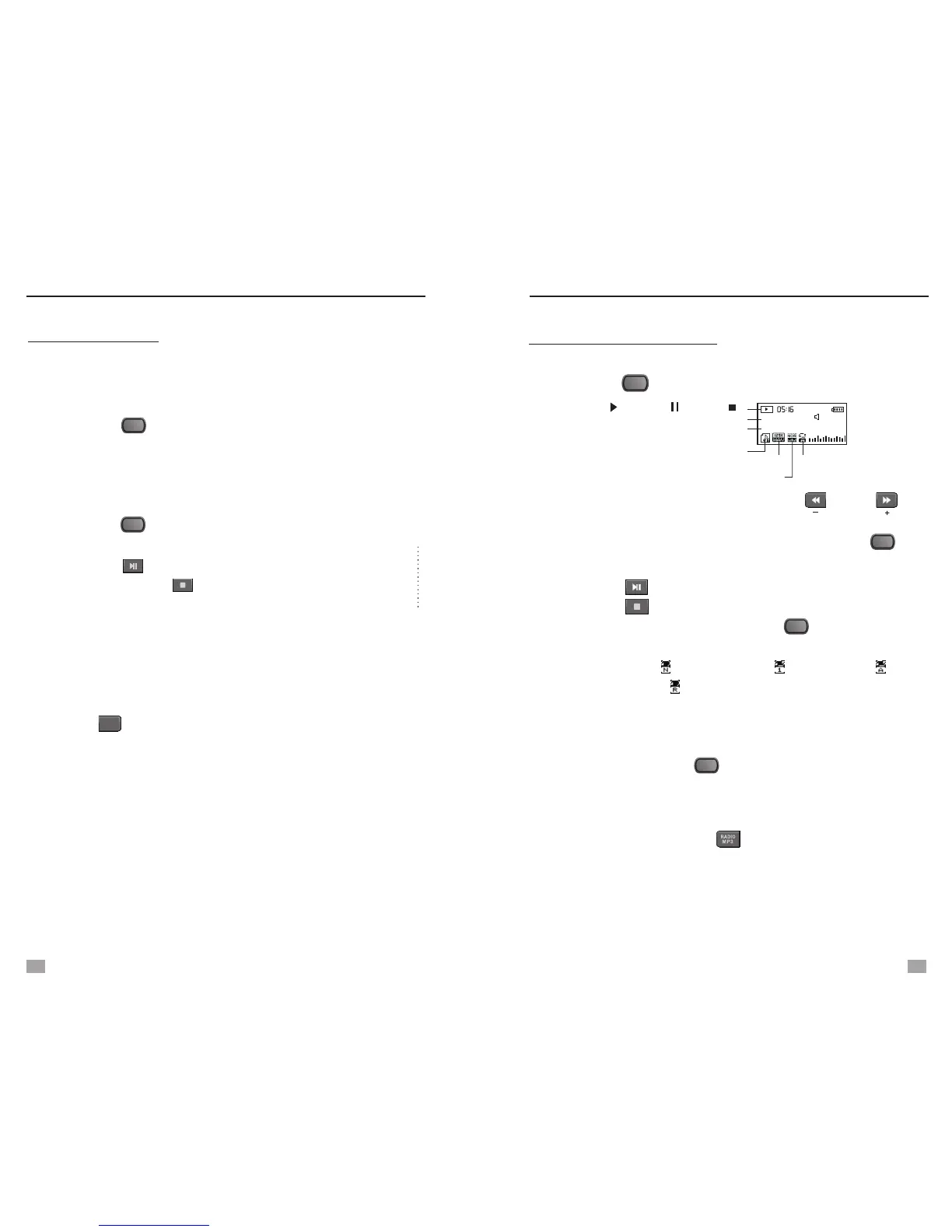
003 00:01:57
Gaga Poker Face
Play( ) Pause( ) Stop ( )
No. of the music files
Name of the song and players
“T” refers to LRC available
format and Kbps
Sound quality mode
Repeat mode
18
2. Rotate the Tuning Knob or press the < > or < >
button to select music file.
To search for a particular song, you can press the < >
button in Stop Playing Mode and select Local folder to find.
3. Press the < > button to play, press it again to pause;
press the < > button to stop.
4. While playing music file, press the < > button to enter
the following settings:
- Repeat: Normal [ ], Repeat One [ ], Repeat All [ ],
Random [ ]
- Equalizer: Natural, Rock, Pop, Classic, Soft, Jazz, Bass,
3D sound
- Tempo rate: -8 to 8 levels, 0 refers to normal speed.
- Lyrics: Press the the < > button to turn on/off
- Exit
MENU
MENU
MENU
Note: 1. A shortcut to the Music playing in radio mode is to
directly press the < > button.
2. The Lyrics must be in LRC format, use the same
name as the song and must be located in the same
folder.
RECORD RADIO
While listen to the FM/AM/SW stations, you can directly
record the programs by following the steps below:
1. Adjust the volume level up to 10 (minimum).
2. Press the < > button and select [Record], then rotate
the Tuning knob to choose either of below recording
formats:
- 129k BPS (WAV format, max 68 hours, 4G,)
- 40k BPS (MP3 format, max 215 hours, 4G)
3. Press the < > button to confirm your selection and
start recording. The timer on the display starts to count.
4. Press the < > button to pause and press it again to
restart, press the < > button to stop and auto store
the recorded file into the memory.
All recorded files can be located in the <Voice> folder of the
<Main Menu>.
Note: A shortcut to the recording function is to directly press
the < > button, recording format is according to your
last selection.
REC
MENU
MENU
RECORD RADIO
LISTEN TO MP3 FILES
MENU
13
14


 To Next Page