28 Using Your Projector
FREQUENCY—Allows you to change the display data clock frequency to match the
frequency of your computer graphics card. If you see a vertical flickering wave, use
Frequency control to minimize the bars. This is a coarse adjustment.
T
RACKING—Synchronize the phase of the display signal with the graphic card. If you
experience an unstable or flickering image, use Tracking to correct it. This is a fine
adjustment.
DISPLAY (in Video Mode)
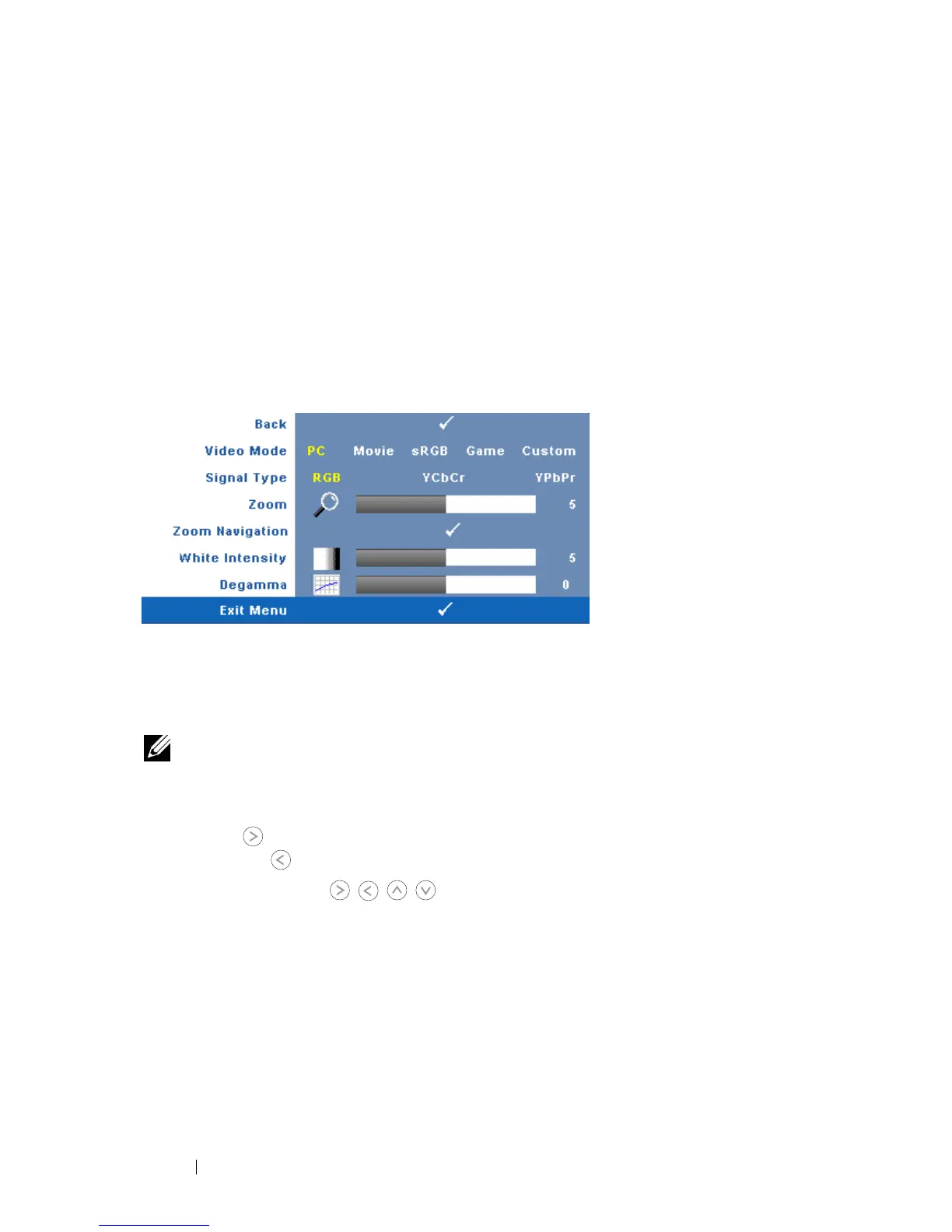
Using the Display menu, you can adjust the display settings of your projectors.
The Picture menu, provides the following options:
V
IDEO MODE—Allows you to optimize the projectors display mode:
PC, Movie, sRGB (provides more accurate color representation), Game, and
Custom (set your preferred settings). If you adjust the settings for White Intensity
or Degamma, the projector automatically switches to Custom.
NOTE: If you adjust the settings for White Intensity or Degamma, the projector
automatically switches to Custom.
S
IGNAL TYPE—Manually select signal type RGB, YCbCr, or YPbPr.
Z
OOM—Press to digitally magnify an image up to 4 times on the projection
screen and press to reduce the zoomed image.
Z
OOM NAVIGATION—Press to navigate projection screen.
W
HITE INTENSITY—Set 0 to maximize the color reproduction and 10 to maximize
the brightness.
D
EGAMMA—Adjust among the 4 preset values (1, 2, 3, 4) to change the color
performance of the display.


 To Next Page