1.
Press the Select button .2.
Press the Right Arrow button until the heading you want appears on the display, and then press
the Select button .
3.
Use the Arrow buttons to scroll through the available menu items.4.
When the setting you want appears on the display, press the Select button to save the setting.5.
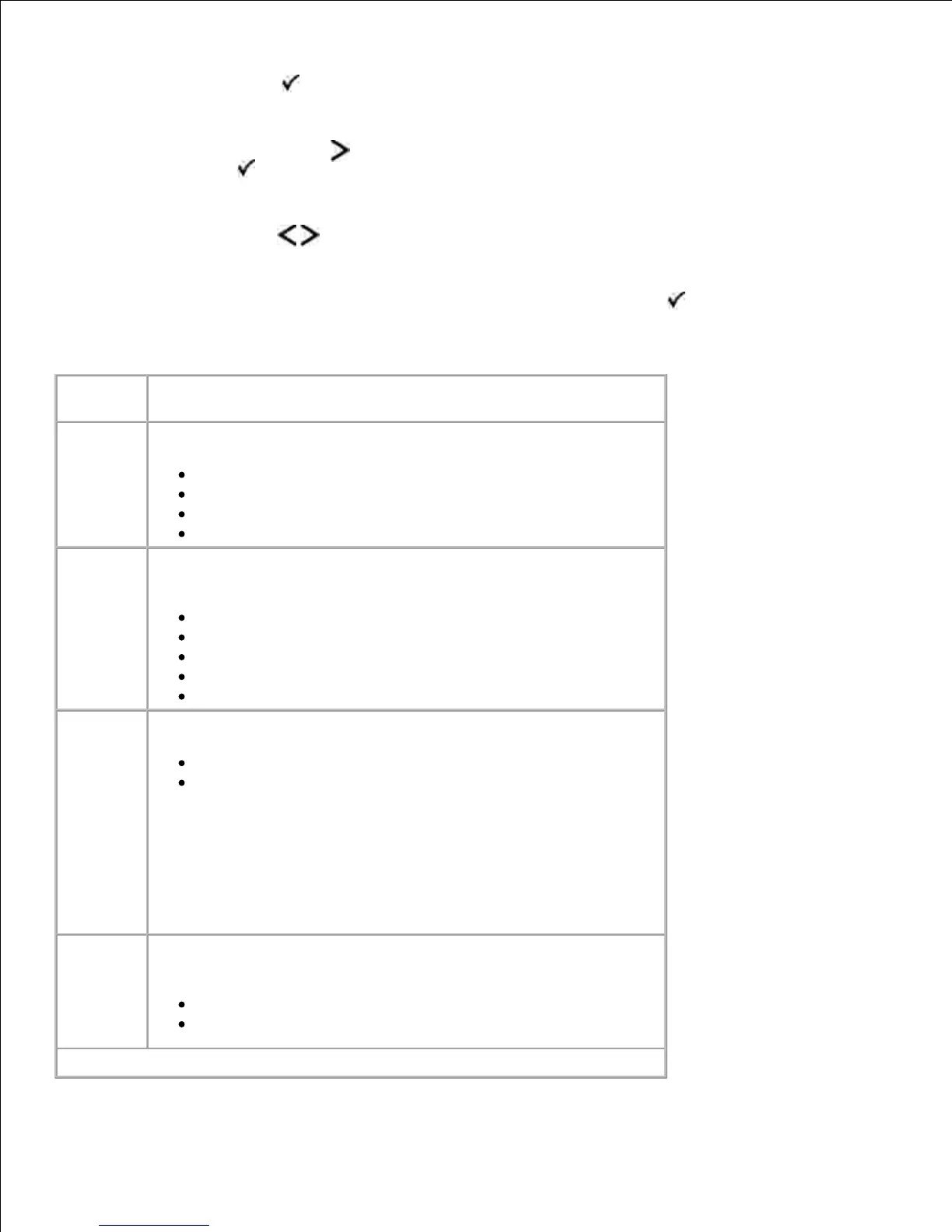
Quality Mode Main Menu
Specify the printed output resolution.
600 dpi*
1200 dpi
1200 Image Q
2400 Image Q
Approximate a high-resolution printer font and allow a rough
preview of how the page would look when printed.
Off*
Fonts
Horizontally
Vertically
Both directions
Lighten or darken printed output and conserve toner.
Ranges 1–10
8*
Select a lower value for finer line width, lighter grayscale images,
and lighter printed output.
Select a higher value for bolder line widths or darker grayscale
images.
NOTE: Selecting a smaller number can help conserve toner.
Enable a print mode preferable for files such as architectural
drawings, maps, electrical circuit diagrams, and flow charts.
Off*
On
* Factory default setting











 To Next Page