1-4 Dell PowerEdge 4100/180 and 4100/200 Systems User’s Guide
• If an optional Dell PowerEdge Expandable RAID
Controller SCSI host adapter card is installed in the
system, the amber drive fault indicator (identified by
a triangular icon) blinks if a disk failure has been
detected.
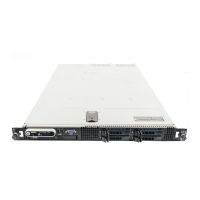
Figure 1-1. Front Panel
Connecting External Devices
You can connect various external devices, such as a
mouse and printer, to the I/O ports and connectors on the
computer’s back panel. The system BIOS detects the
presence of external devices when you boot or reboot
your system. When connecting external devices to your
computer, follow these guidelines:
• Check the documentation that accompanied the
device for specific installation and configuration
instructions.
For example, most devices must be connected to a
particular I/O port or connector to operate properly.
Also, external devices like a mouse or printer usually
require you to load software files called device drivers
into memory before they will work. These software
drivers help the computer recognize an external
device and direct its operation.
• Always attach external devices while your computer
is turned off. Then turn on the computer before
turning on any external devices, unless the documen-
tation for the device specifies otherwise. (If the
computer does not seem to recognize the device, try
turning on the device before the computer to see if
this resolves the problem.)
For information about enabling, disabling, or configuring
I/O ports and connectors, see Chapter 4, “Using the Sys-
tem Setup Program,” or Chapter 5, “Using the EISA
Configuration Utility.” For detailed descriptions and
illustrations of each port and connector on the I/O panel,
see “I/O Ports and Connectors” in Appendix B.
Preventing Unauthorized Access
Inside the Computer
To prevent unauthorized access to the inside of the com-
puter, you can lock the left and right computer covers and
hard-disk drives using a key provided with the system.
Figure 1-2. Keylock
power
indicator
power button
reset button
diskette-drive
access indicator
(typical)
SCSI hard-disk drive
activity indicator
SCSI hard-disk drive
SCSI hard-disk drive
online indicator





 To Next Page

