36 Using CDs, DVDs, and other Multimedia
www.dell.com | support.dell.com
5
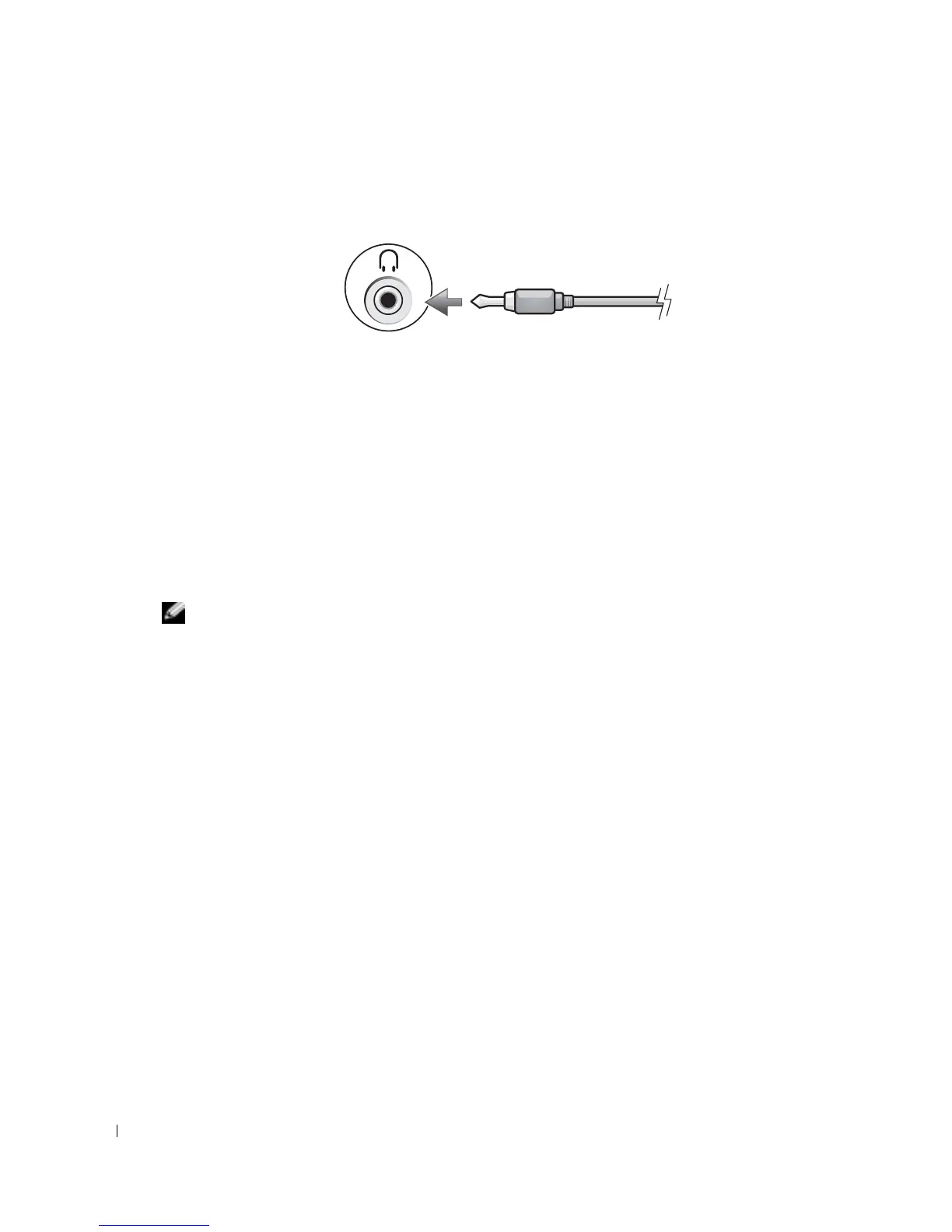
Plug the single-connector end of the audio cable in to the headphone connector on the
computer.
6
Plug the two RCA connectors on the other end of the audio cable in to the audio input
connectors on your TV or other audio device.
7
Turn on the TV and any audio device that you connected (if applicable), and then turn on the
computer.
8
See "Enabling the Display Settings for a TV" on page 36 to ensure that the computer
recognizes and works properly with the TV.
Enabling the Display Settings for a TV
NVIDIA Video-Controller Card
NOTE: Ensure that you properly connect the TV before you enable the display settings.
1
Click the
Start
button and click
Control Panel
.
2
Under
or pick a Control Panel icon
, click
Display
.
3
Click the
Settings
tab and click
Advanced
.
4
Click the
Nvidia GeForce
tab.
5
On the left side of the menu, click
nView Display Mode
.
6
Click
Clone
to enable the television.
7
Click
Apply
.
8
Click
OK
to confirm the settings change.
9
Click
Yes
to keep the new settings.
10
Click
OK
.





 To Next Page