Using On Screen Display (OSD) Functions 13
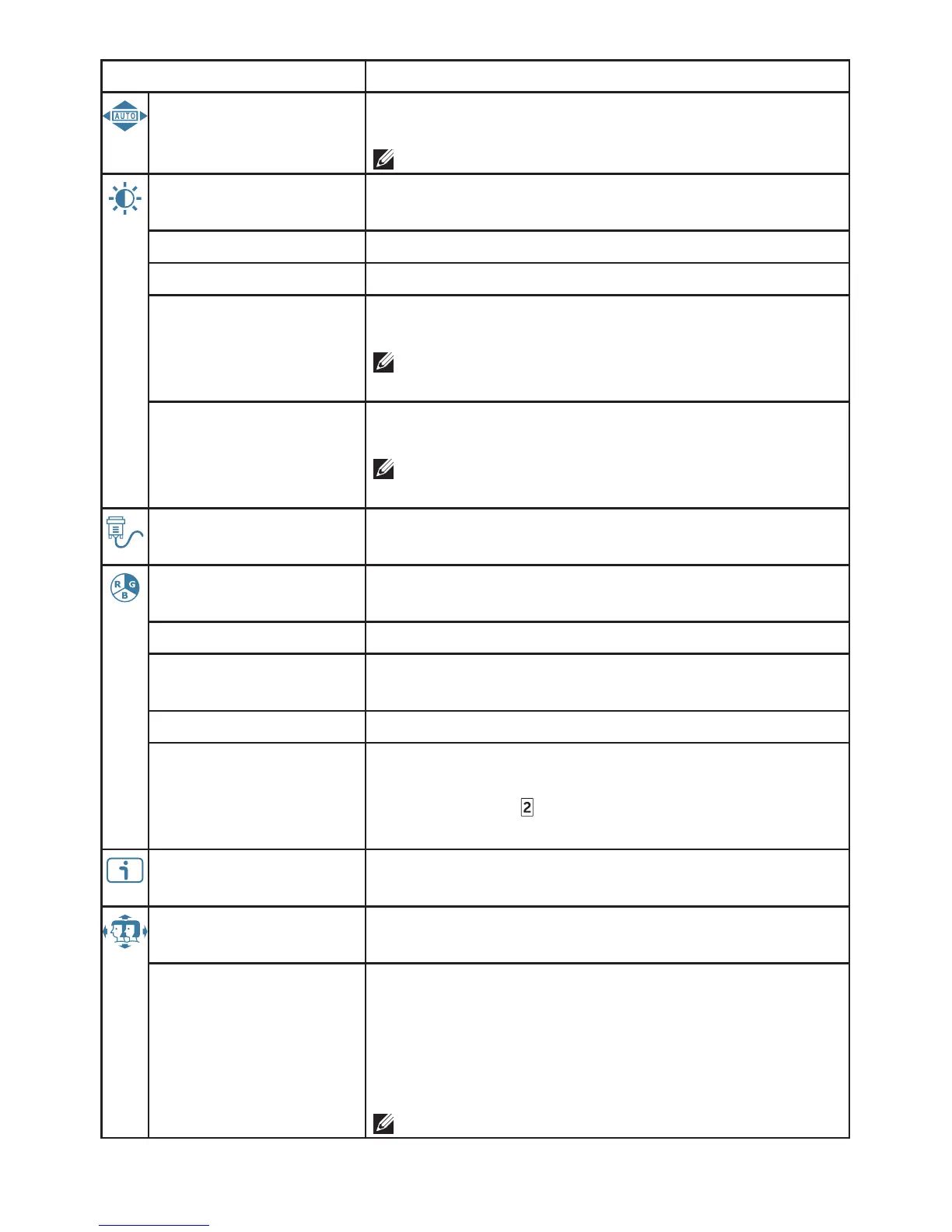
Menu item Description
Auto Image Adjust Adjust the Horizontal Position, Vertical Position,
Phase (Fine Tune) and Clock (H. Size) of the screen.
NOTE: Only available for VGA input.
Contrast/Brightness Adjust the Contrast, Brightness, DCR and ECO of
screen image.
• Contrast Adjust the foreground white level of screen image.
• Brightness Adjust the luminance of the video.
• DCR Detects the distribution of the visual signal input,
and creates an optimized contrast.
NOTE: Brightness and ECO adjustment are
disabled when DCR is active.
• ECO Allows the user to change the energy-saving
settings.
NOTE: Brightness and DCR adjustment are
disabled when ECO is active.
Input Source Press Input Source to change the input signal to
VGA or HDMI.
Color Adjust Toggle between preset color settings such as
Cool, Normal, Warm and User Color.
• Cool Adds blue to screen image for cooler white.
• Normal Adds red to screen image for warmer white and
richer red.
• Warm Adds green to screen image for a darker color.
• User Color Manually adjust settings for Red (R), Green (G),
Blue (B).
1. Press button to select the desired color.
2. Press ▼ or ▲ button to adjust selected color.
Information Displays information about the input signal
coming from the graphics card in your computer.
Manual Image
Adjust
Manually adjust H. / V. Position, Horizontal Size, Fine
Tune, Sharpness, Aspect Ratio and Color Vision Mode.
• H. / V. Position Adjust the horizontal and vertical position of the
video.
• H. Position: ▲: move screen to the right, ▼:
move screen to the left.
• V. Position: ▲: move screen up, ▼: move
screen down.
NOTE: Only available for VGA input.




 To Next Page