Back to Contents Page
Operating the Monitor
Dell™E2011HMonitorUser'sGuide
Using the Front Panel Controls
Using the On-Screen Display (OSD) Menu
PowerNap Software
Setting the Maximum Resolution
Using the Dell Soundbar (Optional)
Using the Tilt
Using the Front Panel Controls
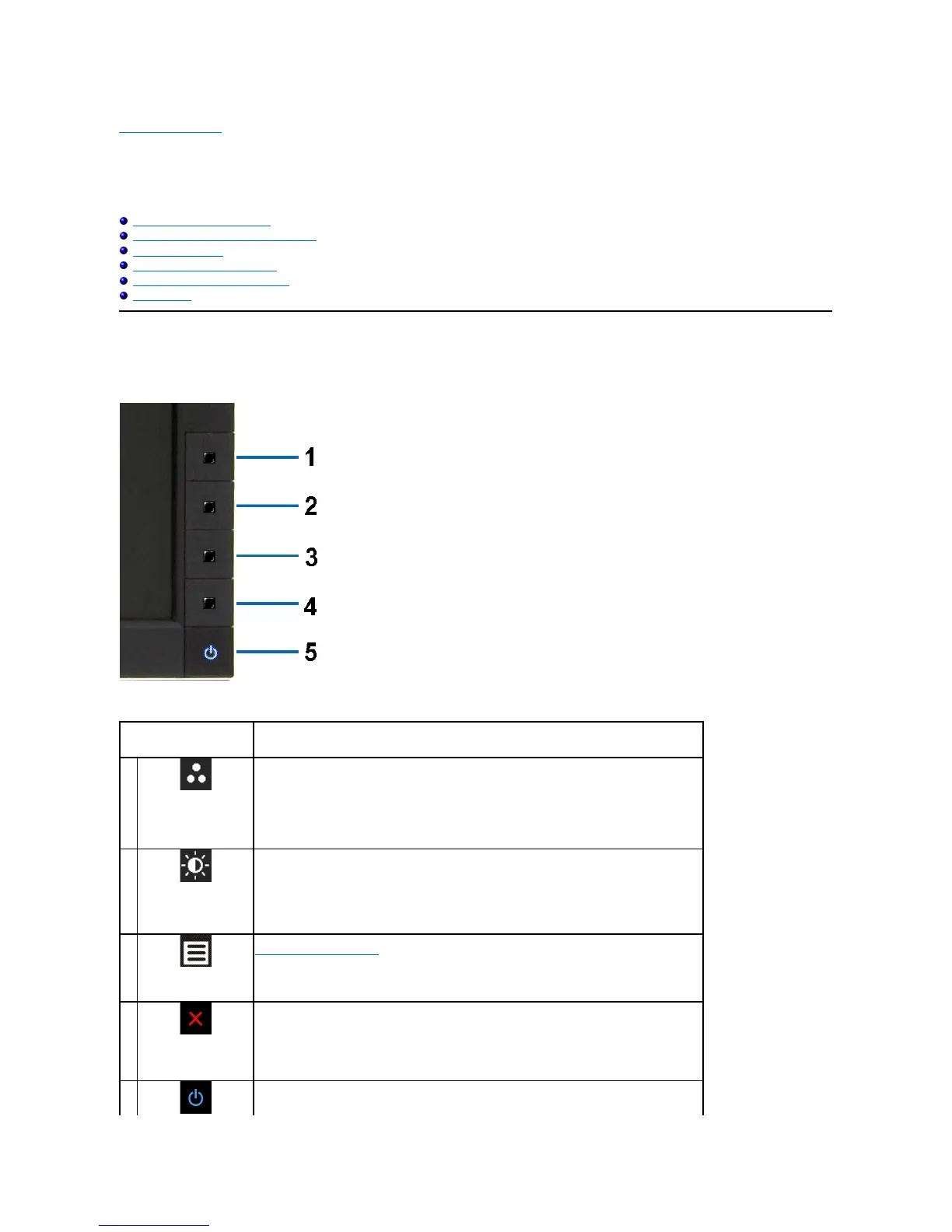
Use the control buttons on the front of the monitor to adjust the characteristics of the image being displayed. As you use these buttons to adjust the controls,
an OSD shows the numeric values of the characteristics as they change.
The following table describes the front panel buttons:
Use the MENU button to launch the on-screen display (OSD) and select the OSD Menu. See
Accessing the Menu System.
Use the Power button to turn the monitor on and off.
The Blue LED indicates the monitor is on and fully functional. An amber LED indicates DPMS power



 To Next Page