EasyManua.ls Logo

Dell OptiPlex 7040-Small Form Factor - User Manual

Dell OptiPlex 7040-Small Form Factor
51 pages
Print Icon
To Next Page IconTo Next Page
Loading...
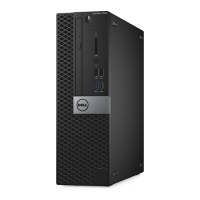
OptiPlex 7040 - Small Form Factor
Owner's Manual
Regulatory Model: D15S
Regulatory Type: D15S003
May 2020
Rev. A03

Table of Contents

Questions and Answers

  • J
    Joseph VasquezSep 23, 2025
    What to do if my Dell OptiPlex 7040-Small Form Factor displays 'No Timer Tick Interrupt'?
    • S
      Scott BurnettSep 23, 2025
      If your Dell Desktop displays 'No Timer Tick Interrupt', a chip on the system board may be malfunctioning. Run the System Set tests in Dell Diagnostics.
  • J
    Janice LawrenceSep 23, 2025
    What to do if my Dell OptiPlex 7040-Small Form Factor displays 'Sector Not Found'?
    • D
      Danny FriedmanSep 23, 2025
      If your Dell Desktop displays 'Sector Not Found', the operating system cannot locate a sector on the hard drive. You may have a defective sector or corrupted File Allocation Table (FAT) on the hard drive. Run the Windows error-checking utility to check the file structure on the hard drive. If a large number of sectors are defective, back up the data (if possible), and then format the hard drive.
  • M
    Melissa CantrellSep 23, 2025
    What to do if my Dell Desktop displays 'Timer Chip Counter 2 Failed'?
    • J
      Jennifer HuangSep 23, 2025
      If your Dell Desktop displays 'Timer Chip Counter 2 Failed', a chip on the system board may be malfunctioning. Run the System Set tests in Dell Diagnostics.
  • N
    Nicholas AyalaAug 31, 2025
    What to do if my Dell Desktop displays 'Not Enough Memory or Resources'?
    • J
      Jeremy GarciaAug 31, 2025
      If your Dell Desktop displays the message 'Not Enough Memory or Resources', it means you likely have too many programs open. Close all windows and then reopen the program you want to use.
  • H
    hawkinsshannonAug 25, 2025
    What does 'No Boot Device Available' mean on my Dell OptiPlex 7040-Small Form Factor Desktop?
    • M
      Matthew PadillaAug 25, 2025
      If your Dell Desktop displays 'No Boot Device Available', the computer cannot find the hard drive. If the hard drive is your boot device, ensure that the drive is installed, properly seated, and partitioned as a boot device.
  • M
    Mrs. Mary DicksonAug 25, 2025
    What to do if my Dell OptiPlex 7040-Small Form Factor Desktop is off?
    • V
      vegabenjaminAug 26, 2025
      If your Dell Desktop is off, ensure it's receiving power and is not in Hibernation mode. Check the power cable connection at the back of the computer and the electrical outlet. If plugged into a power strip, verify the strip is on and connected to a working outlet. Bypassing power protection devices and extension cables can help determine if they are the issue. Test the outlet with another device.
  • S
    Sandra SmithAug 26, 2025
    What to do if my Dell OptiPlex 7040-Small Form Factor shows 'Bad Motherboard, Power Supply or Power Supply cabling'?
    • P
      Patricia SimmonsAug 26, 2025
      If you can assist with troubleshooting, try the PSU BIST Test and reseat the cable. If these steps don't work, replace the motherboard, power supply, or cabling.
  • D
    Daniel HartmanAug 27, 2025
    What to do if my Dell OptiPlex 7040-Small Form Factor displays 'Bad Motherboard, Memory or Processor'?
    • H
      Heather SanchezAug 27, 2025
      If you can assist with troubleshooting, try reseating the memory and swapping it with a known good memory module. If that doesn't work, replace the motherboard, memory, or processor.
  • C
    Chris FrenchAug 27, 2025
    Why does my Dell Desktop have a 'Bad Processor'?
    • D
      davidbrookeAug 27, 2025
      The CPU configuration activity is in progress or a CPU failure was detected, so replace the processor.
  • S
    Scott DurhamAug 27, 2025
    What to do if my Dell OptiPlex 7040-Small Form Factor keyboard is not working?
    • J
      Jason SmithAug 27, 2025
      If your Dell Desktop keyboard is not working due to keyboard failure or a loose cable, try reseating the cable. If the problem continues, replace the keyboard.

Summary

Working on Your Computer

Before Working Inside Your Computer

Steps to prepare the computer and workspace before performing internal maintenance.

Turning Off Your Computer

Procedure for safely powering down the computer before maintenance.

After Working Inside Your Computer

Steps to reconnect devices and ensure proper operation after maintenance.

Removing and Installing Components

Troubleshooting Your Computer

Diagnostic Error Messages

Lists common diagnostic error messages with descriptions and suggested resolutions.

System Error Messages

Details system-specific error messages encountered during operation and their solutions.

System Setup

Assigning System and Setup Passwords

Detailed steps for setting or changing system and BIOS passwords for security.

Dell OptiPlex 7040-Small Form Factor Specifications

General IconGeneral
BrandDell
ModelOptiPlex 7040-Small Form Factor
CategoryDesktop
LanguageEnglish

Related product manuals