EasyManua.ls Logo

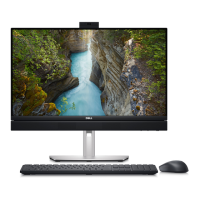
Dell OptiPlex All-in-One Plus 7410 - User Manual

Dell OptiPlex All-in-One Plus 7410
123 pages
Print Icon
To Next Page IconTo Next Page
Loading...
OptiPlex All-in-One Plus 7410
Owner's Manual
Regulatory Model: W31C
Regulatory Type: W31C001
March 2023
Rev. A00

Table of Contents

Other manuals for Dell OptiPlex All-in-One Plus 7410

Questions and Answers

  • C
    Christopher DeanAug 19, 2025
    How to fix system board failure on Dell OptiPlex All-in-One Plus 7410 Desktop?
    • S
      stevensonsummerAug 19, 2025
      If your Dell Desktop indicates a system board failure, including BIOS corruption or ROM error, first flash the latest BIOS version. If the issue continues, the system board may need to be replaced.
  • K
    kim27Aug 21, 2025
    What to do if CPU failure occurs on Dell Desktop?
    • B
      Brian SuttonAug 21, 2025
      If your Dell Desktop is experiencing a CPU failure, run the Dell SupportAssist/Dell Diagnostics tool. If the problem persists after running the diagnostic tool, consider replacing the system board.
  • J
    jessicastewartAug 23, 2025
    What to do for memory/RAM failure on Dell OptiPlex All-in-One Plus 7410 Desktop?
    • T
      taylorphilipAug 25, 2025
      If your Dell Desktop experiences a memory/RAM failure, try resetting and swapping the memory modules among the slots. If the problem persists, the memory module may need to be replaced.
  • C
    Christine VillarrealAug 26, 2025
    What to do if invalid memory installed on Dell OptiPlex All-in-One Plus 7410 Desktop?
    • U
      uayalaAug 26, 2025
      If your Dell Desktop has invalid memory installed, try resetting and swapping the memory modules among the slots. If the problem persists, the memory module may need to be replaced.
  • M
    Michael FergusonAug 28, 2025
    How to fix Flash corruption detected by SBIOS on Dell OptiPlex All-in-One Plus 7410 Desktop?
    • D
      Daniel KimAug 28, 2025
      If your Dell Desktop displays a Flash corruption detected by SBIOS, press the power button for over 25 seconds to do an RTC reset. If the issue continues, replace the system board. Also, disconnect all power sources (AC, battery, coin cell) and drain flea power by pressing and holding down the power button for 3~5 seconds to ensure all power is drained.
  • B
    Brian MillerAug 30, 2025
    What to do if BIOS Recovery image is not found on Dell OptiPlex All-in-One Plus 7410?
    • D
      Daniel KirbyAug 30, 2025
      If your Dell Desktop shows a BIOS Recovery image not found error, flash the latest BIOS version. If the problem persists, consider replacing the system board.
  • G
    Gregory HutchinsonSep 1, 2025
    How to resolve invalid BIOS Recovery image on Dell OptiPlex All-in-One Plus 7410 Desktop?
    • B
      Brian MoodySep 1, 2025
      If your Dell Desktop indicates that the BIOS Recovery image was found but is invalid, flash the latest BIOS version. If the problem persists, the system board may need to be replaced.
  • S
    sandramosesSep 3, 2025
    How to fix TPM detection failure on Dell OptiPlex All-in-One Plus 7410?
    • C
      Christian ButlerSep 3, 2025
      If your Dell Desktop is experiencing a TPM detection failure, replace the system board.
  • L
    Lindsay HorneSep 5, 2025
    What to do if EC unable to program i-Fuse on Dell Desktop?
    • J
      Jason LyonsSep 5, 2025
      If your Dell Desktop shows 'EC unable to program i-Fuse', replace the system board.
  • S
    sanchezlisaSep 7, 2025
    How to resolve ungraceful EC code flow errors on Dell OptiPlex All-in-One Plus 7410 Desktop?
    • J
      John VaughanSep 7, 2025
      If your Dell Desktop experiences a generic catch-all for ungraceful EC code flow errors, disconnect all power sources (AC, battery, coin cell) and drain flea power by pressing and holding down the power button for 3~5 seconds.

Summary

Views of OptiPlex All-in-One Plus 7410

Right Side Ports

Details ports and features on the right side of the computer.

Left Side Ports

Details ports and features on the left side of the computer.

Display Components

Describes display elements like microphones, camera, and speakers.

Retractable Camera Functionality

Explains the location and operation of the retractable camera.

Bottom Panel Ports

Lists and describes ports on the bottom of the computer.

Back Panel Connectivity

Details various ports on the back of the computer.

Service Tag Identification

Explains the purpose and location of the Service Tag.

Set Up Your Computer

Specifications of OptiPlex All-in-One Plus 7410

Dimensions and Weight

Provides physical dimensions and weight specifications for the computer.

Processor and Chipset

Lists processor types, speeds, and chipset details.

Supported Operating Systems

Lists the operating systems supported by the computer.

Memory and Storage Options

Details memory slots, configurations, and storage types like M.2 SSDs.

External and Internal Ports

Lists and describes all external and internal connection ports.

Network and Audio Specifications

Details Ethernet, Wireless, and Audio component specifications.

Display and Camera Features

Lists display resolutions, touch options, and camera specifications.

Power Ratings and Supply Connectors

Details power supply unit (PSU) ratings and connector types.

Dell ComfortView and GPU Information

Explains eye comfort features and graphics processing units.

Hardware Security and Environmental Data

Lists security features and environmental compliance information.

Working Inside Your Computer

Safety Instructions and Precautions

Essential safety guidelines before performing internal work.

ESD Protection Measures

Details ESD risks and protective equipment like wrist straps.

Recommended Tools and Procedures

Lists tools and steps for safe component handling and lifting.

Screw List and Component Identification

Details screws used and identifies major computer components.

Removing and Installing Customer Replaceable Units (CRUs)

Stand Removal and Installation

Steps to remove and install the computer stand.

Back Cover Removal and Installation

Steps to remove and install the computer's back cover.

Memory Module Handling

Steps for removing and installing memory modules.

M.2 Solid-State Drive Management

Steps for removing and installing M.2 SSDs in slots 0 and 1.

Coin-Cell Battery Replacement

Steps for removing and installing the coin-cell battery.

I;O Cover and Bottom Cover Procedures

Steps for removing and installing the I/O and bottom covers.

Retractable Camera Assembly Handling

Steps to remove and install the retractable camera assembly.

Fan and Power Supply Unit Procedures

Steps for removing and installing the system fan and power supply unit.

Removing and Installing Field Replaceable Units (FRUs)

Power-Supply Fan Removal and Installation

Steps to remove and install the power supply fan.

I;O Bracket and Speaker Handling

Steps for removing and installing the I/O bracket and speakers.

Heat Sink and Processor Management

Steps for removing and installing the heat sink and processor.

System Board Removal and Installation

Steps to remove and install the system board.

Power-Button & I;O Board and Audio Board Procedures

Steps for handling the power-button/I/O board and audio board.

Display-Assembly Base Removal and Installation

Steps to remove and install the display-assembly base.

Software

Supported Operating Systems

Lists the operating systems supported by the computer.

Drivers and Downloads Information

Guidance on obtaining drivers and software updates.

BIOS Setup

Entering BIOS Setup Program

Instructions on how to access the BIOS setup utility.

System Setup Options Overview

Details various configuration menus within BIOS setup.

Updating the BIOS

Procedures for updating the system BIOS.

System and Setup Password Management

Instructions for setting, changing, or clearing BIOS passwords.

Troubleshooting

Dell SupportAssist Diagnostics

Overview of the pre-boot system performance check tool.

System-Diagnostic Lights Explained

Lists diagnostic light patterns and their corresponding problem descriptions.

Operating System Recovery Options

Steps for recovering the operating system using Dell tools.

Wi-Fi Connectivity Troubleshooting

Procedure for troubleshooting Wi-Fi issues via power cycling.

Getting Help and Contacting Dell

Self-Help Resources and Documentation

Information and links to Dell's self-help resources.

Dell Contact Information

How to contact Dell for sales, technical support, or service issues.

Dell OptiPlex All-in-One Plus 7410 Specifications

General IconGeneral
Operating SystemWindows 11 Pro
WirelessWi-Fi 6E, Bluetooth 5.2
Processor13th Gen Intel Core i5/i7/i9
Display23.8-inch FHD (1920 x 1080) Anti-Glare
MemoryUp to 64GB
StorageUp to 2TB PCIe NVMe SSD
GraphicsIntel UHD Graphics
AudioStereo speakers with Waves MaxxAudio Pro
Webcam5MP
Ports (Front)USB-C, USB-A, headphone/microphone combo
Ports (Rear)HDMI
Power Supply90W External Adapter

Related product manuals